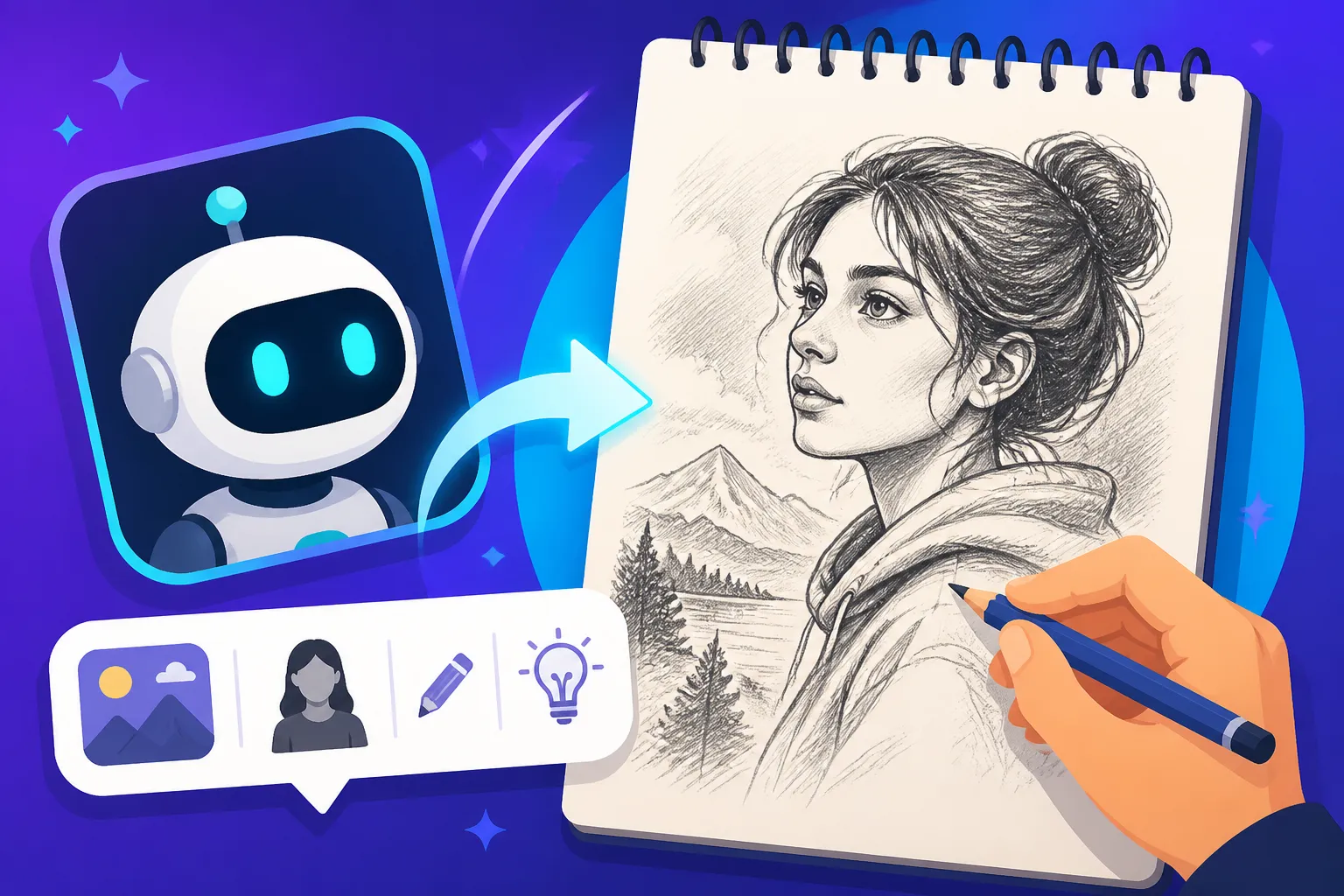
How to Write AI Prompts for Pencil Sketch Images
It's incredibly frustrating when you're trying to capture that classic, tactile feel of a hand-drawn pencil sketch with an AI image generator, only to end up with something that looks flat, too perfect, or even colored when you specifically wanted grayscale. Getting AI to understand the subtle nuances of a true pencil drawing can feel like a guessing game. This guide is designed to help you craft effective AI prompts to consistently generate beautiful, authentic-looking pencil sketch images, saving you time and endless regeneration attempts.
Understanding the Unique Charm of a Pencil Sketch
Before we dive into the nitty-gritty of prompt writing, let's take a moment to appreciate what makes a pencil sketch so special. It's not just about the lines; it's about the texture, the deliberate imperfections, the way light plays on graphite, and the inherent simplicity that often conveys more emotion than a fully rendered piece. When we talk about a "pencil sketch," we're usually imagining something in shades of gray, from the lightest whisper of a line to deep, rich shadows, all created with a graphite stick on paper.
This particular art form evokes a sense of raw creativity, a glimpse into the artist's initial vision. Think about the difference between a meticulously colored digital painting and a quick, expressive charcoal portrait. The pencil sketch occupies that space of immediate, often intimate, artistic expression. AI, by its nature, is incredibly precise, which can sometimes work against the organic, slightly messy beauty of a true sketch. Our job with prompting is to guide the AI to simulate that organic quality, rather than letting it default to its sterile, digital perfection.
The Tactile Experience of Graphite and Paper
One of the biggest challenges in generating realistic pencil sketches with AI is replicating the tactile experience. A real pencil sketch lives on a physical surface – paper. The type of paper, its texture, and how the graphite interacts with it are all crucial. A smooth, Bristol board will yield sharp, clean lines, while a toothy, cold-press watercolor paper will grab the graphite, creating a more textured, granular look. The pressure applied by the artist also dictates the richness of the line and shade.
When you're prompting, you need to explicitly tell the AI about these elements. If you just say "pencil sketch," the AI might give you a digital approximation that lacks the subtle unevenness, the slight smudges, or the visible paper grain that we associate with genuine hand-drawn art. It's these tiny details that transform a generic "sketch" into something that feels truly authentic and grounded. Without careful prompting, you might find your results looking more like a computer-generated line drawing than an actual piece of art made with graphite.
Core Elements for Your Pencil Sketch Prompt
To consistently get the results you want, you need to break down the "pencil sketch" aesthetic into its fundamental components for the AI. Think of it like giving a detailed recipe instead of just saying "make dinner." The more specific you are, the better the AI can understand your vision. This involves clearly defining the subject, the style, the medium, and even the "feel" of the sketch.
Defining the Subject and the Artistic Style
First and foremost, you need a clear subject. Is it a person, a landscape, an object, an animal? Be as descriptive as possible. Instead of "a dog," try "a playful golden retriever puppy chasing a butterfly." This provides the AI with a strong visual anchor.
Next, you absolutely must specify the artistic style. This is where many beginners fall short. Simply adding "pencil sketch" isn't always enough. You need to reinforce it. Consider these options:
- "Highly detailed pencil sketch"
- "Loose graphite drawing"
- "Charcoal sketch art"
- "Hand-drawn graphite illustration"
- "Pencil on paper drawing"
- "Realistic pencil drawing"
- "Expressive sketch"
Combining these with your subject is key. For example: "A majestic lion, highly detailed pencil sketch, looking intensely into the distance." Remember, AI models understand certain phrases and aesthetics better than others. Experimenting with synonyms and descriptive adjectives is part of the art of prompt writing. For a more general overview, check out our guide on How to Write AI Image Prompts.
Specifying Medium and Technique
This is arguably the most crucial section for achieving an authentic pencil sketch look. You need to tell the AI not just what the image should be, but how it should look like it was created.
- Medium: Always include "pencil," "graphite," "charcoal," or "conte crayon." Adding "on paper" or "on textured paper" significantly improves realism.
- Color: Unless you specifically want a colored pencil sketch, always specify "monochromatic," "grayscale," "black and white," or "sepia tones" to avoid unexpected colors. A prompt like "pencil sketch, no color" or using a negative prompt like
--no coloris often very effective. - Technique: Describe how the pencil marks should appear. Are they fine lines, bold strokes, smudged shadows?
- Line work: "Delicate lines," "bold outlines," "cross-hatching," "stippling," "sketchy lines," "clean lines."
- Shading: "Soft shading," "heavy shadows," "smudged graphite," "smooth gradients," "lightly shaded."
- Detail: "Intricate details," "minimalist lines," "highly realistic," "abstract sketch."
Let's look at an example: "A bustling Parisian street cafe, quick charcoal sketch, loose lines, soft smudged shadows on coarse paper, monochromatic." This prompt paints a very clear picture for the AI, leaving little to chance. When you're trying to refine specific artistic styles, it's worth exploring dedicated guides like How to Prompt for Specific Art Styles.
Refining Your Sketch with Specific Details
Once you have the core elements down, it's time to layer in the specific details that elevate a good sketch to a truly remarkable one. This is where you can exert fine-tuned control over the aesthetic, making your AI-generated sketch indistinguishable from a human-created piece.
Controlling Line Weight and Shading Dynamics
The visual impact of a pencil sketch is heavily influenced by how lines are drawn and how shading is applied. AI generators can interpret these dynamics if you provide precise instructions.
-
Line Weight: Think about what kind of lines you want. Do you want the subject to have thick, bold outlines, or delicate, almost ethereal edges?
- "Varying line weight, thick outlines for foreground elements, fine lines for background details."
- "Consistent fine line drawing."
- "Bold, heavy strokes, reminiscent of a quick gesture drawing."
- "Feather-light pencil strokes, almost ethereal."
- "Strong, confident lines define the form."
-
Shading Techniques: This is crucial for depth and realism. Pencil sketches gain their three-dimensionality through effective shading.
- "Cross-hatching for deep shadows and texture."
- "Smooth, blended graphite shading, soft gradients."
- "Stippling technique for tonal variations."
- "Loose, scribbled shading for an energetic feel."
- "Smudged shadows, creating a soft, hazy atmosphere."
- "Dramatic chiaroscuro shading, high contrast."
A good example might be: "A lone lighthouse against a stormy sea, dramatic pencil sketch, heavy cross-hatching for the dark clouds, smooth blended shading on the lighthouse structure, with very fine lines for the distant waves." This level of detail makes a huge difference in the final output. For more advanced tips on improving your overall image results, consider reading How to Get Better AI Image Results.
Incorporating Paper Texture and Pencil Grade
To truly mimic a traditional sketch, you need to consider the canvas itself and the specific tools used. The AI can render these subtle but impactful details.
-
Paper Texture: This is often overlooked but adds immense authenticity.
- "On coarse grain paper."
- "On smooth, fine art paper."
- "On aged, slightly yellowed sketch paper."
- "On parchment texture."
- "Visible paper fibers and texture."
-
Pencil Grade: Different pencil grades (from 9H to 9B) produce different effects, from hard, light lines to soft, dark, smudgy marks.
- "Rendered with an HB pencil, balanced tones."
- "Deep, rich shadows from a 6B charcoal pencil."
- "Delicate details with a 2H lead pencil."
- "Soft, velvety blacks of a B grade graphite."
By combining these, you can achieve remarkable fidelity. For instance: "A serene forest path, intricate pencil drawing with a 4B graphite pencil, smooth blending on textured cold-press paper, deep shadows, and delicate highlights." This specificity guides the AI to produce an image that not only looks like a sketch but feels like it was drawn by a human hand on a particular kind of paper.
Here's a quick reference table for common pencil sketch styles and key prompt modifiers:
| Style | Key Prompt Elements | Avoid/Negative Prompts |
|---|---|---|
| Realistic | highly detailed, intricate, smooth shading, precise lines, delicate highlights, on fine grain paper, 2H-2B pencil |
loose, messy, cartoon, abstract, colored |
| Loose/Expressive | energetic, gestural, quick sketch, loose lines, smudged graphite, raw, imperfect, on rough paper, 4B-6B charcoal |
clean, precise, digital, photorealistic, symmetrical |
| Architectural | blueprint style, precise lines, technical drawing, cross-section, schematic, clean edges, on white paper, HB pencil |
organic, messy, artistic, soft shading, blurry |
| Portrait | sensitive shading, lifelike, expressive eyes, delicate features, smooth skin texture, HB-4B graphite on sketchbook paper |
distorted, cartoon, unrealistic, harsh lines, pixelated |
| Comic/Manga | inked lines, bold outlines, dynamic poses, stylized, character sheet, on white paper, anime pencil sketch |
realistic, soft, painting, blurry, grayscale only |
Troubleshooting and Advanced Techniques for Perfect Sketches
Even with a well-constructed prompt, AI generation can sometimes be a bit unpredictable. It's an iterative process, and knowing how to troubleshoot common issues and employ advanced techniques will help you fine-tune your results and overcome creative hurdles.
Dealing with Unwanted Color or Digital Artifacts
One of the most common frustrations when prompting for pencil sketches is the AI adding unwanted color or a too-clean, digital look. You explicitly asked for a sketch, but you get something that looks more like a desaturated photograph or a line drawing with a hint of blue.
- Specify Grayscale Explicitly: Always include "grayscale," "monochromatic," "black and white," or "sepia tones" in your prompt. Don't assume the AI will interpret "pencil sketch" as purely monochrome.
- Negative Prompts: These are your best friends. Use negative prompts to tell the AI what you don't want. For instance:
--no color, digital art, saturation, vibrant, colored pencil, painting, illustration, cartoon. This directly instructs the AI to steer clear of these elements. - Iterate and Adjust: If your first generation has a hint of color, regenerate with stronger negative prompts or rephrase your positive prompt to be even clearer about the monochromatic aspect. Sometimes, simply moving
grayscaleto the beginning of your prompt can give it more weight.
It's a continuous dance between what you ask for and what you tell the AI to avoid. Understanding Common AI Image Prompt Mistakes can really help streamline this process.
Achieving Specific Moods and Artistic Intent
A sketch isn't just about lines and shading; it conveys a mood. Whether you want a somber, whimsical, or dramatic feel, your prompt can guide the AI to inject that emotion into the image.
- Emotional Adjectives: Use words that describe the feeling you want: "melancholy," "joyful," "eerie," "peaceful," "dynamic," "serene."
- Lighting and Composition: Even in a sketch, lighting can define the mood.
- "Soft, diffused light, creating a peaceful atmosphere."
- "Dramatic harsh shadows, high contrast, evoking mystery."
- "Backlit, delicate glow around the subject."
- "Close-up portrait, focusing on the intricate details of the eyes, soft light."
- "Wide shot, sprawling landscape, distant horizon, expansive."
- Artistic Influence: If you have a particular artist's style in mind, you can sometimes reference it carefully. For example, "pencil sketch in the style of Leonardo da Vinci's anatomical studies," or "quick sketch reminiscent of Egon Schiele's portraits." Be aware that some AI models are better at recognizing specific artists than others, but it's worth trying for a distinct aesthetic.
Consider the difference between "a child playing" and "a whimsical pencil sketch of a child laughing in a field of sunflowers, dappled light, sense of innocent joy." The latter is far more likely to produce a result that aligns with your artistic intent.
Advanced Tips for Complex Sketches
For more complex scenes or specific visual goals, you might need to go beyond basic prompting.
- Reference Images (Image-to-Image): Many AI tools, like Midjourney or Stable Diffusion, allow you to use an existing image as a reference. You can upload a photo or another sketch and then add your text prompt to guide the AI in transforming it into a pencil sketch while retaining compositional elements. This is incredibly powerful for maintaining consistency or achieving a specific pose. For instance, if you want a sketch of your pet, use its photo as an input, then add "pencil sketch, realistic, intricate detail, 2B pencil."
- Layering Concepts: Don't be afraid to break down a complex scene into its constituent parts within a single prompt. For example: "A bustling market street, [subject 1: fruit vendor, detailed pencil sketch, cross-hatching], [subject 2: old woman with a basket, expressive lines], [background: blurred city architecture, light graphite strokes]." While not all AI models handle multi-prompting the same way, clear separation helps.
- Upscaling and Post-Processing: Sometimes the initial generations might be good but lack the crispness or resolution you need. Many AI tools offer built-in upscaling, or you can use external upscalers like Magnific AI to refine the details and make your sketch ready for print or high-resolution display. Even a perfect prompt might yield a slightly low-res image that benefits from a good upscaler.
The journey of creating AI art is one of continuous learning and iteration. By mastering the art of descriptive and nuanced prompting, you'll find yourself consistently generating the beautiful, authentic pencil sketches you envision. Don't be afraid to experiment, and remember that every prompt is a step closer to understanding how to best communicate with your AI artistic assistant.
Disclaimer
The information provided in this guide is for general informational purposes only. While AI image generation tools are powerful, the quality and artistic style of generated images can vary significantly between different platforms and models. Always review the terms of service and licensing agreements for any AI tool you use, especially if you intend to use the images for commercial purposes.