How to Prompt AI for Better Portraits
Have you ever spent what feels like an eternity typing out the perfect description for an AI portrait, only to get back something that looks… well, a little off? Maybe the eyes are slightly mismatched, the hands are a jumbled mess, or the whole face just has that uncanny valley vibe that screams "AI-generated"? It's a common frustration, believe me! Getting AI to capture the subtle nuances of a human face and create truly compelling portraits can feel like an art form in itself, but it doesn't have to be a constant struggle. This guide is dedicated to demystifying the process, helping you craft prompts that lead to stunning, realistic, and expressive AI portraits every single time.
Understanding the Fundamentals of Portrait Prompts
When you're first diving into the world of AI image generation, especially when aiming for something as intricate as a human face, it's easy to get overwhelmed. You might throw in a few descriptive words and expect magic, but the truth is, AI models need a lot more guidance than that to produce genuinely good portraits. Think of it less as giving a command and more as collaborating with a highly literal, yet incredibly talented, digital artist.
Why AI Portraits Can Be Tricky
The human face is a symphony of subtle details. From the catchlight in an eye to the slight asymmetry of a smile, every tiny element contributes to a person's unique character and expression. AI models, while powerful, often struggle with these nuanced aspects, especially when they're not explicitly detailed in the prompt. This can lead to distorted features, strange proportions, or a general lack of lifelike quality. It's not uncommon to see portraits where the subject looks flat, lacks depth, or has an unnatural sheen. We’ve all been there, trying to generate a beautiful face only to end up with something that looks like it belongs in a horror movie, or worse, just plain boring. The difficulty multiplies when you’re trying to achieve a specific mood or personality, which requires the AI to understand and translate complex emotional cues.
Another significant challenge is the "token bias" some models might have, where certain words or phrases carry more weight than others, sometimes unintentionally skewing the output. For example, simply saying "beautiful woman" might default to a very specific, generic aesthetic that doesn't align with your vision. This is why a deeper understanding of prompt structure and specific descriptive language becomes absolutely essential. Without precise instructions, the AI tends to fall back on its most common training data, which often results in homogenized, less-than-unique results. Understanding these inherent limitations is the first step toward overcoming them.
The Building Blocks of a Good Prompt
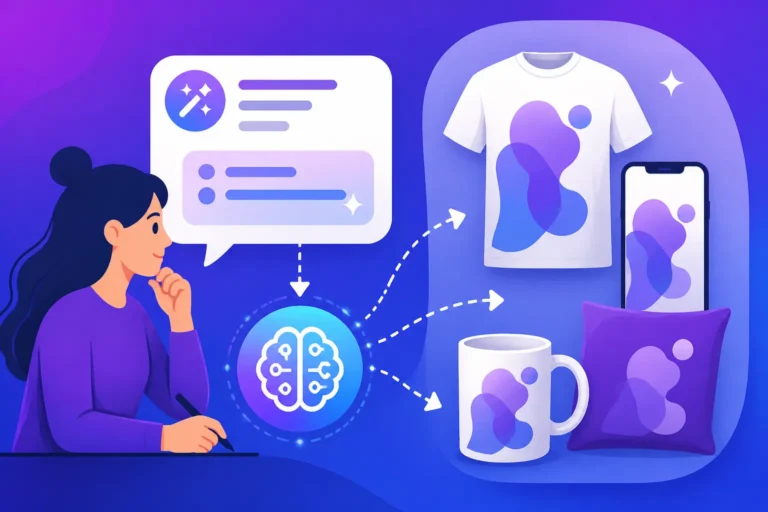
To consistently generate compelling portraits, your prompts need to be structured thoughtfully. You can’t just throw keywords at the AI and hope for the best. A strong prompt acts like a detailed brief for a human photographer or artist, guiding every aspect of the final image. Generally, a good prompt for portraits should cover the subject, their pose and expression, the environment, lighting, composition, and the desired artistic style or medium. Imagine you’re describing a photo shoot: you’d tell the photographer who the person is, what they’re doing, where they are, how the light should hit them, and what kind of final aesthetic you’re going for.
For instance, instead of just "man," consider "a grizzled old man with a kind smile." Instead of "outside," think "in a sun-dappled forest at dawn." Every detail you add refines the AI's understanding and narrows down the possibilities, leading to more predictable and higher-quality results. Many beginners might feel like they're "over-prompting," but with AI image generation, especially for portraits, more specific detail is almost always better than less. This level of detail helps prevent the AI from filling in blanks with generic or unintended elements. Learning How to Write AI Image Prompts is a foundational skill that will transform your results across all image types, not just portraits.
Key Elements for Crafting Effective Portrait Prompts
Once you grasp the basics, it's time to dive into the specifics that truly elevate your AI portraits. Each element you include in your prompt acts as a brushstroke on your digital canvas, shaping the final outcome in significant ways. Missing out on any of these crucial details can leave your portrait feeling incomplete or uninspired.
Defining Your Subject: Age, Gender, Ethnicity, Expression
This is where your portrait truly begins to take shape. Being explicit about your subject's characteristics is paramount. Don’t just say "woman"; try "a young woman in her early twenties," or "a middle-aged man with salt-and-pepper hair." Detail their ethnicity: "an East Asian woman," "a Scandinavian man," or "a person of mixed heritage." These specifics help the AI generate a diverse and accurate representation of your vision, moving beyond default archetypes. For example, if you want a character that evokes a certain era, specifying "a 1920s flapper" or "a Victorian gentleman" will instantly guide the AI towards appropriate features and attire.
Beyond physical descriptors, focus on expression and emotion. This is often the hardest part for AI to get right without explicit instructions. Instead of "happy," consider "a genuine, warm smile," or "eyes twinkling with mischievous delight." If you want a serious tone, try "a contemplative gaze" or "a stoic expression with a hint of melancholy." Adding these emotional cues breathes life into your portraits, making them feel more like real people with inner worlds. You can even combine expressions, such as "a stern expression softened by kind eyes." Mastering How to Prompt for Realistic Faces often comes down to these intricate details.
Setting the Scene: Environment, Lighting, and Composition
The environment in which your subject is placed dramatically influences the mood and context of the portrait. Are they indoors or outdoors? In a bustling city street, a serene forest, a cozy cafe, or a grand library? Describe the background as meticulously as you describe the subject. For instance, "a portrait of a young woman, sitting by a rain-strept window in a cozy cafe, blurred city lights in the background." The more detail you provide, the less the AI has to guess, which often leads to generic or distracting backdrops. Think about how the environment supports or contrasts with the subject's expression and story.
Lighting is perhaps the single most impactful element for creating atmosphere and depth in a portrait. Different lighting types evoke different emotions and highlight different features. Consider:
- Soft, diffused natural light: for a gentle, ethereal look.
- Harsh, direct sunlight: for dramatic shadows and strong contrasts.
- Golden hour light: for a warm, inviting glow.
- Studio lighting: for clean, professional results.
- Low key lighting: for moody, mysterious vibes.
- High key lighting: for bright, airy, optimistic images.
Specify the light source's direction ("backlit," "side-lit," "overhead light") and quality ("soft light," "hard light"). For example: "a close-up portrait of a woman, bathed in the soft glow of golden hour light from the left, highlighting her cheekbones." This level of detail makes a huge difference.
Finally, consider the composition. How is the subject framed?
- Close-up: focusing intensely on the face.
- Headshot: traditional portrait focusing on head and shoulders.
- Waist-up: showing some torso and interaction with surroundings.
- Full body: for showing attire and full context.
- Rule of thirds: placing the subject off-center for visual interest.
- Dynamic angle: "shot from a low angle," "shot from above."
Even simple terms like "dramatic portrait," "candid shot," or "studio portrait" can guide the AI toward a desired compositional style. A thoughtful composition ensures your subject is the clear focal point and the image is aesthetically pleasing.
Artistic Flair: Style, Medium, and Camera Details
This is where you infuse your portrait with artistic vision, moving beyond mere photographic representation. Do you want it to look like a painting, a sketch, or a realistic photograph?
- Painting styles: "oil painting," "watercolor," "acrylic on canvas," "impressionistic art," "hyperrealistic digital painting."
- Drawing styles: "pencil sketch," "charcoal drawing," "ink drawing," "line art."
- Photographic styles: "cinematic photograph," "documentary style," "fashion photography," "vintage film photo," "bokeh background."
Don't be afraid to mix and match or get very specific. For example: "a portrait in the style of Rembrandt," or "a surrealist portrait inspired by Salvador Dalí." This greatly impacts the texture, color palette, and overall aesthetic of your image. Many different models excel at different styles; for example, some might be better at Stable Diffusion Pros and Cons for Creators in an artistic sense.
Camera and lens details can add incredible realism and control. While it might seem overly technical, these inputs help the AI simulate actual photography.
- Lens: "85mm f/1.4 lens," "wide-angle lens," "telephoto lens."
- Camera type: "shot on a Canon EOS R5," "shot on a vintage Leica camera."
- Aperture: "shallow depth of field," "deep depth of field," "bokeh background."
- Film stock: "Kodak Portra 400 film grain," "black and white film."
- Post-processing: "cinematic color grading," "desaturated colors," "HDR photography."
For example: "a realistic portrait of an elderly woman, looking directly at the viewer, with a shallow depth of field, shot on an 85mm lens, golden hour light, cinematic color grading, award-winning photography." This creates a highly refined and professional look. If you're exploring Best AI Image Generator for Artists, understanding these nuances will greatly enhance your workflow.
| Prompt Element | Impact on Portrait | Example Phrases |
|---|---|---|
| Subject Details | Defines identity, age, emotion, and distinct features. | "20-year-old confident woman," "elderly man, wise eyes, slight smile" |
| Environment/Setting | Establishes context, atmosphere, and background. | "in a bustling market," "serene forest clearing," "cozy cafe" |
| Lighting | Creates mood, depth, and highlights features. | "soft Rembrandt lighting," "dramatic chiaroscuro," "golden hour" |
| Composition/Angle | Controls framing, focus, and visual impact. | "close-up portrait," "low-angle shot," "rule of thirds" |
| Art Style/Medium | Determines aesthetic, texture, and artistic feel. | "oil painting," "digital art," "hyperrealistic photo," "pencil sketch" |
| Camera/Lens Details | Adds realism, controls depth of field and sharpness. | "85mm f/1.8," "shallow depth of field," "cinematic bokeh" |
| Expression/Pose | Conveys personality, emotion, and interaction. | "thoughtful gaze," "joyful laughter," "hands clasped," "over shoulder" |
Advanced Techniques for AI Portrait Generation
Once you've got a handle on the foundational elements, you can start experimenting with more advanced techniques to truly master AI portrait generation. These methods help you refine, guide, and troubleshoot your outputs, pushing them from good to exceptional.
Using Negative Prompts for Refinement
Negative prompts are your secret weapon against undesirable elements. While positive prompts tell the AI what to include, negative prompts tell it what not to include. This is incredibly powerful for cleaning up common AI artifact issues or guiding the image away from generic results. For portraits, common negative prompts might include "ugly," "deformed," "mutated," "extra limbs," "bad anatomy," "disfigured," "blurry," "text," "watermark," "poor quality," "mismatched eyes," "unrealistic," or "cartoon."
For example, if you're trying to create a realistic portrait but keep getting slightly cartoonish features or an overall "AI look," adding "unrealistic, cartoon, drawing, painting, 3D render, illustration" to your negative prompt can push the AI towards a more photorealistic output. If your subjects frequently have wonky eyes or extra fingers, adding "bad hands, deformed fingers, extra eyes, mutated limbs" can dramatically improve anatomical accuracy. It takes some experimentation to find the perfect negative prompt string, but it's an indispensable tool for achieving high-quality results. Understanding How to Use Negative Prompts is a game-changer for control.
Incorporating Reference Images and Seeds
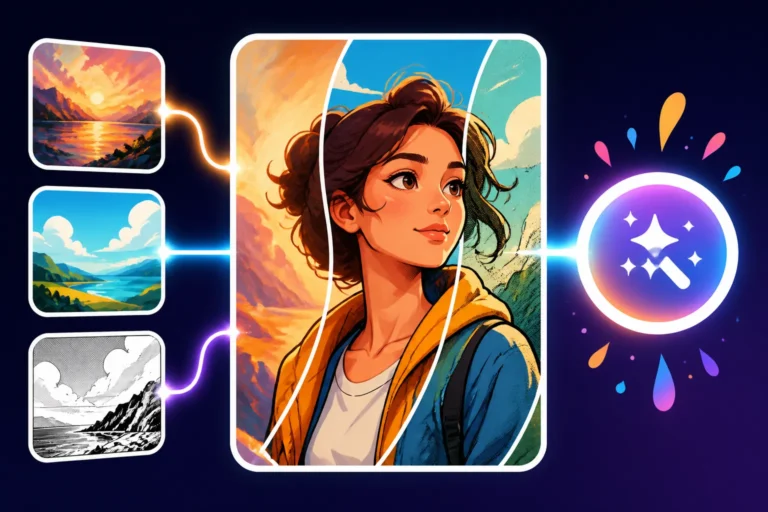
Many AI image generators, like Midjourney or Stable Diffusion, allow you to use reference images (often called "image prompts" or "init images"). This is a fantastic way to guide the AI towards a specific style, composition, or even facial structure that you admire. You can upload an image of a particular lighting setup, a desired artistic style, or even a similar facial expression, and the AI will use it as a visual guide while still adhering to your text prompt. This can save you a lot of prompt engineering time, especially when trying to replicate a very specific aesthetic.
Another powerful technique is using "seeds." Most AI models generate images based on a random seed number. If you find an image you particularly like, you can often retrieve its seed number. By re-using that same seed number with slightly altered prompts, you can generate variations of that image while maintaining a high degree of consistency. This is incredibly useful for creating a series of portraits with the same character, just in different poses, outfits, or environments. This technique is vital for maintaining character consistency, which is often a major headache for AI artists. Learning How to Use Reference Images in Prompts can open up a world of possibilities for detailed control.
Achieving Consistency Across Multiple Portraits
One of the holy grails of AI portrait generation is creating a series of images featuring the same character, maintaining their likeness, expression, and overall aesthetic. This can be challenging because AI models often generate entirely new faces with each prompt variation. However, there are strategies to improve consistency. As mentioned, using a fixed seed number and making only minor prompt adjustments is a primary method. If you're building a character for a story or project, start with a highly detailed initial prompt, including unique identifiers.
For instance, instead of "a wizard," try "Elara, a wise elven wizard with long silver hair braided with glowing runes, deep emerald eyes, and a small scar above her left eyebrow." Then, in subsequent prompts, always include "Elara, a wise elven wizard…" followed by the new pose or situation. Some advanced tools or custom models (like LoRAs in Stable Diffusion) are specifically trained to maintain character likeness, but for most users, detailed descriptors and careful iteration with seeds are the best approach. It requires patience, but the payoff in consistent character development is immense. For more on this, check out our guide on How to Keep Characters Consistent Across Images.
Troubleshooting Common AI Portrait Issues
Even with the best prompts and advanced techniques, AI portraits can sometimes throw you a curveball. Distorted features, an "AI look," or unexpected background clutter are common frustrations. Knowing how to diagnose and address these issues is crucial for anyone serious about generating high-quality images.
Dealing with Distorted Features and Anatomy
This is probably the most common complaint with AI-generated faces and bodies – the infamous "extra fingers," "mismatched eyes," or generally warped anatomy. The primary culprit is often a lack of specific detail in the prompt or insufficient negative prompting. When the AI doesn't have clear instructions, it can default to less accurate representations from its training data.
To combat this, first, ensure your positive prompt is as detailed as possible. Instead of just "hands," describe them: "delicate hands resting gently," "strong, calloused hands." If the eyes are an issue, be specific: "symmetrical, piercing blue eyes," "sparkling brown eyes that reflect the light." Second, and perhaps most importantly, leverage negative prompts aggressively. Include terms like "bad anatomy," "deformed," "mutated," "extra limbs," "missing limbs," "ugly," "poorly drawn hands," "mismatched eyes," and "out of frame." Sometimes, simply adding "realistic hands" or "perfect eyes" to your positive prompt can also help. For persistent issues, generating multiple variations and picking the best one, or using an inpainting tool to fix specific areas, can be effective. We have a detailed guide on How to Fix Distorted AI Faces that goes into even greater depth.
Improving Realism and Eliminating "AI Look"
That tell-tale "AI look" — a certain plasticine quality, unnaturally smooth skin, or a generic perfection that lacks character — is something many strive to overcome. Achieving true photorealism requires not just detailed descriptions but often a nuanced understanding of how light interacts with surfaces, the imperfections that make us human, and the details that convince the eye.
To boost realism, go beyond generic descriptions. Instead of "beautiful skin," try "flawless skin with subtle pores" or "weathered skin with fine lines around the eyes." Add details like "light freckles," "subtle stubble," or "rosy cheeks." Describe the texture of hair, clothing, and background elements. For lighting, use evocative terms like "cinematic lighting," "natural diffused light," or "studio portrait with softbox lighting" to guide the AI toward more sophisticated illumination. Specifying camera details, like "shot on a DSLR with a prime lens" or "film photography," can trick the AI into producing more realistic output. Remember, realism often comes from the inclusion of tiny, authentic details that break the generic mold. Check out How to Add Realism to AI Images for more comprehensive tips.
Handling Background Clutter and Distractions
A great portrait focuses on the subject, but often AI will generate busy, distracting, or nonsensical backgrounds. This detracts from the main subject and can ruin an otherwise perfect portrait. The solution lies in careful prompting for both your subject and your background, and judicious use of negative prompts.
First, be specific about your desired background. If you want simplicity, say so: "plain white background," "minimalist studio background," "bokeh background," "blurred outdoor setting." If you want a specific environment, describe it clearly, but also add modifiers to keep it from overwhelming the subject. For instance, "a bustling Parisian cafe, with a blurred background and shallow depth of field," or "a lush forest, out of focus behind the subject." Second, use negative prompts to explicitly exclude unwanted elements: "clutter," "distractions," "busy background," "unfocused elements (if you want sharpness)." Some tools also offer options to adjust "stylize" or "chaos" parameters, which can influence how busy or orderly the background is. Remember, every element in your prompt helps the AI understand what to prioritize and what to de-emphasize.
Disclaimer
Please remember that AI image generation tools are constantly evolving. While this guide provides the most current and effective strategies for prompting AI for better portraits, results can vary between different AI models (like Midjourney, DALL-E, Stable Diffusion, etc.) and updates to their algorithms. Always experiment and adapt your techniques based on the specific tool you are using.