How to Fix Garbled Text in AI Images
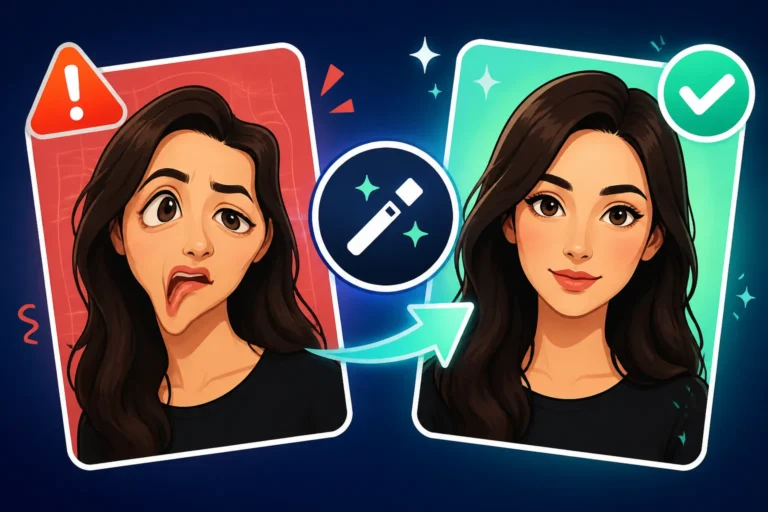
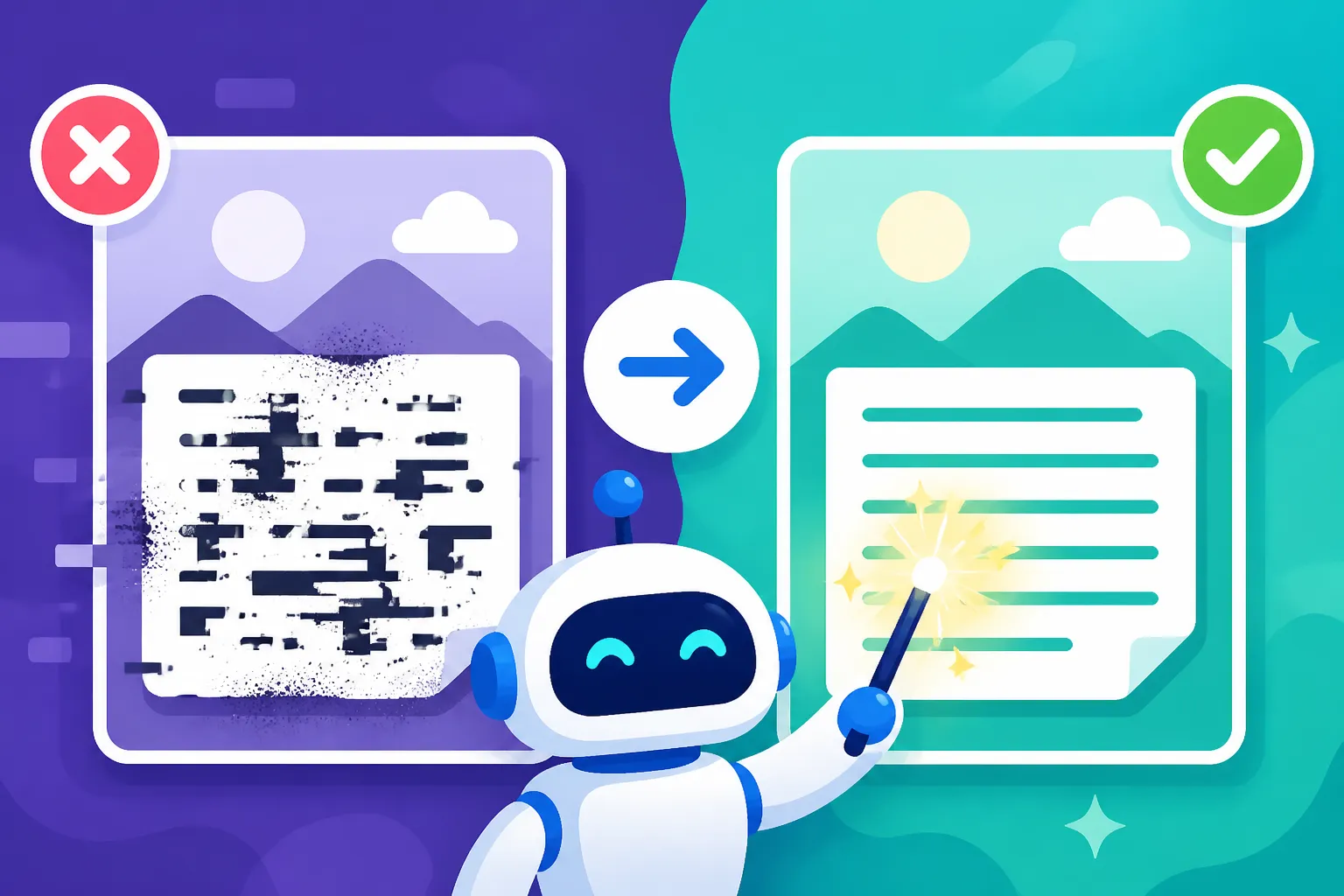
It’s incredibly frustrating, isn't it? You spend precious time crafting the perfect prompt for your AI image generator, eagerly await the results, and then… there it is. A stunning visual, but any text you asked for is a jumbled mess of letters, illegible squiggles, or outright gibberish. You're not alone in feeling this annoyance; it's a common hurdle for many of us diving into the world of AI art. This guide is here to help you understand why this happens and, more importantly, equip you with practical strategies to fix and prevent garbled text in your AI-generated images.
Understanding Why AI Stumbles with Text
It often feels like these AI models are brilliant geniuses in some areas but then struggle with something as seemingly simple as text. The truth is, the way AI "sees" and processes text is fundamentally different from how humans do. It's not a matter of intelligence, but of architecture and training.
The Fundamental Limitations of Current AI Models
Imagine a highly skilled painter who's a master at replicating textures, colors, and lighting, but has never actually learned to read. When you ask them to paint a sign with specific words, they'll meticulously render the visual appearance of text – the shapes of letters, the way they group together, the overall texture of words – but they won't understand what those letters mean or how they're supposed to be spelled. This is essentially what's happening with many AI image generators.
These models, often based on diffusion architectures, are trained on vast datasets of images and their accompanying captions. Their primary goal is to learn the visual relationships within those images to generate new ones based on a text prompt. When they encounter text within those training images, they treat it as another visual pattern, a part of the scene's texture, rather than a sequence of meaningful characters governed by linguistic rules. They don't have an internal "dictionary" or "spelling checker" in the same way a large language model (LLM) does. This means they often produce:
- Gibberish: Random letters that don't form real words.
- Near-misses: Words that look almost right but have one or two incorrect or swapped letters.
- Distorted shapes: Letters that are stretched, squashed, or merged into unrecognizable forms.
- Repetitions: The same letter or character repeated multiple times in place of a word.
So, while an AI might create a breathtaking landscape or a photorealistic portrait, asking it to perfectly spell "Happy Birthday" on a cake can be surprisingly challenging because it's operating on visual correlations, not linguistic understanding.
The Data Training Disconnect
The issue of garbled text is deeply rooted in how these models are trained. The colossal datasets used to train models like Midjourney, DALL-E, or Stable Diffusion contain billions of images scraped from the internet. A significant portion of these images include text: street signs, book covers, product labels, advertisements, you name it.
However, during training, the AI isn't taught to read this text. Instead, it learns that "this visual pattern of lines and curves often appears in conjunction with the prompt element 'book cover' or 'signage.'" It forms a visual association rather than a character-by-character comprehension. The AI learns what text looks like in various contexts – different fonts, sizes, colors, angles, and placements – but not the actual sequence of letters that form words.
Think about it: the diversity of fonts, the complexity of kerning (spacing between letters), the presence of shadows, reflections, and distortions in real-world text are immense. For an AI that is essentially a sophisticated pattern matcher, recognizing and perfectly reproducing a string of characters under all these varied conditions is a monumental task. The model tries its best to fill in the "texture" of text based on what it's seen, and often, that best effort still falls short of legible, correctly spelled words. This disconnect between visual pattern recognition and linguistic understanding is the primary culprit behind those frustratingly garbled results.
Prompt Engineering Techniques to Improve Text Quality
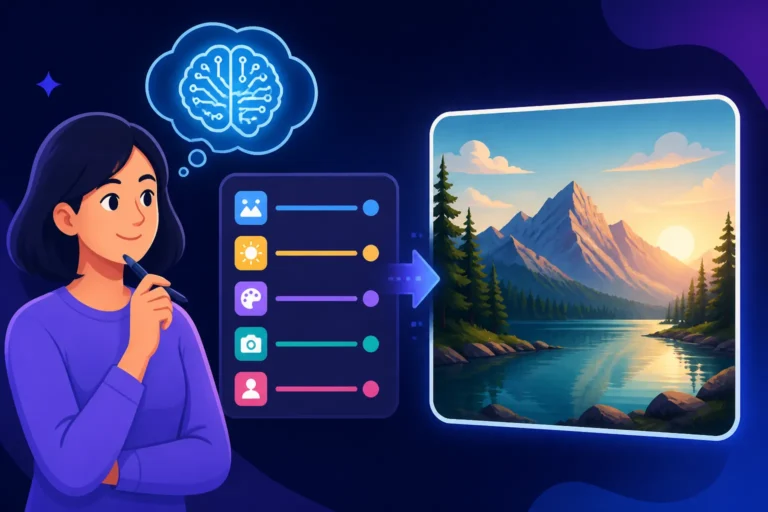
Since the AI sees text as a visual element, a lot of our effort needs to go into making that visual element as clear and unambiguous as possible within our prompts. It's about speaking the AI's language more effectively.
Be Specific and Explicit in Your Prompts
One of the most powerful things you can do is to be ridiculously clear about the text you want. Don't assume the AI will just "get" it. Treat every letter as a crucial instruction.
- Enclose text in quotation marks: Many models respond better when the exact text you want is clearly delineated. For example, instead of "a poster saying happy birthday," try "a poster with the words 'Happy Birthday' prominently displayed."
- Repeat the text if necessary: For particularly stubborn words, you might even consider subtly repeating the text within your prompt, perhaps describing its appearance. "A vintage sign with the words 'Grand Hotel' in classic serif font. The text says 'Grand Hotel'."
- Specify font, style, and placement: These details give the AI more visual cues to work with.
- Bad Prompt: "a banner with 'Sale' text"
- Better Prompt: "a vibrant red banner with the word 'SALE' in bold, white, sans-serif block letters, centered on the banner."
- You can get even more granular: "a retro diner sign, neon glow, with the words 'Eat Here' in a script font, glowing pink against a dark blue background."
- Use negative prompts (if your tool supports them): Sometimes, telling the AI what not to do is as helpful as telling it what to do. You might include terms like
--no blurry text, deformed letters, gibberishin your prompt, especially with tools like Midjourney or Stable Diffusion that offer robust negative prompting capabilities.
Remember, the goal is to give the AI a strong visual "idea" of what the correct text should look like, not just to tell it the words. For deeper dives into crafting effective prompts, you might find guides like How to Write AI Image Prompts or Midjourney Prompt Guide incredibly useful.
Leveraging Model-Specific Capabilities
While text generation is a general challenge, some AI image generators are definitely making strides and have specific features or are simply better trained for typography. Knowing which tools excel in this area can save you a lot of headache.
- Ideogram AI: This tool has gained significant traction specifically because of its superior ability to render text accurately within images. If precise text is your top priority, especially for logos or social media graphics, Ideogram should be one of your first choices. It often understands the nuances of kerning and letter spacing much better than its competitors. Many users find its results for text almost magical compared to others. You can explore its strengths in more detail through resources like the Ideogram Review: Best for Text in Images or learn specific techniques from Ideogram Prompts for Text and Logos.
- Adobe Firefly: Integrated into Adobe products like Photoshop and Express, Firefly is also showing promising text capabilities, especially with its recent updates. Since it's often used in a workflow with other Adobe tools, it's designed to be more compatible with traditional graphic design needs, which often include legible text.
- DALL-E in ChatGPT: While not perfect, the DALL-E 3 model integrated into ChatGPT sometimes benefits from the conversational context provided by the underlying language model. This can occasionally lead to better text rendering than standalone image generators, as the LLM helps translate the text instruction more robustly for the image model.
When using these tools, always check their documentation for specific parameters or prompt structures they recommend for text. Some might have dedicated "text boxes" or methods to explicitly define text content.
Simplicity is Your Friend
When you're asking an AI to render text, especially critical text, fight the urge to make the scene overly complicated. Complexity can quickly overwhelm the model's ability to focus on the text itself.
- Opt for clean backgrounds: A busy background with lots of patterns, details, or competing elements can make it harder for the AI to isolate and accurately render the text. Think simple gradients, solid colors, or subtly textured walls behind your desired text.
- Keep compositions straightforward: If the text is meant to be the focal point, don't bury it in a highly intricate scene with dozens of objects, characters, or perspectives. A direct, clear shot of the text element will yield better results. For instance, if you want a T-shirt with text, ask for a clear view of the T-shirt with the text, not a person wearing the T-shirt while performing a complex action in a crowded street.
- Short, impactful phrases: The longer the text string, the higher the chance of garbling. If you need a sentence, break it down. For headlines or titles, stick to just a few key words. For example, "a 'Grand Opening' sign" is more likely to succeed than "a sign that says 'Grand Opening Sale, Everything 50% Off!'"
By simplifying your requests when text is paramount, you're giving the AI the best possible chance to focus its rendering power on the characters themselves, reducing the visual noise that can lead to errors.
Post-Generation Editing and Refinement Strategies
Even with the best prompts and the most text-savvy AI tools, sometimes the output isn't quite perfect. This is where post-generation editing becomes your best friend. Don't be afraid to take the AI's good intentions and polish them into perfection.
Utilizing In-Platform Editing Tools
Many modern AI image generators are no longer just about generating; they also come equipped with powerful editing features that can help you fix minor text imperfections right where you are.
- Inpainting: Tools like DALL-E, Adobe Firefly (especially within Photoshop), and Playground AI offer inpainting capabilities. This allows you to select a specific area of your image – for example, the garbled text – and then prompt the AI to regenerate only that area. You can highlight the problematic letters and then use a prompt like "regenerate this area with the text 'Welcome'" or "fix the spelling to 'Adventure'." It often takes a few tries, but this can be incredibly effective for small corrections without having to regenerate the entire image. To master this, understanding "How to Edit AI Images with Inpainting" can be a game-changer.
- Outpainting: While less direct for fixing existing text, outpainting can be used to extend a canvas and then add new text in the extended area with a cleaner slate.
- Native text tools: Some platforms, like Canva AI, are starting to integrate more traditional graphic design elements, including basic text overlays. While not AI-generated text in the artistic style of the image, these can be a quick way to add legible text if the AI itself is failing. This gives you the best of both worlds: AI for the visuals, and a reliable text tool for the words. If you're wondering about its capabilities, a review like "Canva AI Image Generator Review" might be helpful.
The key with in-platform editing is iteration. Don't expect perfection on the first try. Regenerate the small area, tweak your mini-prompt, and keep going until the text is crisp and correct.
The Power of External Image Editors
Let's be real: sometimes, it's just plain faster and more reliable to use a dedicated image editor for text. While AI is fantastic for generating novel visuals, graphic design software has been perfecting text rendering for decades.
- Traditional Graphic Design Software: Programs like Adobe Photoshop, GIMP (a free alternative), Affinity Photo, or even user-friendly tools like Canva are invaluable.
- Generate the visual without text: First, create your stunning AI image, making sure there's a clear space where you want your text to go. Don't even try to prompt for text at this stage if it's consistently garbled.
- Import and add text: Bring your AI-generated image into your chosen editor.
- Overlay perfect text: Use the editor's text tool to add your desired words. Here, you have full control over font, size, color, kerning, and effects. This ensures 100% accuracy and legibility every single time.
- When to use this strategy: This approach is particularly effective when:
- The text is central to your message (e.g., a logo, a product label, a social media post with a quote).
- The AI consistently struggles with even simple words.
- You need very specific fonts or complex text effects that AI can't reliably produce yet.
While it adds an extra step to your workflow, it guarantees professional-looking text. For those who frequently work with mixed media, knowing when to pivot to external tools is a crucial skill. You might even find that some AI tools, like those mentioned in "Is Canva AI Good Enough for Pros", offer a hybrid approach, letting you generate and then easily add text.
Layering and Compositing for Complex Text
For more sophisticated text integration, especially when you want text to interact with the environment (like being painted on a wall, or appearing as part of a street sign), a compositing approach can deliver excellent results.
- Generate a text-free base image: Create the visual scene exactly how you want it, making sure the area where text will eventually reside is naturally integrated and has the right texture and lighting. For example, a blank brick wall, an empty billboard, or a plain wooden sign.
- Generate the text separately: Use an AI tool that excels at text (like Ideogram AI) to generate just the words you need, perhaps against a plain background. Focus on getting the font, style, and effects (like a painted or metallic look) correct.
- Composite them together: Bring both the base image and the text image into an external editor (like Photoshop). Use layering, blending modes, and perspective tools to place the text onto your base image realistically. You can warp it, add shadows, match lighting, and even apply textures from the background image to the text so it looks truly integrated. This is how many professional graphic designers combine elements, and it gives you ultimate control.
- Consider generating text textures: Sometimes, instead of a clean text image, you might prompt an AI for a "weathered sign texture with faded letters" in a general shape, and then overlay your perfectly clean text on top of that. This gives a realistic, worn look while ensuring legibility.
This method requires a bit more skill in traditional image editing, but it offers unparalleled control and realism for text that needs to feel like an integral part of the AI-generated world. It also ties into concepts like "How to Create Image Variations", as you might generate several background variations before selecting the best one for text overlay.
Advanced Techniques and When to Choose Dedicated Tools
As AI technology continues to evolve, so do our strategies for working with it. Sometimes, a combination of smart techniques and knowing which specialized tool to pick can be the winning formula.
Iterative Generation and Seed Exploration
Even with the best prompting techniques, AI image generation can be a game of chance. Sometimes you just need to roll the dice a few times to get a cleaner result.
- Generate multiple variations: Don't stop at the first image. Generate several versions of your image, especially when text is involved. Many tools offer options for generating multiple outputs from a single prompt or creating variations of an existing image. Review all the generated images carefully, and often, one or two will have significantly less garbled text than the others. Pick the best one as your starting point for further refinement or editing.
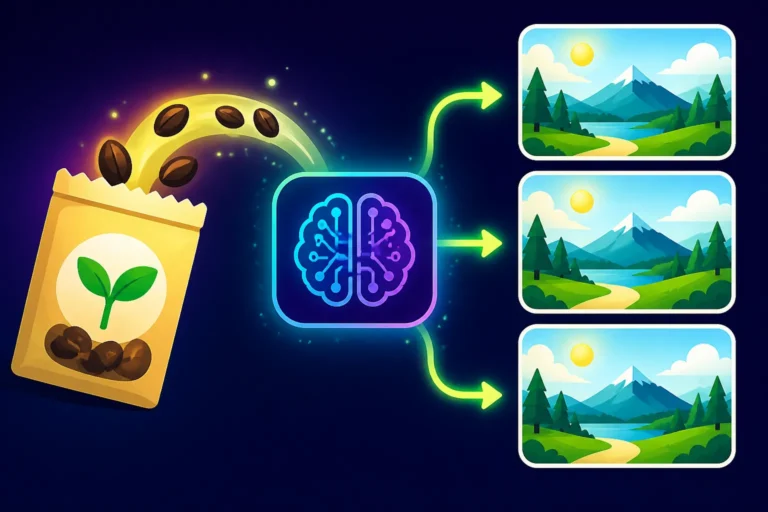
- Leverage seeds for consistency: If you get a result that's almost perfect in terms of text but needs minor tweaks, note down the "seed" number (if your AI tool provides one). A seed is like a unique identifier for the initial noise pattern from which an image is generated. By using the same seed along with slightly adjusted prompts, you can achieve very similar compositions with minor changes, allowing you to iterate on text quality without completely changing the entire image. This can be crucial for refining specific details like text. Understanding "How to Create Image Variations" often involves using seeds effectively.
This iterative approach, combined with the power of seeds, gives you more control over the generation process and increases your chances of landing on an image with acceptable text quality.
Knowing When to Split Tasks
It's a common misconception that one AI tool should be able to do everything perfectly. The reality is, different tools excel in different areas. Recognizing this can streamline your workflow and yield superior results.
- Generate visuals with one, text with another: If you have an AI tool that generates breathtaking photorealistic landscapes or unique artistic styles but struggles with text, use it for its strengths. Then, take that generated image and bring it into another AI tool specifically known for its text capabilities, like Ideogram AI. You can then instruct the second tool to add or refine the text onto your existing image (if it supports image-to-image prompting), or you can export and use an external editor as discussed earlier.
- Vector and logo specialists: For text that needs to be sharp, scalable, and often combined with graphic elements (like in logos or icons), consider tools that specialize in vector art and typography. Recraft, for instance, is gaining popularity for its ability to generate vector graphics and logos with relatively clean text. If you're creating a logo where text clarity is non-negotiable, exploring tools like Recraft, as highlighted in "Recraft SVG and Logo Review", might be a better starting point than a general image generator. Similarly, comparing "Recraft vs Ideogram for Logos" could guide your choice.
By splitting tasks based on the strengths of various AI tools, you optimize your workflow and leverage specialized capabilities, significantly increasing your chances of getting perfectly legible text. This approach is all about strategic tool selection. For a broader overview of options, you might even consider consulting a "Best AI Image Generator Comparison" to find the right tool for each job.
A Look at Emerging Text-Focused AI Features
The world of AI is moving at lightning speed, and developers are keenly aware of the text generation challenge. We're seeing constant advancements aimed at making text rendering more reliable.
- Dedicated text models: Some researchers are developing AI models specifically designed to generate text that is integrated seamlessly into images, understanding both the visual context and the linguistic rules. While these are not always widely available to the public yet, they signal a promising future.
- Improved conditioning: Newer versions of popular models are incorporating better "text conditioning" during their training, which helps them better distinguish between text as a visual texture and text as a legible message.
- Integrated LLM capabilities: The trend of integrating powerful Large Language Models (LLMs) with image generation models (like in ChatGPT's DALL-E 3 implementation) hints at a future where the AI has a better "understanding" of the words it's supposed to render.
While these advancements mean less garbled text in the future, for now, a combination of smart prompting, leveraging specialized tools, and post-production editing remains the most effective strategy.
Here's a quick overview of how some popular AI image tools generally stack up when it comes to text:
| AI Image Generator | General Text Capability | Best Use Case for Text | Considerations |
|---|---|---|---|
| Ideogram AI | Excellent | Logos, Posters, Banners, Social Media Graphics | Specifically designed for text, often yields accurate results with simple prompts. |
| Adobe Firefly | Good | Commercial work, integration with Adobe apps | Improving with updates, benefits from in-app editing capabilities in Photoshop. |
| DALL-E 3 (via ChatGPT) | Fair to Good | Simple phrases, short slogans within scenes | Can benefit from LLM context; still occasionally produces minor errors. |
| Midjourney | Poor to Fair | Artistic rendering of text texture, not literal readability | Struggles significantly with legible text; best to avoid for critical text. |
| Stable Diffusion | Poor | Experimental, requires advanced techniques/plugins for decent text | Open-source, highly customizable, but basic models are not text-friendly. |
| Leonardo AI | Poor to Fair | Generates image background, then use external text editing | Primarily focused on visual styles and variations; text is a secondary concern. |
| Canva AI | N/A (uses text overlays) | Quick designs, easy integration of standard fonts | AI generates images, but text is usually added via Canva's native tools. |
Disclaimer
The information provided in this article is for general guidance and informational purposes only. While we strive to offer the most accurate and up-to-date advice, the field of AI image generation is rapidly evolving. The capabilities of AI models and tools can change frequently. Always refer to the official documentation and terms of service for any specific AI image generator you are using. Individual results may vary based on specific prompts, model versions, and user settings.