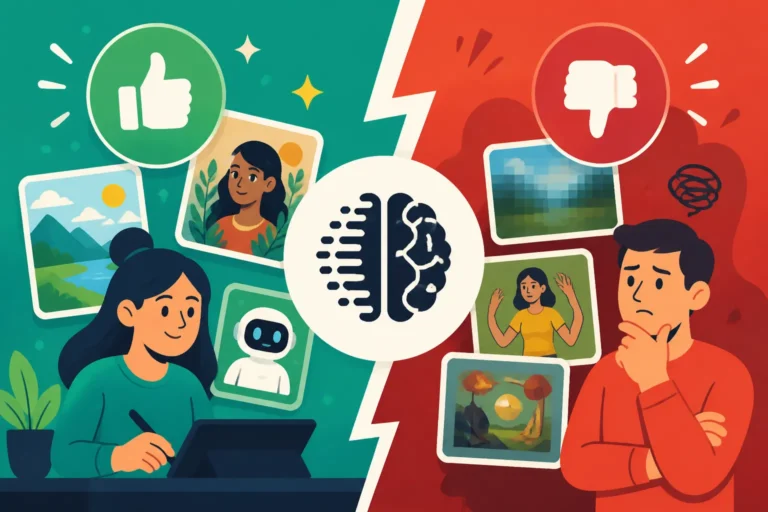
Canva AI Image Generator Review
Trying to create engaging visuals for your blog, social media, or small business without being a professional graphic designer can feel like trying to climb Mount Everest in flip-flops – utterly daunting and often frustrating. You know you need eye-catching images to stand out, but the thought of expensive stock photos, complex design software, or battling finicky AI tools often stops you before you even start. This comprehensive guide is here to shed light on whether the Canva AI Image Generator can be your friendly sherpa on this visual journey, exploring its features, benefits, and limitations to help you decide if it's the right tool for your creative arsenal.
What is the Canva AI Image Generator Anyway
For years, Canva has been the go-to platform for millions who need to whip up decent-looking designs without a graphic design degree. It democratized design, and now, with the advent of artificial intelligence, they've set their sights on democratizing image creation itself. The Canva AI Image Generator isn't a standalone, super-complex tool you need to learn from scratch; it’s integrated directly into the familiar Canva ecosystem. Think of it as another powerful brush in your existing Canva toolkit, ready to conjure up visuals from simple text prompts.
This isn't about generating images for high-end fashion magazines or scientific journals. Instead, it’s tailored for the everyday creator, the small business owner, the blogger trying to make their latest post pop, or anyone who just needs a quick, decent visual without the fuss. It understands that most people aren't looking to delve into the intricate world of prompt engineering but rather need something functional, fast, and aesthetically pleasing.
More Than Just a Design Tool
Before the AI capabilities, Canva was already a powerhouse, offering templates for everything from Instagram stories to business cards. It was about arranging existing elements – photos, illustrations, text – into a cohesive design. The introduction of the AI Image Generator changes the game entirely. Now, instead of hunting through stock photo libraries for an image that's close enough to your vision, you can describe exactly what you want, and Canva's AI will attempt to generate it for you. This means unparalleled customization for those who previously felt limited by available stock imagery.
Imagine needing a very specific image, like "a whimsical watercolor illustration of a cat reading a book in a cozy cafe." Before, you might spend ages searching for something remotely similar, settling for a generic cat image, or even trying to commission an artist – which, let's be honest, isn't always feasible for a quick blog post. With the AI generator, you type that description, and within moments, you have several options to choose from, often getting surprisingly close to your initial thought. This shifts the creative process from finding to creating, empowering users in a way that traditional design tools couldn't.
How It Integrates into Your Workflow
One of the biggest strengths of the Canva AI Image Generator is its seamless integration. You don't open a separate application, copy and paste, or export and re-import. When you're in your Canva design project, whether it's a presentation, a social media graphic, or an ebook cover, you simply navigate to the "Apps" section, find the "Text to Image" tool, and start prompting. The generated images appear directly within your Canva workspace, ready to be dragged, dropped, resized, and incorporated into your design.
This smooth workflow means there's virtually no learning curve for existing Canva users. It's just another element you can add, much like a shape, a text box, or a sticker. For busy individuals, this saved time and reduced friction are invaluable. You can go from a blank canvas to a fully designed social media post with a custom-generated image in minutes, not hours. It streamlines content creation, making it easier to maintain consistency across your brand without sacrificing originality.
Diving Deep into Key Features and Capabilities
When evaluating any AI image tool, the devil is in the details, right? We want to know if it's actually going to make our lives easier or just add another layer of complexity. Canva AI shines in some areas, offering approachable features, while still having room to grow in others. Let’s peel back the layers and see what it truly brings to the table.
Ease of Use and User Experience
This is perhaps where Canva AI truly excels, especially for its target audience. If you've ever felt intimidated by other AI image generators that require specific syntaxes, complex parameters, or even command-line interfaces, Canva will feel like a breath of fresh air. It’s designed with the average user in mind, making the "text to image" process as straightforward as possible.
You're greeted with a simple text box where you type your prompt, and below it, a selection of style options. Do you want "photographic," "watercolor," "3D," or "dreamlike"? You click a style, type your text, and hit generate. That's it. There's no wrestling with negative prompts, aspect ratios, or sampling methods unless you specifically want to refine those details later with Canva's broader editing tools. This intuitive interface greatly reduces the barrier to entry, making it arguably the Best AI Image Generator for Ease of Use. For small business owners, marketers, or even casual hobbyists, this means less time learning and more time creating. The results might not always be gallery-worthy, but they are often perfectly serviceable and generated in seconds.
Style Options and Creative Control
Canva AI offers a decent range of predefined styles that guide the AI's output. This is a smart approach for users who might not know how to articulate specific artistic directives in a prompt. Instead of trying to describe "a painterly style reminiscent of Van Gogh with impasto brushstrokes," you can often just select "Painting" or "Artistic" and get a surprisingly good starting point. The available styles include:
- Photo: Aims for realism, often good for product mockups or scenes.
- Watercolor: Produces soft, blended, artistic images.
- Dreamlike: Generates surreal, ethereal visuals.
- 3D: Creates images with a three-dimensional rendering feel.
- Drawing: Mimics pencil sketches or line art.
- Concept Art: For more imaginative or speculative designs.
- Anime: Caters to the Japanese animation aesthetic.
While these options are incredibly helpful for beginners, they do present a slight limitation for advanced users seeking granular control. You can't, for instance, easily fine-tune the intensity of a specific artistic effect or combine multiple complex styles in the way you might with more advanced tools. However, for most users who need a quick visual that fits a general aesthetic, these style presets are a godsend. It simplifies the process of getting a desired look without needing a deep understanding of How to Write AI Image Prompts.
Image Quality and Resolution
Here's where expectations need to be managed. The image quality from Canva's AI generator is generally good enough for most digital uses – think social media posts, blog headers, or internal presentations. It’s consistent and rarely produces truly bizarre or unusable images, which can be a common frustration with some free or less refined AI tools. However, it's not going to rival the ultra-high resolution, photorealistic output you might get from professional-grade generators like Midjourney or even sophisticated Stable Diffusion setups.
The resolution of the generated images is typically suitable for screen display but might show pixelation or a lack of fine detail if heavily zoomed in or used for large-format print. This is an important consideration for anyone planning to use these images for professional printing or very high-resolution displays. For instance, if you're creating images for a blog, the quality is usually perfectly adequate. However, if you need a pristine, large-format image for a billboard or a high-resolution magazine cover, you might find Canva's AI output falls a little short. The focus here is on utility and accessibility rather than bleeding-edge fidelity.
The Pros and Cons for Everyday Creators
Every tool has its strengths and weaknesses, and the Canva AI Image Generator is no different. For the busy content creator, small business owner, or casual blogger, understanding these nuances is key to deciding if it's the right fit. It’s about managing expectations and seeing how it aligns with your specific needs.
What Makes it Shine
Canva AI truly stands out in several key areas that resonate deeply with its primary user base:
- Incredibly User-Friendly: This is, hands down, its biggest advantage. If you can type a sentence and click a button, you can generate an image. There’s no complex syntax to learn, no Discord server to navigate, and no overwhelming array of sliders and settings. It integrates seamlessly into the Canva platform you might already be using, making the entire process feel like a natural extension of your existing design workflow. This low barrier to entry means anyone, regardless of technical prowess, can start generating images immediately. For many, it's the Best AI Image Generator for Beginners.
- Speed and Efficiency: Need a quick visual for a tweet, an Instagram story, or a blog post hero image? Canva AI delivers results in seconds. This rapid generation capability is a huge time-saver, especially when you're on a tight deadline or just need to iterate through several visual ideas quickly. Instead of sifting through stock photo sites for minutes or even hours, you can create unique, custom images in a fraction of the time. This efficiency is a game-changer for content velocity.
- Integrated Workflow: The fact that the AI image generator lives inside Canva is a massive plus. You generate an image, and it's immediately available in your design project. You can then use all of Canva's robust editing tools – add text, apply filters, change backgrounds, combine with other elements – without ever leaving the platform. This eliminates the clunky export-import dance, streamlining your entire creative process from concept to finished design. This is particularly valuable for How to Use AI Image Generators for Social Media Graphics or How to Use AI Image Generators for Blog Images.
- Commercial Use Rights (with Pro): For paid Canva Pro users, the images generated generally come with commercial use rights, which is a crucial consideration for anyone using AI art for business purposes. This means you can confidently use your AI-generated images for marketing, product designs, or client work without worrying about complex licensing issues, provided you adhere to Canva's terms. This clarity is a major relief for small businesses and freelancers. You can learn more in our detailed Canva AI Image Generator Review.
Where It Falls Short
While Canva AI is fantastic for accessibility, it does have some limitations that more demanding users might find frustrating:
- Limited Granular Control: Unlike advanced tools that offer precise control over parameters like seed numbers, chaos, stylization, or specific camera angles and lighting, Canva AI keeps things simpler. You have style presets, but less ability to truly sculpt an image from the ground up with intricate prompt engineering. If you have a very specific vision that requires subtle adjustments, you might find yourself limited by the available options.
- Less Photorealism: While it can generate "photographic" styles, the output often falls into the uncanny valley when aiming for true photorealism, especially with faces. The images tend to have a slightly stylized or synthetic feel, which is fine for many applications but can be an issue if you absolutely need hyper-realistic imagery. For truly photorealistic outputs, tools like Midjourney or Flux AI might still be superior.
- Occasional Oddities and Repetitions: Like many AI image generators, Canva isn't immune to producing images with strange anatomical anomalies (extra fingers, distorted limbs) or repetitive elements, especially when dealing with complex scenes or crowds. While less frequent than with some other free tools, it still happens, requiring you to generate multiple variations to get a usable image.
- Credit System for Free Tier: While there's a Canva AI Free Tier Explained, it operates on a credit system, meaning you have a limited number of generations before you need to upgrade to a paid plan. This can be a frustration for those who are just exploring or have high-volume needs without a budget. Understanding Canva AI Free Image Limits is essential.
Who Is Canva AI Image Generator Best For
Understanding who a tool is designed for can really help set expectations and highlight its value. Canva AI isn't trying to be the most powerful, cutting-edge AI art generator on the market. Instead, it aims to be the most accessible and practical for a specific audience. It's about empowering people who need quick, decent visuals without the steep learning curve or high cost associated with more advanced alternatives.
Small Businesses and Marketers
For the bustling world of small businesses and digital marketers, time is money, and visual content is king. Canva AI is a godsend in this environment. Imagine you're running a local bakery and need a new social media graphic for your seasonal pumpkin spice latte. Instead of sifting through generic stock photos of coffee or spending hours trying to design something from scratch, you can simply prompt "photorealistic image of a pumpkin spice latte with whipped cream and cinnamon stick on a rustic wooden table, autumn leaves in background." In moments, you have several options, ready to be dropped into a Canva template, branded with your logo, and scheduled for posting.
This capability significantly reduces the reliance on external graphic designers or expensive stock subscriptions, allowing small businesses to maintain a fresh, engaging visual presence consistently. It's perfect for creating:
- Social media ads: Quickly generate various concepts for A/B testing.
- Promotional banners: Custom images for website headers or email campaigns.
- Product mockups: Visualize new products or variations without needing a photoshoot.
- Local event flyers: Tailored imagery for community engagement.
The commercial use rights for Pro users mean these businesses can confidently leverage their creations for profit. For many, this makes Canva AI a solid choice for their marketing arsenal.
Bloggers and Content Creators
Bloggers and content creators are constantly in need of compelling visuals to break up text, illustrate concepts, and capture reader attention. Generic stock photos can make your content feel… well, generic. But creating original art for every single post or video thumbnail is simply not sustainable for most. This is where Canva AI steps in as a powerful ally.
Let’s say you’re writing a blog post about "The Benefits of Morning Routines." You could prompt for "a serene person meditating at sunrise, soft warm glow, minimalist style," and quickly get several unique options. This helps your content stand out and makes it more shareable. It’s also incredibly useful for:
- Blog featured images: Instantly create a unique hero image for each post.
- YouTube thumbnails: Generate eye-catching visuals that align perfectly with your video topic.
- Infographics and diagrams: Create custom icons or background elements to enhance visual explanations.
- Newsletter headers: Add a touch of personalization to your email communications.
The ability to generate a relevant, custom image for virtually any topic on demand is a game-changer for content consistency and visual appeal. It empowers bloggers to elevate their visual storytelling without becoming professional artists.
Everyday Users and Hobbyists
Beyond the professional sphere, Canva AI also opens up a world of creative possibilities for everyday users and hobbyists. Perhaps you want to design a custom greeting card for a friend, create unique digital art for your personal enjoyment, or even just visualize a quirky idea you have.
- Personal projects: Design unique invitations, party decorations, or digital wallpapers.
- Creative exploration: Experiment with different art styles and concepts just for fun.
- School projects: Students can quickly generate images for presentations or reports, adding a creative flair without needing advanced design skills.
- Gift ideas: Create personalized artwork for mugs, t-shirts, or framed prints.
For these users, the primary appeal is the sheer fun and accessibility. It removes the intimidation factor often associated with digital art creation and provides an easy, enjoyable way to bring imaginative ideas to life. The free tier offers enough generations for casual use, making it an excellent starting point for anyone curious about AI art.
Pricing and Accessibility
Understanding the cost structure and what you get for your money is crucial when choosing any digital tool. Canva AI is unique in that it's embedded within a broader design ecosystem. This means its "pricing" isn't just about the AI generator itself, but about the overall Canva subscription.
Understanding the Free vs. Paid Tiers
Canva operates on a freemium model, offering a robust free plan and several paid tiers, primarily Canva Pro and Canva for Teams. The AI Image Generator follows this structure, with some key distinctions:
- Canva Free Tier: When you're on the free plan, you get a limited number of AI image generations – typically around 50 credits. These credits refresh periodically, but they're not unlimited. This is fantastic for trying out the tool, generating a few images here and there, or for very light, occasional use. It's a great way to dip your toes into AI art without any financial commitment. However, if you find yourself needing more than a handful of images per month, you'll quickly hit the limit. While the free tier offers commercial use for most content, always double-check the specific terms for AI-generated assets, as policies can evolve.
- Canva Pro Tier: This is where the AI Image Generator really becomes a workhorse. Canva Pro subscribers typically get a much larger allocation of AI image generation credits, sometimes even "unlimited" usage depending on current promotions and Fair Use policies. The exact number can vary, so it's always best to check Canva's official pricing page for the most up-to-date information. Beyond the AI benefits, Pro unlocks a treasure trove of other features: millions of premium stock photos, videos, audio, graphics, brand kits, background remover, magic resize, content planner, and much more. For serious content creators and small businesses, Pro is usually the way to go, transforming Canva into an all-in-one visual content creation hub.
- Canva for Teams: This tier builds upon Pro, adding collaboration features, centralized brand management, and team templates, making it ideal for agencies or larger businesses. AI image generation capabilities are typically similar to Pro, but distributed across team members.
The key takeaway is that if you intend to use the AI image generator regularly or for commercial purposes, investing in Canva Pro is almost certainly worth it. It converts the AI from a fun novelty into a genuinely productive tool within a comprehensive design environment.
Getting the Most Out of Your Budget
If you’re on a tight budget but need more than the free tier offers, there are a few ways to maximize your Canva AI experience:
- Strategic Prompting: Don't waste your credits on vague prompts. Spend a moment refining your description to be as specific as possible. Think about the subject, action, style, lighting, and any other crucial details. Instead of "dog," try "golden retriever puppy playing in a field of sunflowers, dappled sunlight, photorealistic." This increases your chances of getting a usable image on the first try. Check out our guide on Best AI Image Prompt Formulas for inspiration.
- Leverage Existing Assets: Sometimes, you only need AI to generate a specific element, not an entire scene. Generate just the unique character or object you need, then combine it with Canva's vast library of free backgrounds, shapes, and text elements. This hybrid approach can extend your credit usage significantly.
- Utilize Canva's Editing Tools: Don't discard an AI-generated image just because one small detail isn't perfect. Canva's editing suite can perform wonders. You can crop, add filters, adjust colors, use the background remover, or even overlay other elements to mask imperfections. A slightly flawed AI image can often be tweaked into a perfect one with a few clicks. This makes the AI a powerful starting point rather than the final destination.
- Compare Free Alternatives: If Canva's free credits aren't enough and you're not ready to commit to a paid plan, explore other truly free AI image generators like Bing Image Creator. While they might not offer Canva's integrated editing, they can provide additional free generations to supplement your needs. Our article on Best Free AI Image Generator That Actually Works offers some great options. Just be mindful of their respective commercial use policies and output quality.
- Consider the Overall Value of Pro: When weighing the cost, remember that Canva Pro isn't just for AI images. It's an entire design studio at your fingertips. If you're creating social media graphics, presentations, videos, or print materials regularly, the combined value of all its features, including extended AI capabilities, often justifies the subscription. It consolidates many tools into one, saving you money in the long run by replacing multiple subscriptions.
Practical Tips for Better Results with Canva AI
Getting good results from any AI image generator, including Canva's, often comes down to how you communicate your vision. While Canva makes it incredibly easy to get started, a few strategic approaches can significantly improve the quality and relevance of your outputs. It's about learning to speak the AI's language, even in a simplified environment.
Crafting Effective Prompts
Think of your prompt as giving directions to an incredibly literal artist. The more clear and descriptive you are, the better the chances of getting exactly what you want.
- Be Specific and Detailed: Instead of a vague prompt like "flower," try "a single vibrant red rose with dewdrops on petals, soft morning light, blurred green garden background, photorealistic style." Detail helps the AI understand your vision better. Include the subject, action, setting, lighting, colors, and desired style.
- Start Simple, Then Add Complexity: If you're not getting good results, strip your prompt back to its core elements. Get the main subject right, then gradually add details like specific lighting, textures, or secondary elements. This iterative approach can help you isolate what's working and what's confusing the AI.
- Utilize Descriptive Adjectives: Words like "vibrant," "ethereal," "gritty," "minimalist," "luxurious," or "futuristic" can drastically alter the mood and aesthetic of your image. Don't just describe what is there, but how it looks and feels.
- Experiment with Styles: Canva's built-in style options (Photo, Watercolor, Dreamlike, 3D, etc.) are powerful modifiers. If a prompt isn't working in "Photo" mode, try "Dreamlike" or "Concept Art" to see if a different artistic interpretation yields better results. Sometimes, the AI struggles more with photorealism than with stylized art.
- Use Negative Prompting (Implicitly): While Canva doesn't have a dedicated negative prompt box, you can sometimes achieve a similar effect by specifying what should be there. For instance, if you're getting too many people in your "forest" prompt, try "dense forest, no people." Or, if you want something clean, add "clean, polished, no clutter."
- Iterate and Refine: Don't settle for the first set of images. If something is close but not quite right, try regenerating with slight tweaks to your prompt. Change one word, add a descriptor, or remove an element. The more you experiment, the better you'll become at understanding what kind of prompts work best within Canva's system. Remember, a tool like DALL-E in ChatGPT: How Good Is It or Midjourney Prompt Guide might offer more explicit control, but Canva's approach encourages intuitive iteration.
Leveraging Canva's Editing Suite
The real magic of Canva AI often happens after the image is generated. The AI tool provides the raw material, but Canva's comprehensive editing capabilities allow you to polish, refine, and integrate that material perfectly into your designs.
- Refine Imperfections: AI images, especially those generated quickly, can have minor flaws – a slightly distorted limb, an odd background detail, or a texture that isn't quite right. Use Canva's crop tool to remove unwanted edges, or layer other design elements (shapes, stickers, text boxes) to cover small imperfections. The "Eraser" tool (available in Pro) can even help clean up backgrounds or unwanted objects.
- Adjust Colors and Filters: Does the AI image not quite match your brand's color palette? Canva's extensive filter library and color adjustment tools (brightness, contrast, saturation, tint, temperature) can easily bring the image in line. This is crucial for maintaining brand consistency across all your visuals.
- Add Text and Overlays: AI images are often best used as powerful backdrops or central figures for designs that include text. Generate a captivating image, then add your headline, call-to-action, or detailed information using Canva's vast font library. You can also add transparent overlays or gradients to make text stand out better against complex backgrounds.
- Background Removal (Pro Feature): One of Canva Pro's most powerful features is the Magic Eraser and Background Remover. If the AI generates a fantastic subject but the background is messy or irrelevant, simply remove it! You can then place your AI-generated subject onto a new, clean background from Canva's library, or even another AI-generated background. This gives you immense flexibility and makes seemingly unusable images highly versatile.
- Combine AI with Stock Elements: Don't feel you have to rely solely on AI-generated content. Often, the best designs combine the uniqueness of AI with the professionalism of high-quality stock photos or vectors. Generate an abstract background with AI, then overlay a professional product photo from Canva's library. Or, generate a whimsical character and place it in a stock-photo landscape. The possibilities are endless when you merge these resources. For those looking at options for commercial usage, knowing about Free AI Image Generators with Commercial Use is also beneficial.
- Magic Resize (Pro Feature): If you've generated an image for Instagram but also need it for a Pinterest pin or a Facebook banner, Magic Resize instantly adapts your design (and the embedded AI image) to the new dimensions, saving you a ton of time. This is invaluable for marketers and social media managers who need consistent visuals across multiple platforms.
The Canva AI Image Generator is a powerful addition to an already robust platform. It lowers the barrier to entry for creative content creation, allowing individuals and businesses of all sizes to generate custom visuals quickly and easily. While it might not satisfy the most demanding professional artists looking for ultimate granular control or hyper-photorealism, it absolutely excels at providing accessible, usable imagery for the vast majority of everyday content needs. If you're already a Canva user, or someone looking for an intuitive all-in-one design and image generation tool, it's definitely worth exploring.
Disclaimer
Please note that the capabilities, pricing, and terms of use for AI image generators, including Canva AI, can change rapidly. Always refer to Canva's official website for the most current information regarding features, commercial rights, and subscription details.