How to Use AI Image Generators for Presentations
Creating truly engaging and visually striking presentations can often feel like an uphill battle. You’re either endlessly scrolling through expensive stock photo sites, settling for generic clip art that does nothing for your message, or pouring hours into designing custom graphics you don’t quite have the skills for. The frustration is real, and the result is often a presentation that looks good, but doesn't quite land. This comprehensive guide is here to change that, showing you exactly how to leverage AI image generators to effortlessly craft captivating visuals that will make your presentations stand out and effectively convey your message.
Why AI Image Generators Are a Game-Changer for Your Slides
For years, the visual aspect of presentations has been a significant bottleneck for many professionals. Whether you're a marketing manager preparing a pitch, an educator designing a lecture, or a startup founder seeking investment, the need for high-quality, relevant imagery is constant. AI image generators are not just a trendy tool; they are a fundamental shift in how we approach visual content creation, especially for something as dynamic and demanding as a presentation.
Overcoming Common Presentation Visual Hurdles
Think about the traditional challenges: you need an image for an abstract concept like "synergistic growth" or "market disruption." Searching stock photo sites often yields either overly literal, cheesy, or completely irrelevant results. If you find something decent, it might cost a pretty penny, especially if you need several unique images. Then there's the time suck – hours spent sifting through libraries, adjusting filters, and trying to make disparate images look cohesive. Freelance designers are an option, but they come with a budget and lead time that might not align with your rapid deadlines.
Imagine Sarah, a product manager, tasked with presenting a new feature launch next week. She needs visuals that depict user interaction with a futuristic interface, something no stock photo library could possibly provide. Traditionally, she'd be stuck with screenshots or hiring a 3D artist – both expensive and time-consuming. This is where AI swoops in, offering a direct, powerful solution to these very specific and often frustrating hurdles. The ability to articulate exactly what you envision and have it generated in moments rather than days or weeks is nothing short of revolutionary for her and countless others.
The Instantaneity and Customization Advantage
The most compelling aspect of AI image generation for presentations is its unparalleled blend of speed and customization. No more generic office handshake photos for your team collaboration slide! With AI, you can generate an image of "a diverse group of professionals from different cultural backgrounds collaborating around a glowing holographic table in a sleek, minimalist office, cinematic lighting, corporate stock photo style" in seconds. If it's not quite right, you can simply tweak the prompt – change the lighting, add a specific color palette, or alter the architectural style of the office – and generate new variations instantly.
This iterative process empowers you to refine your visuals until they perfectly align with your presentation's message and aesthetic. You can match your brand's specific color scheme, illustrate a highly niche industry concept, or even create a consistent character to guide your audience through a complex topic. This level of tailor-made content, delivered almost on demand, means your presentations will no longer look like everyone else's. They will be unique, impactful, and precisely reflective of your vision, providing a significant advantage in capturing and holding your audience's attention.
Crafting Effective Prompts for Presentation Visuals
The secret sauce to incredible AI-generated visuals for your presentations lies in your prompts. It's not just about typing a few words; it's about learning to communicate your vision to the AI effectively. Think of prompt engineering as speaking a new language – the more fluent you become, the more precisely you can articulate what you want and receive amazing results.
Structuring Your Prompts for Clarity and Detail
A well-structured prompt is like a detailed brief for a human designer. It should leave little to guesswork. Start with the core subject, then layer on details about the style, setting, colors, lighting, mood, composition, and even the desired aspect ratio. The more specific you are, the better the AI can interpret your intent.
For instance, instead of a vague prompt like "cityscape at night," consider: "A futuristic cityscape at night, neon lights reflecting on wet streets, flying vehicles, cyberpunk aesthetic, dramatic shadows, wide-angle shot, 16:9 aspect ratio, 4K." This detailed approach provides the AI with a rich tapestry of information, leading to a much more specific and high-quality output. Parameters are your friends here; learn to use them to control everything from stylization to randomness. You can dive deeper into the nuances of effective communication with AI by exploring resources like How to Write AI Image Prompts or AI Image Prompt Guide for Beginners. These guides offer foundational knowledge that will significantly improve your prompting skills, helping you move from basic requests to sophisticated visual directives.
Tailoring Visuals to Your Presentation's Tone and Message
Your presentation's tone and message should dictate the style of your AI-generated images. A corporate financial report demands a different visual aesthetic than a creative pitch for a new advertising campaign. Consistency in style across your slides helps reinforce your brand and maintains a professional, cohesive look.
For a serious, data-driven presentation, keywords like "clean," "minimalist," "professional," "infographic style," "corporate," and "muted color palette" will steer the AI toward appropriate imagery. You might ask for "abstract data visualization with glowing lines on a dark background, clean UI, professional, 16:9." For an educational presentation aimed at children, you'd use terms like "cartoon style," "friendly characters," "vibrant colors," and "simple backgrounds." If you're creating images for a blog post about environmental issues, you might prompt for "lush green forest, clean flowing river, subtle light rays, realistic photography, environmental theme." Matching your visual elements to your content's emotional and intellectual core creates a more resonant and memorable experience for your audience. For specific guidance on achieving realism, check out How to Write AI Prompts for Photorealistic Images, which offers invaluable tips for generating lifelike visuals.
Practical Applications: Types of Presentation Visuals You Can Generate
The versatility of AI image generators means you're not limited to just one type of visual. You can create everything from stunning introductory slides to intricate diagrams, transforming your entire presentation aesthetic.
Hero Images and Backgrounds
The opening slide of your presentation or the divider for a new section is your chance to make a strong visual impact. Forget plain text or dull gradients. AI can generate breathtaking hero images that instantly captivate your audience and set the mood. Think about a compelling abstract piece for your title slide or a subtle, branded texture as a background for your bullet points. When creating backgrounds, consider leaving ample "negative space" – areas without dominant subjects – where you can overlay your text without it getting lost.
For example, if you're presenting on sustainable energy, you could prompt for: "Abstract representation of renewable energy, solar panels and wind turbines subtly integrated into a futuristic landscape, soft green and blue color palette, ethereal glow, wide panoramic view, 16:9 aspect ratio, empty space on the left for text." This ensures your image is both striking and functional. The quality and resolution are paramount here; always aim for the highest possible output from your chosen AI tool to ensure crispness on large screens. For more inspiration on creating stunning backdrops, consider how you might use tools for general visual appeal as discussed in How to Use AI Image Generators for Wallpapers.
Illustrative Graphics and Icons
Beyond just pretty pictures, AI excels at creating custom illustrative graphics and icons to explain complex ideas or enhance data. Need an icon set that perfectly matches your brand's unique style? Want to visualize an abstract concept like "scalability" or "innovation" in a fresh way? AI can do it. You can generate custom diagrams, flowcharts, or even visual metaphors that would be impossible to find in a standard icon library.
For instance, to represent a growth strategy, you could prompt: "Conceptual illustration of an upward-trending arrow formed by interlocking gears, symbolizing progress and precision, clean vector art style, gradient colors from light blue to deep purple, isolated on a white background, minimal design." For a set of icons for your software features, you might iterate on prompts like "minimalist icon for 'cloud storage', line art, blue and white, simple," and then generate variations for "data security," "user interface," and so on, ensuring a consistent visual language. When designing custom logos or icons, exploring guides like How to Use AI Image Generators for Icons or even How to Make AI Logos for a Business can provide valuable insights into effective prompt writing for these specific assets.
Character and Scene Generation
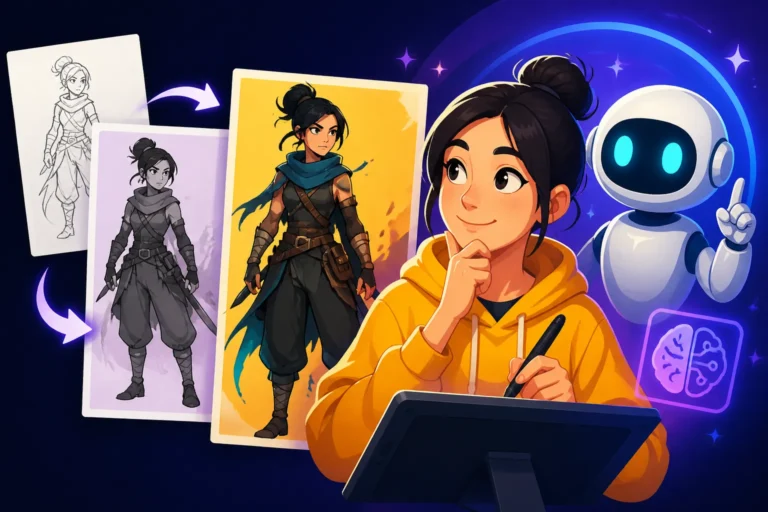
If your presentation involves storytelling, case studies, or requires specific characters to illustrate a point, AI image generators are incredibly powerful. You can create unique characters, set them in specific scenarios, and even strive for visual consistency across multiple slides – a major challenge with traditional methods. This is particularly useful for educational content, marketing campaigns, or even internal training materials where having relatable figures enhances engagement.
Consider a presentation on customer journey mapping. You could prompt: "A friendly, diverse young woman, wearing business casual attire, looking thoughtfully at a tablet, seated in a modern cafe, soft focus background, realistic illustration style." Then, for the next slide, generate "The same friendly young woman, now smiling and confidently presenting in a brightly lit co-working space, interacting with a diverse team, corporate stock photo style." Achieving consistency, especially with characters, often requires using seed numbers (if the AI tool supports it) and very specific prompt details, often repeating descriptors for the character. To master this, resources like How to Prompt for Consistent Characters are essential reading, offering strategies to maintain visual continuity throughout your narrative.
Integrating AI-Generated Images into Your Workflow
Getting the images is one thing; integrating them seamlessly into your presentation and overall workflow is another. This involves strategic tool selection and adherence to best practices to ensure your visuals truly shine.
Choosing the Right AI Tool for Presentation Graphics
Not all AI image generators are created equal, and the "best" one often depends on your specific needs for a presentation. Some excel at photorealism, others at artistic styles, and a select few are good at incorporating text.
- Midjourney is renowned for its artistic prowess and stunning, often cinematic, imagery. If your presentation needs a high-end, aesthetic, and impactful visual appeal for hero shots or abstract concepts, Midjourney is a fantastic choice, though it operates primarily via Discord.
- DALL-E (especially integrated within tools like ChatGPT) offers incredible versatility across various styles and is often very intuitive, making it great for quick iterations and diverse content.
- Ideogram stands out for its impressive ability to render text within images accurately, making it invaluable for slides that require titles or labels directly on the visual.
- Adobe Firefly focuses on commercial safety and ease of use, with features like content credentials and integration with Adobe products, which is a big plus for professional workflows. Many creators also appreciate its IP indemnification.
- Leonardo AI provides a great balance of customization and quality, with various models and fine-tuning options, particularly useful if you need a specific aesthetic or character consistency.
To help you decide, here’s a quick comparison of some popular AI image generators for presentation use:
| AI Tool | Best For | Key Feature for Presentations | Commercial Use Friendly | Free Tier/Credits |
|---|---|---|---|---|
| Midjourney | Artistic, cinematic, abstract imagery | Stunning aesthetics for hero slides | Yes (Paid Plans) | No |
| DALL-E (ChatGPT) | Versatility, diverse styles, in-context use | Easy iteration, integrated workflow | Yes (Paid Plans) | Limited |
| Ideogram | Excellent text rendering, logos | Reliable text on images, typography | Yes (Paid Plans) | Yes |
| Adobe Firefly | Commercial safety, Photoshop integration | Content credentials, professional feel | Yes (Indemnification) | Yes (Limited) |
| Leonardo AI | Customization, specific models, game art | Fine-tuned control over output | Yes (Paid Plans) | Yes |
Choosing between these tools often comes down to balancing desired output quality, ease of use, and budget. For a deeper dive into comparisons, you might find articles like Midjourney vs DALL-E: Which Is Better or a specific review such as Ideogram Review: Best for Text in Images incredibly helpful. If commercial viability is a prime concern, understanding Adobe Firefly Commercial Safety Review is a must. Ultimately, the Best AI Image Generator for Commercial Use will depend on your exact needs and how you plan to deploy your visuals.
Best Practices for High-Quality Integration
Once you have your AI-generated masterpieces, successful integration requires a few key considerations to ensure they enhance, rather than detract from, your presentation.
First, resolution and aspect ratio are critical. Always generate images in the highest possible resolution and the correct aspect ratio (commonly 16:9 for widescreen presentations) to avoid pixelation or awkward cropping. Many AI tools allow you to specify this in your prompt. If your image isn't high enough quality, tools like those discussed in How to Upscale AI Images to 4K can be lifesavers.
Second, consistency in styling is paramount. While AI offers immense variety, try to maintain a consistent visual language across your entire presentation. If you start with a minimalist vector style, try to stick with it for all illustrative graphics. This makes your presentation look polished and professional.
Third, image compression. High-resolution images can bloat your presentation file size, making it slow to load or difficult to share. Utilize presentation software's built-in compression features (like in PowerPoint or Google Slides) or external tools to reduce file size without significantly compromising visual quality.
Finally, consider ethical considerations and disclosure. While commercial use is often permitted with paid AI subscriptions, it's good practice to be aware of the terms of service for each tool. For transparency, especially in academic or highly professional settings, you might consider a subtle disclosure that images were AI-generated. While most tools have vastly improved, occasionally you might still encounter odd artifacts or "AI hands." Knowing How to Fix Bad AI Image Results can help you refine or choose alternative generations. By paying attention to these details, your AI-enhanced presentations will truly shine.
Disclaimer
Please note that the information provided in this article is for general guidance only. While AI image generation tools are powerful, their capabilities, terms of service, and ethical guidelines are constantly evolving. Always refer to the most current information and usage policies directly from the AI tool providers for accuracy regarding commercial use rights, pricing, and features.