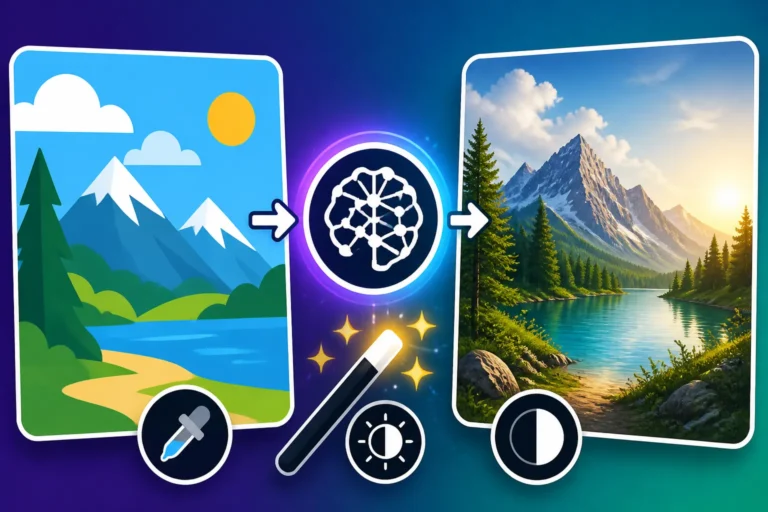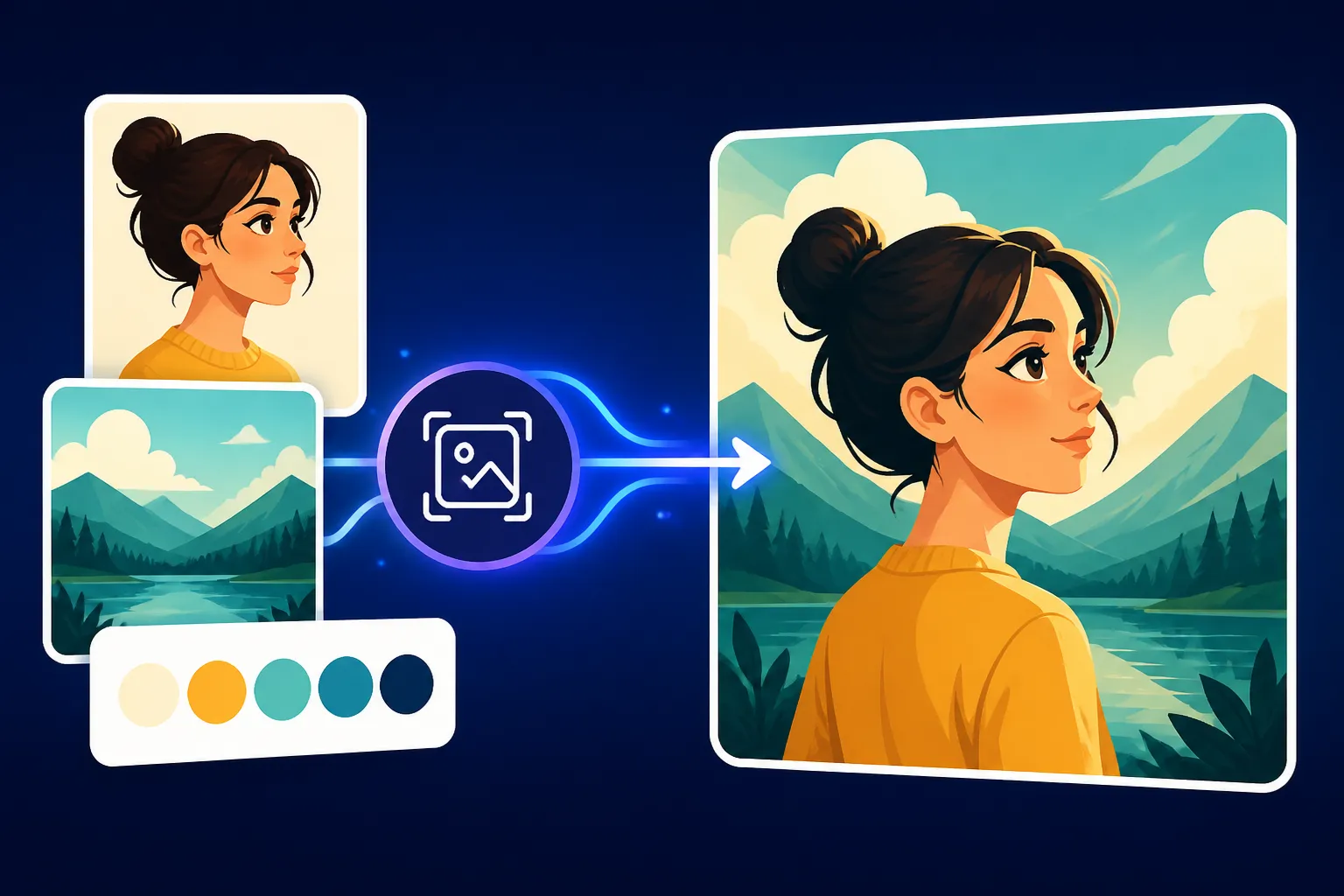
How to Use Reference Images in Prompts
Have you ever tried to conjure a specific vision with an AI image generator, only to be met with something… generic, or just not quite right? It’s incredibly frustrating to have a clear picture in your head but struggle to translate that into words the AI understands. That feeling of hitting a creative wall with text prompts is real, and it’s why understanding how to use reference images can be an absolute game-changer, elevating your AI art from decent to truly remarkable. This guide is all about demystifying that process, helping you leverage visual input to achieve the precise aesthetic, composition, or style you’re aiming for.
Why Reference Images Are Game-Changers for AI Art
Let's be honest, text-to-image AI generators are incredible, but they also have their limitations. When you're trying to convey a very particular artistic style, a unique character pose, or a complex lighting scenario, even the most elaborate text prompt can fall short. This is where reference images step in as your secret weapon, offering a direct visual language that helps the AI "see" what you mean, rather than just interpret your words.
Bridging the Communication Gap
Imagine trying to describe the intricate brushwork of a specific Renaissance painter or the moody, chiaroscuro lighting of a film noir scene using only adjectives. It's tough, right? Even if you nail the descriptive language, the AI might have a slightly different understanding of "dramatic shadows" or "painterly strokes" than you do. A reference image cuts through that ambiguity instantly. By providing an actual example, you’re giving the AI a concrete visual blueprint, allowing it to grasp subtle nuances that words simply can’t convey. It's like showing a chef a picture of the dish you want, instead of just reading out the ingredients.
This direct visual input is especially powerful for conveying abstract concepts or specific artistic styles. For instance, if you want an image in the style of "futuristic cyberpunk cityscapes with neon reflections on wet streets, reminiscent of Blade Runner," a textual prompt might get you close. But if you include an image of a frame from Blade Runner 2049, the AI has a much clearer, richer understanding of the exact mood, color palette, and architectural style you're seeking. This significantly reduces the guesswork and iteration time, getting you closer to your desired output faster.
Enhancing Prompt Creativity and Specificity
Beyond just clarity, reference images can spark new creative directions you might not have considered with text alone. Sometimes, you have a general idea but need a kick-start. Feeding an AI a diverse set of reference images can lead to unexpected and delightful blends of styles and elements that you can then refine with your text prompt. It allows for a more organic, explorative creative process. You might find yourself saying, "I love the vibe of this photo, but I want to apply it to this subject matter."
Moreover, using reference images allows for unparalleled specificity. You can use an image to guide the composition, the pose of a character, the texture of a fabric, or even the subtle expression on a face. Instead of trying to describe "a serene woman with kind eyes looking slightly off-camera, her hair gently blowing in the wind," you can provide an image of a model with that exact expression and pose, then simply tell the AI to generate a similar character, perhaps in a different setting or with different clothing. This level of control opens up a world of possibilities for creators who need to maintain consistency or achieve highly detailed results.
Understanding How AI Tools Process Reference Images
Not all AI image generators are created equal when it comes to handling reference images. Each platform has its own approach, its own quirks, and its own terminology. Understanding these differences is key to getting the most out of this powerful feature. You can't just throw an image at every tool and expect the same results; it requires a bit of platform-specific knowledge.
Image Prompting vs. Style Referencing
Generally, AI tools interpret reference images in a few primary ways. The first is what we often call image prompting, where the uploaded image acts as a primary input, almost like another part of your text prompt. In tools like Midjourney, you can upload an image URL or directly upload an image, and the AI will attempt to incorporate its visual information (like composition, color, and even subject matter) into the generated output, blending it with your text description. This is fantastic when you want the AI to directly draw inspiration from the image's content. For instance, if you upload a picture of a vintage car and then prompt for "a futuristic car design," the AI might create a futuristic car with stylistic cues from the vintage reference.
On the other hand, some tools lean more towards style referencing. Here, the image is primarily used to convey an aesthetic, a mood, or an artistic technique, rather than the specific objects within it. You might upload a painting by Vincent van Gogh not because you want sunflowers, but because you want the distinctive impasto texture and vibrant color palette. In such cases, the AI focuses on extracting the style elements and applying them to your textual subject. Many advanced features, like Midjourney's Style Reference or some implementations of ControlNet in Stable Diffusion, excel at this, allowing you to effectively separate form from content. Knowing which mode your chosen tool prioritizes can save you a lot of trial and error.
How Different AI Tools Interpret Visual Input
Different AI image generators have distinct methods for processing your visual inputs.
- Midjourney: This tool is renowned for its sophisticated image prompting capabilities. You can simply drag and drop an image into Discord or provide an image URL before your text prompt. Midjourney will analyze the image's composition, color scheme, and sometimes even its content, blending it with your text. They also have
--sref(style reference) and--cref(character reference) parameters in newer versions, which offer even more granular control. For example, using--srefwith an abstract painting can inject that specific artistic feel into any subject you describe. You can learn more about specific parameters in a guide like "Midjourney Parameters Explained". - DALL-E (and GPT Image): While DALL-E in ChatGPT doesn't have a direct "image prompt" upload feature in the same way Midjourney does, you can often "show" it an image by uploading it to the chat and asking it to analyze or recreate it, or to use its style. GPT Image, the underlying model, is quite good at understanding contextual visual information. You might say, "Based on this image I just uploaded, create a similar scene but set in space." It excels at understanding the intent behind the image.
- Stable Diffusion: This platform offers incredible flexibility, especially for advanced users. With extensions like ControlNet, you can exert precise control over composition, pose, depth, and even specific outlines from a reference image. You can upload an image, and ControlNet will extract information like a wireframe, a human pose skeleton (OpenPose), or depth map, then guide the diffusion process based on that extracted data. This is particularly powerful for artists who need to maintain consistent character poses or architectural layouts. The workflow for Stable Diffusion is often more hands-on and technical, but the results can be incredibly precise. To get started, you might want to read a guide on "Stable Diffusion Prompt Guide".
- Adobe Firefly: Adobe Firefly integrates image referencing seamlessly into its workflow. You can upload an image and use it as a "style reference" or a "structure reference." This means you can guide the AI to match the aesthetic of your uploaded image or to mimic its general layout and form. This is particularly useful for designers who want to ensure brand consistency or maintain a specific visual language across different projects. Adobe's focus on commercial use also means careful attention to intellectual property in its source data.
- Ideogram: While Ideogram is primarily known for its excellent text rendering capabilities, it also allows users to upload images to influence generations. This is especially helpful if you're trying to integrate a specific visual motif or color palette alongside precise text. The blend can be quite effective for creating logos or social media graphics where both image and text cohesion are vital.
Understanding these different mechanisms is crucial. A complex pose might require ControlNet in Stable Diffusion, while a stylistic influence might be best achieved with Midjourney's style reference or Adobe Firefly's style transfer feature.
| Feature / Tool | Primary Method for Reference Images | Key Strength | Use Case Examples |
|---|---|---|---|
| Midjourney | Image URL/Upload in prompt, --sref, --cref parameters |
Blending content, style, and character consistency | Generating variations of an existing image; applying a painting style to a new subject; consistent character design. |
| Stable Diffusion | ControlNet extensions (OpenPose, Canny, Depth, etc.), img2img | Precise control over composition, pose, structure, inpainting | Recreating a specific pose; converting a sketch to a photorealistic image; editing specific parts of an image. |
| DALL-E / GPT Image | Contextual image uploads within chat, asking AI to analyze/recreate | Understanding and evolving visual concepts from uploaded context | "Make this cat look like a superhero"; "Create a background for this product based on its existing photo." |
| Adobe Firefly | Style Reference, Structure Reference | Maintaining consistent aesthetics and layouts, commercial safety | Applying brand-specific color palettes; creating variations of a marketing image with a consistent layout. |
| Ideogram | Image upload to influence aesthetic and composition | Blending visual style with strong text rendering | Creating logos with a specific visual feel; designing graphics where text integrates seamlessly with an image. |
Choosing the Right Reference Images for Your Vision
Picking the right reference image isn't just about finding something pretty; it's about strategic selection. The quality, content, and stylistic elements of your chosen image will profoundly impact the AI's output. Think of it like choosing the right ingredients for a recipe – the better the ingredients, the better the final dish.
Identifying Your Core Visual Goal
Before you even start searching for reference images, take a moment to clearly define what you want the image to achieve. Are you looking for:
- Style and Aesthetic? Do you want the AI to mimic a specific art movement, a particular photographer's lighting, or a painter's brushwork? For example, perhaps you're aiming for a "vaporwave" aesthetic, or the cinematic feel of Wes Anderson. In this case, your reference images should highlight those stylistic elements. A good resource for exploring different styles might be a guide like "AI Image Prompt Examples by Style".
- Composition and Layout? Do you need a specific framing, a character in a certain pose, or objects arranged in a particular way? Maybe you want a wide shot of a landscape with a lone figure in the foreground, or a close-up portrait with dramatic negative space. Your reference image should clearly demonstrate this compositional structure. Tools like ControlNet in Stable Diffusion excel here, but even basic image prompting can convey general layout.
- Specific Elements or Details? Are you struggling to describe a particular type of armor, a unique creature design, or a complex architectural feature? Sometimes, you just need a visual aid for a component within a larger scene. A reference image showing just that element can be incredibly helpful.
- Color Palette and Lighting? Do you have a precise color scheme in mind, or a specific lighting condition (e.g., golden hour, neon glow, moody candlelight)? An image that perfectly captures your desired colors and light can effectively communicate this to the AI, even if the subject matter is entirely different.
Once you’ve narrowed down your goal, your search for reference images becomes much more targeted. Trying to achieve all these goals with a single, complex reference image can sometimes confuse the AI, so clarity of intent is paramount.
Sources for High-Quality Reference Images
Where do you find these magical reference images? The internet is, of course, a treasure trove, but a discerning eye is crucial.
- Your Own Photos and Art: The best reference images are often your own! If you have photos that capture the mood, lighting, or composition you're after, these are ideal. They're unique to you, and you typically don't have to worry about intellectual property issues when using them as personal input for your own creative projects.
- Stock Photo Sites: Websites like Unsplash, Pexels, and Pixabay offer a vast collection of high-quality, royalty-free images. They're excellent for finding diverse subjects, lighting conditions, and compositional ideas. Be mindful of licensing if you intend to use the output commercially, but using them as input for AI generation is generally acceptable. More premium sites like Adobe Stock or Getty Images offer even more curated options if you have a subscription.
- Art and Design Portfolios: Sites like ArtStation, Behance, and Pinterest are goldmines for artistic styles, character designs, and illustrative techniques. When using these, remember that you are looking for inspiration and style cues, not direct copying. Always respect artists' work and understand that using their direct images as reference might generate outputs very similar to their style.
- Historical Archives and Museums: For specific historical periods, architectural styles, or cultural aesthetics, digital archives of museums and public domain image libraries are invaluable. The British Library, The Met, and the Rijksmuseum, for example, have extensive online collections.
- Specialized Databases: For things like character poses, try sites like Posemaniacs or drawing references. For specific material textures, look for texture libraries.
Always aim for high-resolution, clear images. Blurry, low-quality, or heavily compressed images can introduce artifacts or prevent the AI from accurately extracting the visual information you intend. If the AI can't clearly "see" the details, it can't replicate them.
What to Look For and What to Avoid
When selecting your images, here are some pointers:
Look For:
- Clarity and Simplicity: Images with clear subjects, good lighting, and uncluttered backgrounds are easier for the AI to interpret.
- Strong Composition: A well-composed image provides a strong structural guide.
- Distinctive Styles: If you're going for style, choose images that clearly exemplify that aesthetic.
- Relevant Details: Make sure the image actually contains the specific visual information you want the AI to pick up on.
- Diverse Options: Have a few options ready. If one doesn't work, another might.
Avoid:
- Low Resolution and Blurry Images: As mentioned, these can lead to poor results.
- Overly Complex or Busy Images (unless that's the goal): Too many conflicting elements can confuse the AI. If you want a complex scene, consider breaking it down into multiple references or focusing on one aspect at a time.
- Watermarks or Text Overlays: These can be misinterpreted by the AI as part of the desired image. (Unless you're using a tool like Ideogram that handles text well, and you specifically want the AI to recreate that text, which is rare for a general reference).
- Images with Unintended Emotional or Narrative Cues: Be aware that the AI might pick up on subtle emotions or narrative elements you didn't intend. If the person in your reference image looks sad, the AI might make your generated character sad, even if your text prompt says "joyful."
- Copyrighted Images (for direct copying): While using copyrighted images as inspiration or style reference for your own original creations is generally fine under fair use principles, directly reproducing copyrighted work without permission can lead to legal issues. Always be mindful, especially if your generated image is for commercial use. For commercial safety, consider tools like Adobe Firefly Commercial Safety Review which often come with indemnification for commercial use.
Practical Steps to Integrate Reference Images into Your Prompts
Now that you know the why and what of reference images, let's get into the how. Integrating these visual cues into your AI prompts isn't a one-size-fits-all process, but there are common workflows and best practices that can significantly improve your results.
Step-by-Step Workflow for Major AI Tools
The process varies slightly depending on the tool you're using, but the core principle is to provide the image and then guide the AI with your text.
For Midjourney:
- Upload Your Image: In your Discord server or direct message with the Midjourney bot, you can drag and drop your reference image directly into the chat window. Hit enter to upload it.
- Copy Image Link: Once uploaded, click on the image to open it, then right-click (or long-press on mobile) and select "Copy Image Link" (or "Copy Media Link"). This gives you a direct URL to your image.
- Construct Your Prompt: Start your prompt with
/imagine. Paste the image URL at the very beginning of your prompt. This tells Midjourney that the image is a primary input. - Add Your Text Description: After the image URL, add your text prompt describing what you want. Be specific about the subject, style, colors, and any modifications you want from the reference image.
- Example:
/imagine [image URL] a majestic lion, cinematic lighting, jungle background, high detail, photorealistic
- Example:
- Use Parameters (Optional but Recommended):
--iw <0-2>: This is the Image Weight parameter in Midjourney, which controls how much influence the reference image has compared to your text prompt. A higheriwvalue means the AI will lean more heavily on the image. For example,--iw 1.5for strong influence,--iw 0.5for lighter influence.--sref [style reference image URL]: For style referencing, this parameter tells Midjourney to adopt the style of the provided image, rather than its content. This is fantastic for achieving a consistent aesthetic.--cref [character reference image URL]: Similar to--sref, but specifically for maintaining character consistency across multiple images. This is a game-changer for storytelling or series creation. You can explore more about this in "Midjourney Prompt Guide".
For Stable Diffusion (with ControlNet):
- Prepare Your Environment: You'll likely be using a web UI like Automatic1111. Ensure ControlNet is installed and enabled.
- Upload Reference Image: Navigate to the "img2img" tab or the "ControlNet" accordion within "txt2img." Upload your reference image into the ControlNet module.
- Choose a Preprocessor and Model: This is crucial.
- Preprocessor: This analyzes your image and extracts specific information. Examples include:
Canny: Extracts edges. Great for guiding composition or outlines.OpenPose: Detects human body and hand poses. Essential for character consistency.Depth: Creates a depth map. Useful for 3D-like structural guidance.Normal Map: Extracts surface normals for detailed geometry.
- Model: This is the ControlNet model that corresponds to your chosen preprocessor (e.g.,
control_v11p_sd15_canny).
- Preprocessor: This analyzes your image and extracts specific information. Examples include:
- Set Control Weight: Adjust the "Control Weight" to determine how strongly ControlNet influences the generation.
- Write Your Text Prompt: In the main "txt2img" or "img2img" prompt box, describe your desired output. The ControlNet will enforce the structural/compositional elements from your reference, while your text guides the content and style.
- Example: (ControlNet with OpenPose from a photo of someone dancing) "A fairy dancing in an enchanted forest, glowing moss, volumetric lighting, highly detailed, fantasy art"
- Generate and Refine: Generate your image and adjust the ControlNet parameters (preprocessor, model, weight) or your text prompt as needed. This iterative process is key to mastering Stable Diffusion. For deeper insights, check out "How to Use ControlNet in Stable Diffusion".
For Adobe Firefly:
- Access the Generate Module: Go to the Adobe Firefly web application and select "Text to Image."
- Upload Reference Image: Look for the "Reference Image" or "Style Reference" section. You can upload an image from your computer.
- Choose Influence Level: Firefly often provides sliders or options to adjust the "Style Strength" or "Structure Match." This determines how closely the AI adheres to the visual characteristics of your reference.
- Enter Text Prompt: Type your descriptive text prompt in the main prompt box.
- Generate: Click generate and review the results. Firefly's interface is usually very intuitive, making it easy to experiment with different levels of image influence.
Crafting Effective Text Prompts with Reference Images
Simply throwing an image at the AI isn't always enough. Your text prompt still plays a vital role in refining the output and ensuring the AI understands your intent.
- Be Specific About What to Keep/Change: If your reference image has a great pose but the wrong clothing, your prompt should explicitly state, "Keep the pose of the figure, but dress them in a futuristic cyberpunk outfit."
- Emphasize Style Elements: If you're using an image for its style, use descriptive words in your prompt that reinforce that style. E.g., for a painterly reference, use "oil painting," "brushstrokes," "rich textures."
- Negative Prompts are Your Friend: Use negative prompts to tell the AI what not to include from the reference image. If the reference has a busy background you don't want, add "no cluttered background," "simple backdrop" to your negative prompt. This is crucial for avoiding unwanted elements or artifacts. Learn more about this in "How to Use Negative Prompts".
- Iterate, Iterate, Iterate: AI generation is rarely perfect on the first try, especially with complex inputs. Experiment with different image weights, prompt variations, and even different reference images. Small tweaks can lead to big improvements. Think of it as a conversation with the AI; you provide input, it gives output, and you adjust your next statement based on its response.
By combining the power of visual references with precise textual guidance, you can unlock a whole new level of control and creativity in your AI image generation journey.
Advanced Techniques and Troubleshooting for Better Results
Once you've got the basics down, you might find yourself wanting even more control, or encountering frustrating issues where the AI isn't quite hitting the mark. This is where advanced techniques and smart troubleshooting come into play. It's all about pushing the boundaries and learning to speak the AI's visual language more fluently.
Combining Multiple Reference Images
Sometimes, one image isn't enough to convey your complex vision. What if you love the color palette of one image, the composition of another, and the specific texture from a third? Many AI tools allow you to use multiple reference images, either by combining their URLs or by stacking ControlNet models.
- Midjourney: You can put multiple image URLs at the beginning of your prompt. Midjourney will try to blend elements from all of them. Experiment with the
--iwparameter to see how it balances the influence. Additionally, you can use one image for the main prompt and another for--sref, giving you a powerful content-style split. For example,/imagine [content_image_url] --sref [style_image_url] a whimsical treehouse in a fantasy forest. - Stable Diffusion (ControlNet): This is where Stable Diffusion truly shines for multi-reference input. You can enable multiple ControlNet modules, each with a different preprocessor and model. For instance, you could use one ControlNet for
OpenPoseto dictate a character's posture, and another ControlNet withCannyto guide the architectural structure of a building, all while using a text prompt to define the overall style and details. This granular control is incredibly powerful but also requires more setup and understanding of each ControlNet model's function.
When combining images, be mindful of potential conflicts. If two images have drastically different lighting or compositional styles, the AI might struggle to reconcile them, leading to incoherent results. It often takes trial and error to find the right balance.
Troubleshooting Common Issues and Refining Outputs
Even with the best reference images and prompts, AI can sometimes misinterpret your intentions. Don's despair! Many common issues have practical solutions.
- The AI Copies Too Much: You wanted the style of the reference, but the AI included unwanted objects or even watermarks.
- Solution: Reduce the image weight (
--iwin Midjourney) or control weight (in Stable Diffusion). Use stronger negative prompts to exclude specific objects (--no [object]). If using a style reference parameter, ensure you're using it correctly (e.g.,--srefinstead of putting the image directly in the prompt).
- Solution: Reduce the image weight (
- The AI Doesn't Capture the Essence: The output feels generic, despite a strong reference.
- Solution: Increase the image weight or control weight. Try a different preprocessor in ControlNet if you're looking for a specific structural element. Refine your text prompt to reinforce the stylistic elements you want from the image. For instance, if a photo has a moody vibe, add "moody, atmospheric, dramatic lighting" to your prompt.
- Inconsistent Characters/Objects: You need the same character or object across multiple images, but they keep changing.
- Solution: This is a persistent challenge in AI art. Midjourney's
--crefparameter is designed specifically for this. In Stable Diffusion, consistency is often achieved through a combination ofControlNet(especiallyOpenPoseorReference Only), using the same seed number, and potentially training a LoRA (Low-Rank Adaptation) model on your character. Read more on "How to Prompt for Consistent Characters".
- Solution: This is a persistent challenge in AI art. Midjourney's
- Distorted Features (Hands, Faces, etc.): This is a classic AI problem, especially with photorealistic outputs.
- Solution: High-quality reference images for faces and hands can help. Use specific negative prompts like "deformed hands," "ugly face." Inpainting (editing specific parts of an image using AI) in tools like Stable Diffusion can also be a lifesaver. Upscalers like Magnific AI or those integrated into tools can sometimes clean up smaller distortions. Check out "How to Fix AI Hands and Faces" for more in-depth solutions.
- Garbled Text in Images: If your reference image has text, the AI often struggles to replicate it accurately.
- Solution: Most general-purpose AI image generators are poor at rendering text accurately. Tools like Ideogram are designed specifically to handle text well. If you must have text, generate the image without it, then use an external image editor or a dedicated AI text tool to overlay the text afterward. Avoid using text-heavy images as general references unless the tool explicitly excels at text generation. A dedicated guide on "How to Write Prompts for Text in Images" could be helpful.
The key to successful troubleshooting and advanced techniques is experimentation. Keep a log of your prompts, reference images, and the resulting outputs. This will help you learn what works best for your specific style and workflow.
The Ethical Side of Using Reference Images
As creators, we have a responsibility to consider the ethical implications of the tools we use. AI art is no exception, and the use of reference images brings some unique considerations to the forefront. Navigating these waters with integrity is just as important as mastering the technical aspects.
Copyright and Fair Use Considerations
One of the biggest questions surrounding AI-generated art, especially when using reference images, is copyright. When you upload an image, is the AI learning from it in a way that infringes on the original creator's rights? This is a complex and evolving legal area, with different jurisdictions and legal interpretations.
Generally, using a copyrighted image as inspiration or as a style reference to generate a new, transformative work is often considered fair use, particularly if your output is significantly different from the original and doesn't directly compete with it. However, if your AI output is a near-identical copy of a copyrighted reference image, or if it's derived from a dataset primarily consisting of copyrighted work without permission, you could potentially face issues.
- Transformative Use: The legal concept of "transformative use" is key. Is your AI-generated image merely a derivative copy, or does it add new meaning, expression, or message to the original? The more transformative your use, the stronger your fair use argument.
- Commercial Use: If you plan to use your AI-generated images commercially (e.g., selling prints, using them in advertisements, etc.), the risk of copyright infringement increases. Companies like Adobe Firefly are proactively addressing this by offering IP indemnification for content created with Firefly, meaning they will cover legal costs if a claim arises from using their commercially generated images. This makes them a safer choice for businesses.
- Originality: Strive for originality in your output. Use reference images as a guide to achieve your creative vision, not as a shortcut to replicate existing works. Blend styles, introduce new elements, and make the work distinctly your own. For more on this, consider reading "How to Use AI Images Without Copyright Issues".
When in doubt, default to using royalty-free images, your own original content, or images explicitly labeled for commercial use as your references, especially for commercial projects.
Attribution and Acknowledging Inspiration
Beyond legal obligations, there's the ethical consideration of attribution. While it's not always feasible or legally required to attribute every single reference image used in an AI generation, acknowledging sources of inspiration fosters a healthy creative community.
- For Direct Inspiration: If a particular artist's style or a specific photo heavily influenced your AI art, consider giving a shout-out to that source, especially if you share your work publicly. A simple "Inspired by the works of [Artist Name]" goes a long way.
- When Commissioning: If you're using AI art for client work and a specific reference image was provided by the client, ensure you're clear about the AI's role and the origin of the base reference. Transparency is crucial.
- Best Practice: Cultivate a habit of asking yourself: "Would the original creator feel respected by how I'm using their work as a reference?" This internal check can guide your ethical decisions.
The world of AI image generation is rapidly evolving, and with it, our understanding of creative ownership and ethics. By staying informed, being respectful of other creators' work, and prioritizing transformative use, you can confidently integrate reference images into your AI prompting workflow while upholding ethical standards.
Disclaimer
The information provided in this article is for general informational and educational purposes only and does not constitute legal, financial, or professional advice. While we strive to provide accurate and up-to-date information, the field of AI image generation is constantly evolving. Users should exercise their own judgment and consult with appropriate professionals for specific situations, especially concerning copyright and commercial use of AI-generated content.