How to Write AI Prompts for Pixel Art Images
It can be incredibly frustrating when you're trying to evoke that perfect nostalgic, blocky aesthetic with an AI image generator, only to get something that looks like a blurry photograph or a strange, pixel-adjacent mess. The key to unlocking truly authentic pixel art from these powerful tools isn't just about adding "pixel art" to your prompt; it requires a much more nuanced approach to guide the AI's understanding. This comprehensive guide will walk you through the essential strategies, specific keywords, and iterative techniques needed to consistently generate stunning pixel art images, ensuring your digital creations hit that sweet spot of retro charm.
Decoding the Essence of Pixel Art for AI
Before we dive into the nitty-gritty of prompt writing, it’s crucial to understand what pixel art is from an AI’s perspective, and why simply asking for "pixel art" often falls short. Pixel art isn't just about low resolution; it's a deliberate art form defined by specific characteristics that AI models try to emulate.
What AI Understands as Pixel Art
Many AI models, especially newer ones, are trained on vast datasets of high-resolution, photorealistic images. When you tell it "pixel art," it might try to simulate pixels by adding a grid or a low-res filter, rather than actually generating an image composed of individual, intentionally placed pixels. This is why you often see images that look like they've been downscaled and then poorly upscaled, or have a strange, grainy texture that isn't true pixel art. The AI might struggle with distinct, sharp pixel edges and instead produce softer, blended transitions unless explicitly instructed. It's not uncommon to get something that looks like an abstract painting with a grid overlay, completely missing the mark on the crispness and intentionality of true pixel art.
Think of it like this: if you ask a child to draw a "house," they'll draw a generic house. If you ask them to draw a "Victorian terraced house with bay windows and a red brick facade," you get a much more specific, accurate result. AI models are similar; they need detailed instructions to move beyond their default understanding. This is where mastering your prompts comes into play. To get truly authentic results, you need to understand How to Write AI Image Prompts.
Key Characteristics of Authentic Pixel Art
To properly guide the AI, we need to break down pixel art into its fundamental components. This isn't just a stylistic choice; it's a technical one.
- Low Resolution: This is the most obvious, but it's often misinterpreted. It means a small canvas size, leading to large, discernible pixels. For example, generating an image that is literally 64×64 pixels, then upscaling it without interpolation to maintain crisp edges.
- Limited Color Palettes: Classic pixel art often used a constrained number of colors, like the 16-color palette of the NES or the 256-color palette of the Super Nintendo. This limitation is a core part of the aesthetic, influencing shading and detail.
- Dithering: A technique used to create the illusion of more colors or smoother gradients by alternating colors in a pattern, rather than blending them. It's a hallmark of older pixel art.
- Clean Pixel Edges: Each "pixel" should be a distinct, solid block of color with sharp edges, not a blurry or anti-aliased blend. This is where many AIs falter, often smoothing out lines.
- Iconic Styles: Many pixel art styles are tied to specific retro game consoles or eras (e.g., 8-bit NES, 16-bit SNES, Game Boy monochrome, Commodore 64). Referencing these styles can give the AI a strong historical context to draw from.
Without these explicit details, the AI will default to its general understanding of "art" and often create something that is just blocky rather than authentically pixelated. For a broader understanding of improving your outcomes, you might want to read our guide on How to Get Better AI Image Results.
Crafting Effective Pixel Art Prompts
Now that we understand what pixel art truly is, let's translate that knowledge into actionable prompt-writing strategies. This isn't just about adding a few words; it's about structuring your requests to be unambiguous and rich with pixel-specific details.
Essential Keywords and Modifiers
The foundation of any good pixel art prompt lies in selecting the right descriptive terms. These keywords help steer the AI away from its default high-resolution output.
- Direct Style Descriptors:
pixel art(always start with this, but don't rely solely on it)8-bit pixel art,16-bit pixel art,32-bit pixel art(specify the "bit" era)retro game art,vintage arcade game styleisometric pixel art(for a specific perspective)chibi pixel art(for character styles)lo-fi pixel art
- Resolution and Detail:
low resolution(use cautiously, as it can sometimes lead to blurry images)sharp pixels,crisp pixel edges,individual pixels visibleminimalist pixel art(can imply simpler forms, useful for cleaner results)no anti-aliasing(crucial to prevent smoothing of edges)
- Color and Texture:
limited color palette,retro color palettedithered shading,stipplingmonochrome pixel art(for Game Boy style)Game Boy palette,NES color palette,SNES color palette,Commodore 64 color palette(very effective for specific looks)
- Artistic Influence:
inspired by Stardew Valley,Terraria style,Minecraft aesthetic(referencing specific games with known pixel art styles)early video game graphics
Combining these keywords strategically is far more effective than just one or two. Think about the style, resolution, color, and specific feel you want. This comprehensive approach aligns with general advice on Prompt Structure: Subject, Style, Lighting.
Structuring Your Pixel Art Prompts
A well-structured prompt provides clarity to the AI. Think of it as layers of instruction, building from the general concept to the specific pixel art details.
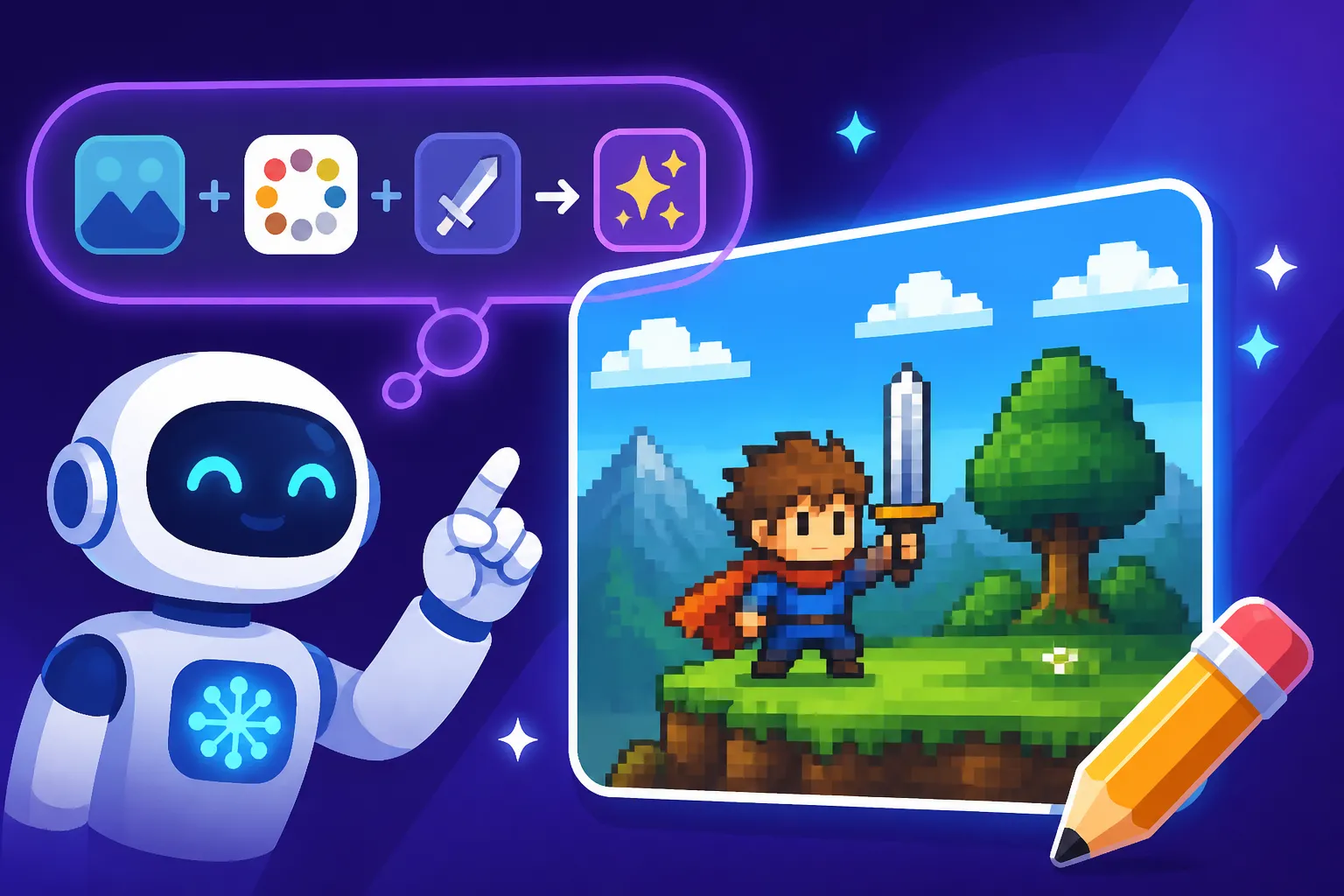
Basic Formula:[Subject Description], [Action/Setting], [Art Style Modifier], [Pixel Art Specifics], [Technical Details]
Let's break down some examples to illustrate.
-
Example 1: Classic Character
- Bad Prompt:
pixel art knight - Better Prompt:
A valiant knight standing heroically, in a fantasy forest clearing, **8-bit pixel art style, NES color palette, sharp pixels, no anti-aliasing, retro game graphics.** - Why it's better: We’ve specified the "bit" level, the exact color palette, the desired sharpness, and explicitly told it to avoid anti-aliasing, which is a common pitfall.
- Bad Prompt:
-
Example 2: Detailed Scene
- Bad Prompt:
city street pixel art - Better Prompt:
A bustling cyberpunk city street at night, with neon signs and flying cars, **16-bit pixel art, vibrant synthwave colors, heavy dithering, high detail in low resolution, reminiscent of SNES RPGs.** - Why it's better: Here, we add atmosphere (
cyberpunk city at night), specific color descriptions (synthwave colors), a dithering instruction, and a strong reference to a game era (SNES RPGs).
- Bad Prompt:
-
Example 3: Isometric View
- Bad Prompt:
pixel art building - Better Prompt:
A cozy medieval tavern, viewed from an **isometric perspective, detailed pixel art, limited earthy color palette, crisp pixel edges, inspired by old strategy games like Theme Hospital.** - Why it's better: The
isometric perspectiveis key here, combined with alimited earthy color paletteand a specific game reference.
- Bad Prompt:
A markdown table might help visualize these components:
| Prompt Component | Description | Example Keywords/Phrases |
|---|---|---|
| Subject | What is the main focus of your image? | dragon, sci-fi spaceship, chef cooking |
| Action/Setting | What is the subject doing, or where are they? | flying through space, standing on a mountain, in a cozy room |
| Core Art Style | General art style, always include pixel art here |
pixel art, chibi pixel art, dark fantasy pixel art |
| Bit/Era Specifics | What generation of pixel art are you targeting? | 8-bit, 16-bit, 32-bit, retro arcade, vintage game style |
| Color/Palette | How many colors, what kind of colors? | limited color palette, Game Boy palette, neon colors, sepia-toned |
| Resolution/Edges | How should the pixels look? | sharp pixels, crisp edges, individual pixels visible, no anti-aliasing |
| Shading/Texture | How should light and shadow be rendered? | dithered shading, stippling, flat shading |
| Inspiration/Game Ref | Reference a specific game or aesthetic for stronger style guidance. | Stardew Valley aesthetic, Terraria style, SNES RPG graphics |
| Perspective | Any specific camera angle? | isometric view, top-down, side-scroller view |
Remember, the more specific you are, the better. Don't be afraid to write longer, descriptive prompts. You can also explore different AI Image Prompt Examples by Style for more inspiration.
Advanced Techniques for Refined Pixel Art Generation
Getting basic pixel art is one thing, but achieving truly refined and consistent results requires some advanced prompting techniques. This is where you move beyond simple descriptors and start leveraging the AI's understanding of artistic concepts.
Leveraging Styles and Aesthetics
AI models have been trained on millions of images, including a vast array of pixel art. By referencing popular or distinct pixel art styles, you can tap into the AI's existing knowledge base more effectively.
- Game References: This is perhaps the most powerful technique. Instead of just saying "16-bit," try
inspired by Chrono Trigger pixel artorlike the sprites in Secret of Mana. These games have very distinct styles, color palettes, and resolutions that the AI can often mimic with surprising accuracy. For 8-bit, thinkNES Zelda styleorearly Mario Bros. graphics. For monochrome,Game Boy Donkey Kong Land graphics. These specific references give the AI a rich visual library to draw from. - Artistic Movements within Pixel Art: Consider subgenres like
chibi pixel art,hyper-detailed pixel art,minimalist pixel art, or evenglitch art pixel art. These add another layer of stylistic information. For example,A serene landscape, a lone samurai observing cherry blossoms, rendered in **detailed, melancholic pixel art, reminiscent of traditional Japanese woodblock prints mixed with classic JRPG aesthetics.**This combines multiple stylistic cues. - Cross-Pollination with Other Art Forms: Sometimes, a unique pixel art style can emerge from blending it with something else. Try
pixel art in the style of Van Gogh's Starry Night, ornoir film-inspired pixel art detective scene. The AI will attempt to translate the characteristics of the secondary style into a pixelated format, which can yield incredibly creative and unexpected results.
By being specific with your references, you're not just throwing keywords at the AI; you're providing it with a complete artistic brief. This level of detail is also crucial when you are trying to write How to Prompt for Specific Art Styles.
Emphasizing Clarity and Avoiding Ambiguity
One of the biggest hurdles in AI prompting is when the model misinterprets your intent. For pixel art, ambiguity can lead to soft edges, unwanted blending, or even photorealistic elements appearing in your "pixel" image.
- Negative Prompts: This is an incredibly powerful tool for refining your output. Negative prompts tell the AI what not to include or what characteristics to avoid. For pixel art, some common negative prompts are:
blurry,anti-aliasing,smooth gradients,photorealistic,realistic,soft edges,blended colors,high resolution,jpeg artifacts.- For example:
A futuristic robot fighting an alien creature, dynamic pose, 16-bit pixel art, vibrant neon colors, retro arcade game style, --no blurry, anti-aliasing, smooth gradients. The--noor negative prompt syntax can vary slightly between models like Midjourney or Stable Diffusion, so always check your specific tool's documentation.
- Weighting Keywords (if supported): Some AI tools, like those based on Stable Diffusion, allow you to assign weights to different parts of your prompt (e.g.,
(pixel art:1.2) knight). This tells the AI to pay more attention to certain terms. If your pixel art isn't pixelated enough, increasing the weight onpixel artorsharp pixelscan help. - Iterative Refinement: Generating pixel art with AI is rarely a one-shot process. Expect to generate multiple variations and continuously refine your prompt based on the results. If you get something close but still too soft, add
no anti-aliasingmore prominently. If the colors are off, swapretro color paletteforGame Boy color palette. This process of trial and error and adjustment is known as prompt iteration, and it's essential for getting the exact image you envision. Learning How to Iterate on AI Image Prompts is a skill that pays dividends across all AI image generation.
Troubleshooting and Iteration for Perfect Pixel Art
Even with the best prompts, AI image generation can be a bit unpredictable. Don't get discouraged if your first few attempts aren't perfect. Troubleshooting is a core part of the process, especially when trying to coax a specific style like pixel art out of the AI.
Common Problems and Solutions
You’ll inevitably run into some recurring issues when generating pixel art. Knowing how to identify and address them will save you a lot of time and frustration.
- Problem 1: Images look blurry or soft, not truly pixelated.
- Reason: The AI is trying to "smooth" the edges, often defaulting to anti-aliasing or generating an image that's technically low-res but still blended.
- Solution: Reinforce keywords like
sharp pixels,crisp edges,individual pixels visible. Crucially, use negative prompts:--no anti-aliasing,--no blurry,--no smooth gradients. Experiment with specific "bit" counts (e.g.,8-bit,16-bit) as these often imply clearer, larger pixels. For some tools, explicitly setting a very low resolution output and then using a "nearest neighbor" upscaling method can help preserve the pixel integrity, though this often requires external editing.
- Problem 2: Colors are too rich/modern or don't match the retro vibe.
- Reason: The AI is using a broader color spectrum from its general training data.
- Solution: Specify a
limited color paletteor, even better, name specific retro palettes:NES color palette,Game Boy color palette(for green/gray monochrome),SNES color palette,Commodore 64 colors. You can also describe the feel of the colors, such asmuted retro tonesorvibrant synthwave palette.
- Problem 3: The image has some pixel art elements but also photorealistic details.
- Reason: The AI is blending its understanding of "pixel art" with its dominant training in realism. This often happens if your initial subject prompt is too general (e.g., just
maninstead ofpixel art man). - Solution: Ensure
pixel artis early and weighted in your prompt. Use strong negative prompts against realism:--no photorealistic,--no realistic,--no real photo. Add descriptors likeillustration,digital art,sprite artto reinforce it's not a photograph.
- Reason: The AI is blending its understanding of "pixel art" with its dominant training in realism. This often happens if your initial subject prompt is too general (e.g., just
- Problem 4: Text in images is garbled or unreadable.
- Reason: AI image generators often struggle with rendering coherent text, especially within stylistic constraints like pixel art.
- Solution: While some tools like Ideogram are better at text, for most, it's a challenge. For pixel art, try to keep text prompts very short and simple (e.g.,
the word "GAME OVER"). If perfect text is crucial, it’s often best to generate the image without text and then add the pixelated text using a dedicated pixel art editor (like Aseprite) or a graphics program with a pixel font. This is a common pain point, and you can find more information on How to Fix Garbled Text in AI Images.
- Problem 5: The style is inconsistent across multiple images for the same project.
- Reason: AI models can sometimes vary results even with similar prompts due to randomness in the generation process.
- Solution: If your tool supports seeds, use a specific seed for a base image and then iterate from there. Maintain highly consistent prompt wording across all images. Reference a single, strong style (e.g., always
Stardew Valley style). Tools like Midjourney offer a "style reference" parameter (--sref) which can be incredibly useful for maintaining visual consistency across various images.
The Power of Iterative Prompt Refinement
Generating exceptional pixel art isn't usually a "set it and forget it" affair. It's a dialogue with the AI, a process of continuous feedback and refinement.
- Start Broad, Then Specialize: Begin with your core concept and
pixel art.- Example:
A majestic dragon breathing fire, pixel art.
- Example:
- Analyze the Output: Look closely at what the AI gave you. Is it too smooth? Are the colors wrong? Is it missing that retro feel?
- Add Specificity: Based on your analysis, introduce more pixel-specific keywords and negative prompts.
- Example Iteration 1:
A majestic dragon breathing fire, **8-bit pixel art, NES color palette, sharp pixels, no anti-aliasing.**
- Example Iteration 1:
- Introduce References: If it's still not quite right, bring in strong stylistic references.
- Example Iteration 2:
A majestic dragon breathing fire, 8-bit pixel art, NES color palette, sharp pixels, no anti-aliasing, **inspired by Dragon Warrior III sprite art.**
- Example Iteration 2:
- Adjust and Experiment: Tweak numbers, swap keywords, try different orderings, and even remove elements that seem to be hindering your vision. Sometimes, adding a small detail like
isometriccan completely change the composition and clarity.
This iterative process is key to mastering any complex AI image generation, including pixel art. Don't be afraid to experiment and push the boundaries of what the AI can do. The more you practice, the better you'll become at anticipating how the AI will interpret your words and guiding it towards your artistic vision. It also helps to study how different AI Image Generators Ranked by Artistic Quality handle complex requests.
Disclaimer
The information provided in this article is for general guidance and informational purposes only. While AI image generation tools are powerful, results can vary significantly based on the specific model, its current version, your chosen platform, and the nuances of your prompt. Always consult the terms of service and usage policies of any AI image generator you use, especially concerning commercial use and intellectual property.