How to Use AI Image Generators for Wallpapers
Ever felt that deep sigh of frustration scrolling through endless generic stock photo sites, desperately searching for that one perfect wallpaper that truly speaks to your soul, only to come up short? You're not alone. It's tough finding something that perfectly matches your aesthetic, your device's resolution, and your mood without compromise. This guide is here to turn that frustration into creative power, showing you exactly how AI image generators can become your personal design studio for crafting bespoke wallpapers that are truly, uniquely you.
Why AI Image Generators Are a Game-Changer for Wallpapers
For years, our digital canvases – our phone screens, tablet displays, and desktop monitors – have often been adorned with whatever generic images we could scrounge up. We've all been there: downloading a "beautiful landscape" that ends up looking pixelated on our high-res monitor, or finding an image that's almost perfect but has an annoying watermark. It's like trying to fit a square peg in a round hole, constantly settling for "good enough" rather than "absolutely stunning." But what if you never had to compromise again?
The Frustration of Generic Wallpapers
Let's be honest, the struggle is real. You've probably spent countless hours browsing through wallpaper galleries, only to encounter a sea of uninspired options. Maybe you're looking for a specific minimalist aesthetic with a touch of abstract art, but all you find are overly busy patterns or bland gradients. Or perhaps you've stumbled upon a gorgeous photograph, only to realize it's optimized for a widescreen desktop, leaving awkward black bars or a stretched appearance on your vertical phone screen. And don't even get me started on the licensing headaches or the dreaded low-resolution output that makes your crisp new device look like it's from the early 2000s. These are the little annoyances that chip away at the joy of personalizing your tech. We want our devices to reflect us, to inspire us, and to feel fresh, not just another piece of digital clutter.
Instant Customization and Infinite Possibilities
This is precisely where AI image generators swoop in like a digital superhero. Instead of sifting through existing libraries, you create your own. Imagine being able to conjure a serene Japanese garden scene, specifically rendered in a watercolor style, with cherry blossoms and a misty sunrise, perfectly formatted for your ultra-wide monitor – all with a few descriptive phrases. That's the power of AI. It liberates you from the limitations of pre-existing content.
Do you have a sudden craving for a cyberpunk cityscape illuminated by neon lights, or perhaps a cozy cottagecore scene bathed in golden hour glow? The AI can bring it to life. This isn't just about generating pretty pictures; it's about having an infinitely flexible tool that adapts to your vision. You can experiment with different art styles, lighting conditions, color palettes, and subjects without any artistic skill or expensive software. The potential for matching any aesthetic, device, or mood is truly boundless, offering a level of personalization that was once only accessible to professional designers.
Getting Started: Choosing Your AI Tool and Crafting Prompts
Diving into the world of AI-generated wallpapers might seem intimidating at first, but it's remarkably accessible. The initial steps involve selecting the right tool for your needs and then learning the language of AI: prompt writing. Think of it like being an orchestra conductor; you don't play every instrument, but you direct them to create something beautiful.
Selecting the Right AI Image Generator
The landscape of AI image generators is vast and constantly evolving, with new tools popping up all the time. For wallpapers, you'll generally want a tool that offers good resolution, a variety of artistic styles, and robust control over aspect ratios. Some tools excel at photorealism, others at illustrative or artistic styles, and some are fantastic for typography if you want text-based wallpapers.
If you're just starting, many platforms offer free tiers or trials that are perfect for experimentation. For example, some tools are known for their strong capabilities in generating abstract art, while others are renowned for their intricate details in photorealistic scenes. You might want to consider trying out a few to see which interface feels most intuitive and which aesthetic aligns best with your personal taste. When looking for the ideal generator, you might wonder, "Which tool is truly the Best AI Image Generator Overall?" or evaluate if a paid subscription is necessary by exploring the pros and cons of Free vs Paid AI Image Generators. Don't feel pressured to commit to one right away; the beauty is in the exploration.
Mastering the Art of Wallpaper Prompts
This is where the magic truly happens. A "prompt" is simply the text you input to tell the AI what image you want it to create. Crafting an effective prompt for a wallpaper involves more than just a vague idea; it requires a blend of creativity and specificity.
Here’s a breakdown of key elements to consider when writing your prompts:
- Subject: What is the main focus of your wallpaper? (e.g., "a majestic mountain range," "a cozy coffee shop interior," "abstract geometric shapes").
- Style: How do you want it to look? (e.g., "photorealistic," "watercolor painting," "pixel art," "cyberpunk aesthetic," "minimalist line art").
- Lighting and Mood: What's the atmosphere? (e.g., "golden hour," "moody cinematic lighting," "bright and airy," "vibrant neon glow," "soft pastel tones").
- Color Palette: Do you have specific colors in mind? (e.g., "monochromatic blues," "warm autumn colors," "cool greens and purples").
- Composition: How should elements be arranged? (e.g., "symmetrical," "rule of thirds," "wide shot," "close-up").
- Technical Details: Crucially, mention aspect ratio (e.g.,
--ar 16:9for desktop,--ar 9:16for phone) and keywords like "high resolution," "4K," or "8K" to ensure crispness.
For instance, instead of "cool picture," try something like: "A tranquil Japanese zen garden at dawn, minimalist aesthetic, with a single bonsai tree and raked gravel patterns, soft diffused light, pastel green and grey color palette, highly detailed, 4K, –ar 16:9." This level of detail guides the AI much more effectively. Learning How to Write AI Image Prompts is a foundational skill, and there are many resources like an AI Image Prompt Guide for Beginners to help you get started. Understanding How to Prompt for Different Aspect Ratios is especially important for wallpapers to avoid awkward cropping.
Step-by-Step Workflow for Creating Your Custom Wallpaper
Now that you have a grasp of the basics, let's walk through the practical steps of bringing your wallpaper vision to life. This process is iterative, meaning you'll likely go back and forth, refining your ideas as you see the AI's output.
Defining Your Vision and Device Specifications
Before you even type a single word into an AI generator, take a moment to truly define what you're looking for. This pre-planning stage is critical for saving time and achieving satisfying results.
Ask yourself:
- What device is this for? Is it your smartphone, a tablet, a desktop monitor, or maybe even multiple devices?
- What is the screen's aspect ratio and resolution? This is paramount! A desktop monitor is typically 16:9 or 21:9 (ultrawide), while a smartphone is usually 9:16 (vertical). Tablets can vary. Knowing this will directly inform your prompt. Common resolutions include 1920×1080 (HD), 2560×1440 (QHD), and 3840×2160 (4K UHD). You don't need to specify exact pixel counts in the prompt necessarily, but definitely the aspect ratio.
- What theme or aesthetic are you aiming for? Is it abstract, natural, fantastical, minimalist, sci-fi, dark academia, cozy?
- What color scheme do you prefer? Bright and vibrant, cool and subdued, warm and earthy?
- What mood should it evoke? Peaceful, energetic, mysterious, calming, inspiring?
For example, if you want a wallpaper for your iPhone 15 Pro Max (which has a vertical screen, roughly 9:19.5 aspect ratio, but 9:16 works well as a general vertical standard) and you love a serene, misty forest vibe, you might already start thinking: "misty forest, ethereal, soft light, deep greens and grays, vertical composition."
Here's a quick reference table for common device aspect ratios:
| Device Type | Common Aspect Ratios | Typical Resolutions (Examples) | Prompt Aspect Ratio Parameter |
|---|---|---|---|
| Desktop Monitor | 16:9, 16:10, 21:9 | 1920×1080, 2560×1440, 3840×2160 | --ar 16:9, --ar 21:9 |
| Laptop Screen | 16:9, 16:10 | 1920×1080, 2560×1600 | --ar 16:9, --ar 16:10 |
| Smartphone (Vert.) | 9:16, 9:19.5 (approx) | 1080×1920, 1440×2560, 1290×2796 (iPhone) | --ar 9:16 |
| Tablet (Landscape) | 4:3, 16:10 | 2048×1536, 2560×1600 | --ar 4:3, --ar 16:10 |
Generating and Refining Your Image
With your vision clear and specs in mind, it's time to generate!
- Input Your Initial Prompt: Start with a solid, descriptive prompt incorporating all the elements from the previous step, especially the aspect ratio. For example: "/imagine prompt: ethereal misty forest, ancient trees, soft glowing light filtering through fog, deep emerald green and silver tones, fantasy art, volumetric lighting, peaceful, high detail, 4K, –ar 9:16".
- Generate Variations: Most AI tools will give you several variations based on your prompt. Don't expect perfection on the first try! This is where you assess what works and what doesn't.
- Iterate and Adjust:
- If a variation is close: You can often "remix" or "vary" that specific image. This tells the AI to use that image as a stronger starting point while allowing you to tweak the prompt slightly (e.g., "add more glowing fungi," "change the time to afternoon").
- If results are off: Modify your original prompt. Add more descriptive words, remove ambiguous terms, or try different stylistic keywords. For example, if "fantasy art" made it too cartoony, try "hyperrealistic digital painting."
- Use Negative Prompts: If you keep getting elements you don't want (e.g., "no people," "no bright red colors," "no cartoon style"), explicitly state these in your negative prompt section (some tools have a dedicated field, others use "::" or " –no" in the main prompt).
Getting better results is an art, and guides like How to Get Better AI Image Results and How to Use Negative Prompts can be incredibly helpful. Remember, mastering this often comes down to learning How to Iterate on AI Image Prompts effectively.
Upscaling and Post-Processing for Perfection
Once you have an image you love, there are usually a few more steps to make it truly wallpaper-ready.
- Upscaling: AI generators produce images at varying resolutions. For a wallpaper, especially on modern high-DPI screens, you almost always want to upscale the image to a higher resolution. This process uses AI to intelligently add pixels and detail, making the image sharper and clearer without pixelation. Many AI generators have built-in upscaling features, or you can use dedicated upscaling tools. A 4K or even 8K image will look dramatically better on a large monitor than a standard 1080p output. Learning How to Upscale AI Images is a crucial step to ensure your wallpaper looks crisp and professional. You can also explore options like Best AI Image Upscalers and How to Use Them for specialized tools.
- Minor Edits and Cropping: Even after upscaling, you might find tiny imperfections or areas you want to adjust. This could be a slight color shift, a minor crop to fit a specific screen perfectly, or removing a small, unwanted artifact. Simple photo editing software (even built-in tools on your phone or computer) can handle these tweaks. If you need more advanced adjustments, such as removing an object or filling in a blank space, some AI tools offer "inpainting" or "outpainting" features. You might find useful techniques in articles like How to Edit AI Images with Inpainting for more advanced clean-up.
Advanced Tips and Creative Ideas for AI Wallpapers
Once you're comfortable with the basics, the world of AI-generated wallpapers opens up even further. You can move beyond single images to create dynamic collections, leverage your personal photos, and even consider commercial applications.
Thematic Collections and Rotating Wallpapers
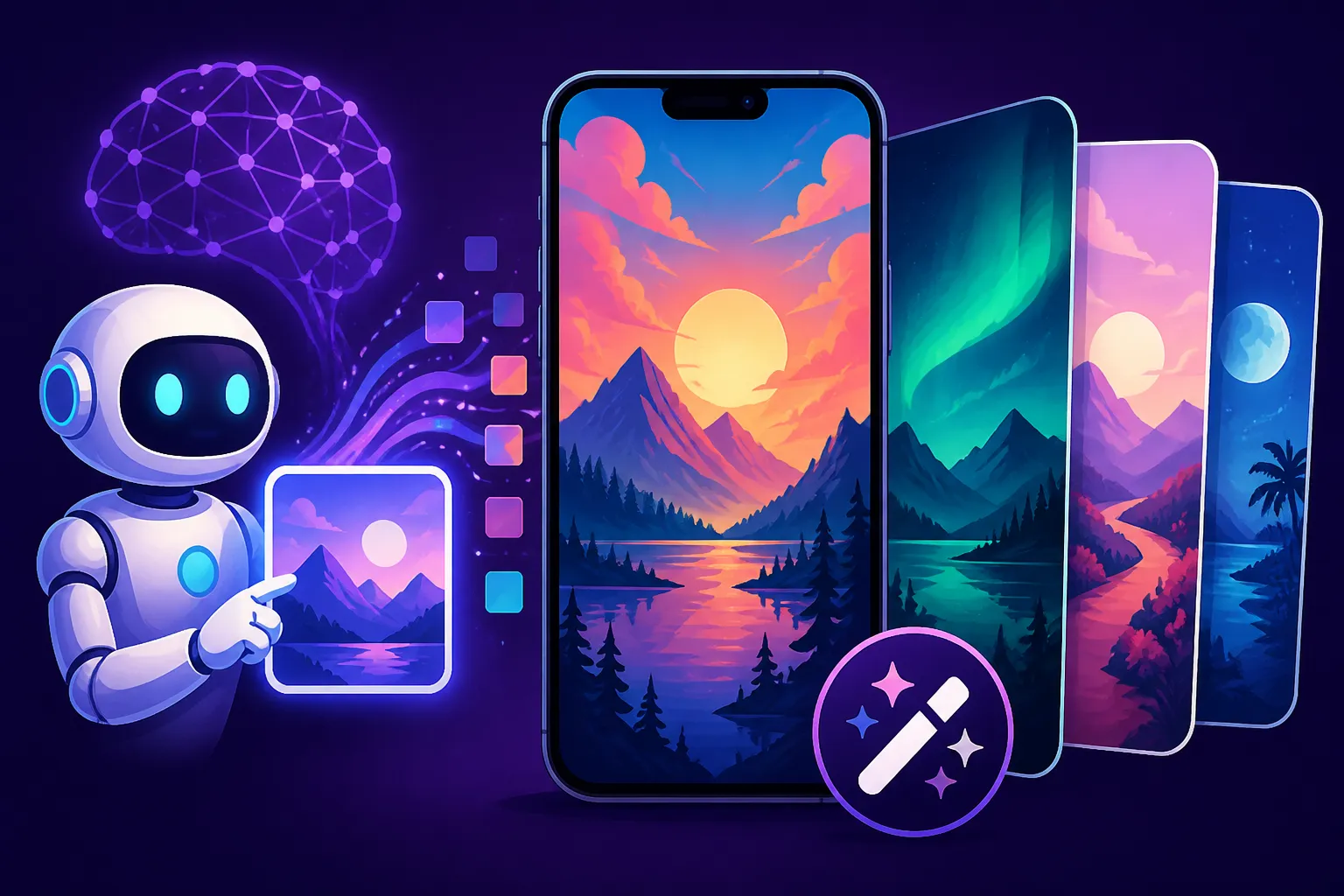
Why settle for one amazing wallpaper when you can have a whole gallery that cycles through? Many operating systems allow you to set up rotating wallpapers that change daily, hourly, or even upon login. This is a fantastic opportunity to create cohesive collections of AI-generated art.
For instance, you could generate a series of images around a specific theme:
- Seasons: Four distinct landscapes depicting spring, summer, autumn, and winter in a consistent art style.
- Cityscapes: A collection of iconic global cities at different times of day (e.g., Tokyo at night, Paris at dawn, New York at sunset).
- Abstract Moods: A series of abstract patterns or color gradients designed to evoke different feelings – calm, energetic, contemplative.
By generating several images with similar prompt structures and styles, you can ensure visual continuity across your rotating wallpaper collection. This adds a layer of depth and freshness to your digital environment, keeping your workspace visually stimulating without feeling chaotic.
Leveraging Personal Photos and Image-to-Image
AI isn't just for creating from scratch. Many advanced AI image generators offer "image-to-image" capabilities, allowing you to upload an existing photo and use it as a stylistic or compositional reference. This is a game-changer for personalizing your wallpapers even further.
Imagine you have a cherished photo of a family pet, a favorite vacation spot, or even a beautiful doodle you made. You can upload this image and prompt the AI to:
- Reimagine it in a new style: Turn your snapshot of a cityscape into a painterly oil on canvas, or transform your pet photo into a whimsical cartoon illustration.
- Add elements: Keep the core subject but introduce fantastical elements, like adding a galaxy background to a forest photo or transforming a serene lake into a magical glowing oasis.
- Maintain composition: Use your photo to guide the layout and composition of a completely new AI-generated scene, ensuring a familiar visual anchor.
This hybrid approach allows you to blend the personal touch of your own photography with the limitless creative potential of AI, resulting in truly unique and meaningful wallpapers.
Commercial Use Considerations
While generating wallpapers for personal use is straightforward, if you ever consider sharing your AI-generated wallpapers publicly, selling them, or using them for a business, it's crucial to understand the commercial use policies of the AI generator you're using. Some free tiers may have restrictions or require attribution, while paid subscriptions often come with more permissive commercial licenses.
For example, certain AI tools explicitly state that images generated with a paid subscription can be used commercially without further royalties, while others might have stricter terms or require indemnification. It's always best practice to review the terms of service of your chosen platform to ensure you're in compliance. If you're looking into this area, you might want to specifically seek out Free AI Image Generators with Commercial Use to understand your options from the outset. This ensures that your creative endeavors remain legally sound, whether you're just sharing with friends or building a small business selling digital art.
Disclaimer
The information provided in this article is for general guidance and informational purposes only. While we strive to offer accurate and up-to-date content, the field of AI technology is rapidly evolving. Therefore, specific features, pricing, and terms of service for AI image generators may change. Always consult the official websites and terms of service of any AI tool mentioned or considered for the most current and authoritative information.