AI Image Tools with the Best Editing
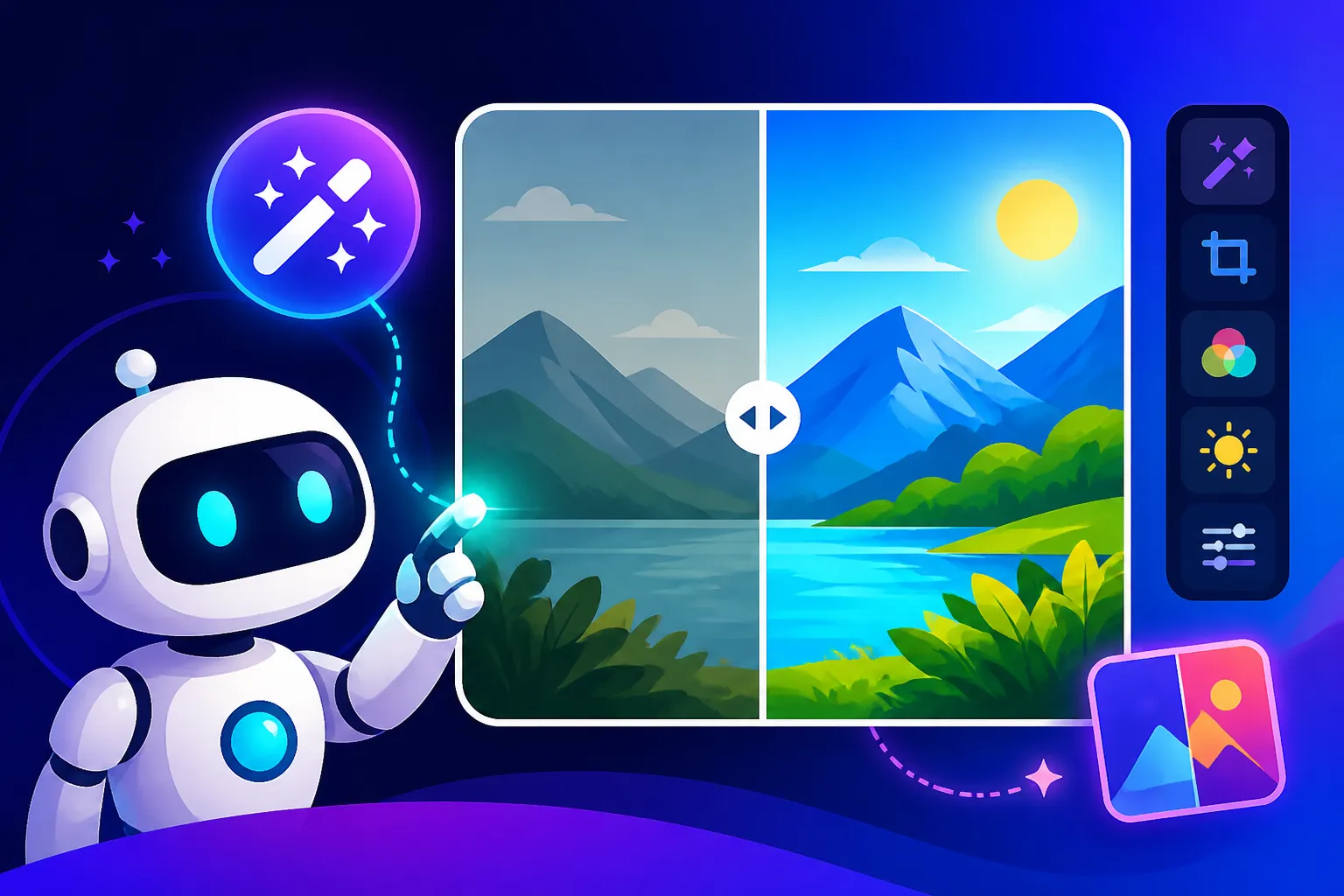
It's incredibly frustrating, isn't it? You spend precious time crafting the perfect prompt, hit generate, and the AI spits out something 90% amazing… but there's a weird artifact, a missing detail, or an element that just doesn't quite fit your vision. That nagging feeling of "if only I could just tweak that one thing" is universal among AI artists and content creators. This guide is dedicated to exploring the AI image tools that go beyond basic generation, offering powerful editing capabilities to help you bridge that gap between "almost perfect" and truly spectacular.
Why Advanced Editing Capabilities Are Essential for AI Images
Gone are the days when AI image generation was a black box where you just typed words and hoped for the best. As these tools become more sophisticated, so do our expectations. We want control, and frankly, we need it. Relying solely on prompt engineering to get every single pixel perfect is a recipe for endless regeneration cycles and mounting frustration.
Bridging the Gap Between Vision and Reality
Think about it: you have a clear picture in your mind. Maybe it's a dramatic landscape with a lone figure, but the figure the AI generated has an extra arm (a classic AI mishap!) or isn't quite facing the right way. Or perhaps you're creating product mockups for your small business, and the AI keeps putting the product on a cluttered background instead of a pristine white one. In these scenarios, having the ability to dive in and refine specific areas of the image without starting from scratch is an absolute game-changer. It's the difference between spending an hour perfecting a prompt and spending five minutes fixing an image.
Trying to get a specific detail corrected through only text prompts can feel like shouting instructions into a void. You might try adding "no extra arms" or "clean background," but the AI might interpret it differently or simply ignore it in favor of other prompt elements. This iterative process of regenerate, refine prompt, regenerate, can be a huge time sink. Tools with robust editing features allow for a much more direct approach, empowering you to pinpoint issues and rectify them efficiently.
Saving Time and Resources in Content Creation
For anyone working on a deadline, whether you're a blogger needing a quick featured image, a marketer creating ad creatives, or a game developer prototyping assets, time is money. Constantly rerunning prompts and waiting for new generations eats into that precious time. When you can quickly edit an existing AI-generated image to meet your needs, you're not just saving minutes; you're saving hours over the course of a project.
Consider a scenario where you're working on a series of blog posts about healthy eating. You've generated a fantastic image of a vibrant fruit bowl, but the color palette clashes slightly with your blog's branding. Instead of generating 10 new fruit bowls, hoping one matches, a tool with color adjustment or selective re-generation can let you alter that specific aspect in moments. This efficiency allows you to create more content, faster, and with higher quality, making your workflow smoother and your output more consistent.
Key Editing Features That Stand Out in AI Image Tools
When we talk about "best editing," we're not just talking about cropping and resizing (though those are certainly helpful!). We're looking for advanced functionalities that give you granular control over your AI creations.
Inpainting and Outpainting for Refinement and Expansion
These two features are arguably the most transformative when it comes to editing AI images. Inpainting allows you to select a specific area of an image and regenerate or replace just that part using a new prompt. Let's say your generated character has an odd-looking hand; you can lasso that hand and prompt "realistic human hand" or "hand holding a cup of coffee" and watch the AI seamlessly blend the new element into the existing image. This is a lifesaver for correcting common AI quirks and adding specific details. You can learn more about how to edit AI images with inpainting to master this technique.
Outpainting, on the other hand, lets you expand your image beyond its original canvas. Imagine you generated a beautiful portrait, but you realize you need more background space to fit it into a wider banner. Outpainting intelligently extends the existing image, filling in the new areas based on the surrounding pixels and your specified prompt. It's like having an invisible artist continue your scene, maintaining stylistic consistency. This is incredibly useful for adapting images to different aspect ratios or simply giving your composition more breathing room.
Object Removal and Addition for Composition Control
Another powerful set of features revolves around manipulating objects within your image. Sometimes, an AI generates a fantastic scene, but there's a distracting element in the background – a random lamp post, an unwanted bird, or an unsightly smudge. Object removal tools allow you to "paint over" these unwanted elements, and the AI will intelligently fill the space, making them disappear as if they were never there. This saves immense time compared to manual photo editing software.
Conversely, object addition allows you to seamlessly integrate new elements into your scene. Perhaps you generated a serene beach scene, but you now want to add a beach umbrella and a small cooler. With a quick selection and a prompt, the AI can place these items realistically within the scene, matching the lighting and perspective. This kind of direct manipulation gives you unparalleled creative control, allowing you to iterate on compositions quickly without having to go back to square one with entirely new prompts. It's fantastic for generating product photography and even for How to Make AI Logos for a Business.
Style Transfer and Variance Generation
Beyond direct manipulation, some advanced tools offer capabilities that let you play with the aesthetic qualities of your images. Style transfer, for instance, allows you to apply the artistic style of one image (or a chosen aesthetic) to another. You could take a photorealistic image and give it the look of a watercolor painting or a comic book illustration with just a few clicks. This is a powerful feature for maintaining brand consistency or experimenting with different artistic directions for your content.
Variance generation is also crucial. After you generate an image, many tools offer the option to create "variations" of that image. These aren't entirely new generations from the original prompt, but rather slight alterations in composition, color, or style, derived from the image you've already generated. This is invaluable when you're close to your desired output but want to explore subtle alternatives without losing the core essence of what you've created. It helps you quickly zero in on the perfect version without endless prompting.
Top AI Image Tools Known for Robust Editing
While almost every AI image generator has some editing capabilities, a select few truly stand out for their comprehensive and intuitive editing suites. These are the tools that empower you to sculpt your visions with precision.
Adobe Firefly: Integrated and Commercial-Ready
Adobe Firefly, deeply integrated into the Adobe ecosystem (like Photoshop and Illustrator), has quickly become a powerhouse for its editing prowess, especially with its strong focus on commercial safety. Firefly’s Generative Fill and Generative Expand features are fantastic examples of inpainting and outpainting done right. Imagine needing to extend a background or remove a distracting object from a product shot; Firefly handles it with remarkable accuracy and artistic blending. Its intuitive interface, often directly within Photoshop, means designers can use familiar tools for AI-powered edits. You can also explore an Adobe Firefly Review for Commercial Use to understand its full potential.
One of Firefly's biggest advantages for professionals is its strong stance on commercial rights and indemnification, built on Adobe Stock assets. This means users have greater peace of mind when using Firefly for client work or commercial projects. The editing experience feels very natural for anyone accustomed to graphic design software, making the transition to AI-assisted editing seamless. Whether you're enhancing details or trying to How to Make AI Images Commercially Safe, Firefly offers a robust and reliable solution.
Playground AI: Feature-Rich and User-Friendly
Playground AI has carved out a niche for itself by offering a vast array of features, including excellent editing tools, often with a generous free tier. Its canvas editor is particularly impressive, allowing for real-time inpainting and outpainting with ease. You can upload an image, mask an area, and then type a new prompt to intelligently replace or add elements. This is fantastic for correcting minor flaws like a misplaced shadow or adding a subtle accessory to a character.
Beyond basic inpainting, Playground AI often includes tools for varying seeds, applying filters, and even basic image upscaling right within its platform. This makes it an incredibly versatile tool for creators who need to make quick edits and explore variations without jumping between multiple applications. For those who want to get started with powerful editing without a steep learning curve, Playground AI is often cited as a top contender, offering a smooth user experience that encourages experimentation and refinement. Check out a detailed Playground AI Editing Review for more insights.
Krea AI: Real-time Editing for Dynamic Control
Krea AI stands out with its real-time generation and editing capabilities, offering a truly dynamic approach to image creation and manipulation. While many tools process edits after you input a prompt, Krea AI often allows you to see changes in real-time as you adjust your input or brush strokes. This interactive feedback loop is revolutionary for artists who want to quickly experiment with ideas and refine images on the fly.
Its 'Upscale & Enhance' and 'Alchemy' features are particularly noteworthy. Krea AI's focus on high-fidelity output means that even your edits retain impressive detail. Whether you're using its prompt-guided editing to alter a specific section or leveraging its upscale capabilities to bring out intricate textures, Krea AI makes the editing process feel less like a rigid command line and more like direct interaction with your art. This makes it an exciting option for those who prioritize immediate visual feedback and high-quality results in their editing workflow. If you're interested in dynamic creation, a Krea AI Realtime Generation Review might be very helpful.
Stable Diffusion: Unparalleled Customization and Control
While perhaps not as beginner-friendly out of the box as some others, Stable Diffusion offers arguably the most profound editing control, especially when run locally or through platforms that leverage its underlying models (like Automatic1111 web UI). Its robust ControlNet feature allows users to apply specific structural guidance, like poses, depth maps, or edge detection, to their images. This means you can generate an image, extract its pose, and then generate a completely different image with a new character in the exact same pose – a dream for maintaining consistency.
Stable Diffusion's inpainting and outpainting capabilities are incredibly powerful, allowing for fine-tuned masking and highly specific regeneration prompts. Users can also integrate LoRAs (Low-Rank Adaptation), which are small model files that can impart specific styles or inject custom characters, drastically expanding editing possibilities beyond what is initially generated. While it requires more technical know-how to harness its full potential, the level of customization and control offered by Stable Diffusion is unmatched for those willing to dive deep. For creators who want to truly master their image generation, exploring Stable Diffusion Pros and Cons for Creators is a must.
DALL-E (via ChatGPT): Conversational Editing
DALL-E, especially through its integration within ChatGPT, offers a unique, conversational approach to editing. Instead of traditional GUI tools, you can instruct ChatGPT to "make the sky darker," "add a cat to the foreground," or "change the hat to a baseball cap" – and DALL-E will attempt to implement these changes. While not as precise as pixel-level adjustments in dedicated editors, this natural language interface is incredibly intuitive for quick, conceptual edits.
This method shines when you need to make broad strokes or add/remove elements without getting bogged down in technical details. It's like having a creative assistant who understands your verbal commands. For many casual users or those who prefer a less technical workflow, the ability to simply ask for changes directly within the chat interface is a massive advantage. It brings a new level of accessibility to AI image editing, proving that powerful tools don't always need complex buttons. To learn more about this integration, you might want to read DALL-E in ChatGPT: How Good Is It.
Here's a quick overview of some of these tools and their standout editing features:
| AI Image Tool | Primary Editing Strength | Key Features | Ease of Use for Editing | Commercial Use Focus |
|---|---|---|---|---|
| Adobe Firefly | Integrated, seamless fill/expand | Generative Fill, Generative Expand, Text to Image, Effect, Vectorization | High (especially with Photoshop) | High |
| Playground AI | Versatile Canvas Editor | Inpainting, Outpainting, Image to Image, Filters, Variation Generation | High | Moderate |
| Krea AI | Real-time interactive editing | Real-time generation, Upscale & Enhance, Prompt-guided editing | Medium-High | Moderate |
| Stable Diffusion | Unparalleled Control & Customization | Inpainting, Outpainting, ControlNet, LoRA integration, custom models | Low-Medium | High (user discretion) |
| DALL-E (ChatGPT) | Conversational, prompt-based edits | Natural language modification, object addition/removal via chat, style changes | High | Moderate |
Practical Tips for Enhancing Your AI-Generated Images
Even with the best tools, getting stellar results comes down to understanding how to wield them effectively. Here are some actionable strategies to make your AI image editing truly shine.
Mastering the Art of Iterative Prompting for Edits
Just as you refine your initial generation prompts, think of editing as iterative prompting for specific areas. Instead of a single, vague command like "fix this image," break down your desired changes into smaller, more focused prompts. For example, if a character's face looks slightly off in an image generated by Midjourney, don't just prompt "better face." Instead, select the face area using your tool's inpainting mask and then prompt with highly descriptive terms: "photorealistic, expressive human face, slightly smiling, warm eyes, soft lighting." The more detail you give, the better the AI can interpret your intent for that specific masked region.
This iterative approach means you might make several small edits rather than one large one. Perhaps first you fix the face, then you adjust the background elements, and finally, you tweak the overall lighting. Each step builds on the last, allowing you to gradually mold the image closer to your vision. It's a bit like sculpting – you don't carve a masterpiece in one go, but through a series of thoughtful, deliberate actions. Don't be afraid to experiment with different prompts for the same masked area until you find what works best.
Leveraging External Tools for Final Polishing
While AI tools are getting incredibly good at editing, sometimes you still need the fine-tuning capabilities of traditional image editing software. Think of AI tools as your powerful first draft generator and major editor, and then bring in tools like Adobe Photoshop or Affinity Photo for the final polish. This "hybrid workflow" is what many professional artists and marketers use.
For instance, you might use an AI tool to generate a complex scene and correct major anomalies with inpainting. Then, you might export it to Photoshop to handle minor color grading, sharpening, adding subtle textures, or precisely placing text overlays that AI models sometimes struggle with. This is particularly true if you need to How to Remove AI Image Artifacts or fix subtle blending issues that the AI might leave behind. Combining the speed and generative power of AI with the precision of human-controlled editing can truly elevate your images from good to exceptional. Don't feel pressured to do everything within one AI platform; sometimes, the best solution involves a strategic handover.
The Importance of Consistent Style and Character Management
One of the ongoing challenges in AI image generation is maintaining consistency, especially across a series of images or when dealing with specific characters. When editing, always keep the overall stylistic intent in mind. If your initial image was a vibrant, cartoonish illustration, ensure your edits (whether inpainting new elements or outpainting to extend the scene) adhere to that same cartoonish style. Trying to insert a photorealistic element into a cartoon can lead to jarring results.
For character consistency, tools with advanced features like ControlNet in Stable Diffusion or the ability to use consistent "style references" (available in tools like Midjourney) are invaluable. When making edits, try to reference the original character's features in your prompts for the masked area. For instance, if you're editing a character's hair, describe their hair color and style explicitly in your inpainting prompt. This proactive approach ensures that your edits don't accidentally deviate from your established visual brand or character design. Mastering How to Keep Characters Consistent Across Images is a critical skill for any serious AI creator.
Disclaimer
The information provided in this article is for general informational purposes only and does not constitute professional advice. AI image generation technology is rapidly evolving, and specific features, pricing, and capabilities of the tools mentioned may change over time. Always verify the latest information directly with the tool providers. We do not endorse any specific tool or guarantee results. Users are responsible for ensuring their use of AI-generated content complies with all applicable laws, intellectual property rights, and terms of service.