How to Create Image Variations
It's incredibly frustrating when you generate an AI image that's almost perfect, but not quite. You know you're close, but starting from scratch with a completely new prompt feels like a step backward, and you just need a few subtle tweaks or entirely new perspectives on the same core idea. This guide is here to walk you through the various powerful methods and techniques available across different AI image generation platforms to effortlessly create compelling image variations, ensuring your creative vision comes to life exactly as you imagine.
Understanding the Need for Variations in AI Image Generation
When diving into the fascinating world of AI image generation, it’s easy to get caught up in the thrill of creating something from thin air with just a few words. However, seasoned creators, from graphic designers to lifestyle bloggers, quickly realize that rarely is the very first output the final output. The journey from idea to perfect image is almost always an iterative one, demanding variations to explore the full potential of a concept.
Why One Image Is Rarely Enough
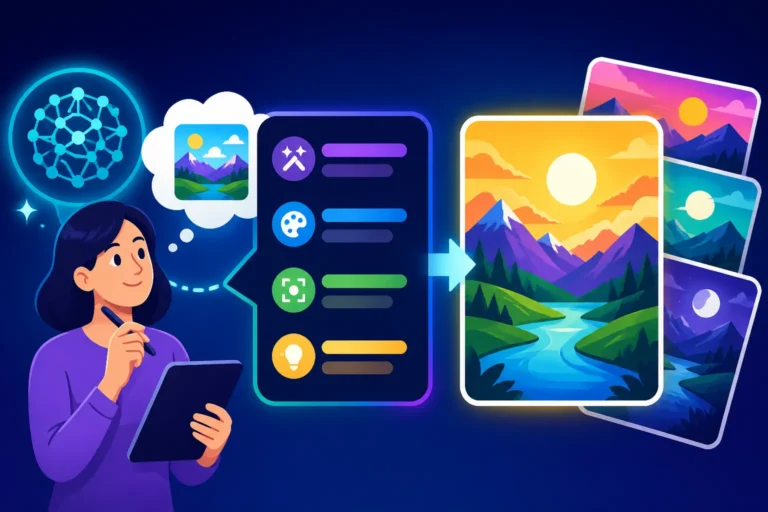
Think about any creative process, whether it’s photography, painting, or even writing. You don't just snap one picture or write one draft and call it a day. The same holds true for AI-generated visuals. You might generate an image of a serene beach at sunset, and while beautiful, you might then wonder: What if the sun was a little lower? What if there were a few more ripples in the water? Or perhaps, what if the color palette leaned more towards fiery oranges than soft purples? Each of these questions leads directly to the need for variations.
Beyond personal preference, practical applications often necessitate variations. Imagine you're creating images for an advertising campaign. You'll likely need multiple versions to A/B test with your audience to see which resonates most effectively. A marketing team might request ten different takes on a "person happily using a product" to cover various demographics or moods. Similarly, if you're a content creator, you might need several options for a blog post's featured image or a YouTube thumbnail, each subtly different to catch the eye in unique ways. Relying on a single output, no matter how good, simply doesn't cut it in a world that demands dynamic and diverse visual content. The ability to generate targeted variations saves immense time and creative energy, preventing you from constantly reinventing the wheel when you're just a few degrees off the mark.
The Iterative Nature of AI Art
The process of generating AI art isn't a magical "type-and-done" affair; it's a conversation. You give the AI a prompt, it gives you an interpretation, and then you respond with refinements. This back-and-forth, this dance of iteration, is where the true power of AI image generation lies. It’s less like ordering a specific item off a menu and more like collaborating with an incredibly skilled, but sometimes unpredictable, artist. Your initial prompt acts as the brief, and the AI's first batch of images are its initial sketches. From there, you provide feedback, guiding it closer to your vision.
For instance, you might prompt for "a futuristic cityscape at night, neon lights, flying cars." The AI might give you a brilliant image, but perhaps the flying cars are too dominant, or the neon lights aren't as cyberpunk as you'd hoped. Instead of completely rewriting the prompt, you'd use variation techniques to nudge the AI in the right direction. You might ask for subtle changes to reduce the car count, or increase the intensity of the neon glow. This iterative refinement allows you to sculpt your desired image with increasing precision, moving from a broad concept to highly specific details. Understanding this iterative flow is crucial, as it fundamentally shifts your approach from rigid prompt writing to flexible, responsive image generation. It teaches you that every generated image, even those that aren't perfect, serves as valuable input for the next, closer iteration.
Core Techniques for Generating Variations
No matter which AI image generator you're using, there are foundational techniques that empower you to create compelling variations of your images. Mastering these core methods will give you a robust toolkit for fine-tuning your creations, saving you from the frustration of endless, aimless re-rolls.
Leveraging Seed Numbers
One of the most powerful, yet often overlooked, tools in an AI artist's arsenal is the seed number. Think of a seed number as the unique DNA sequence for an image generation. When you input a prompt, the AI uses a random or specified seed to initialize the noise pattern from which it starts building your image. If you use the exact same prompt and the exact same seed, you should get the exact same image every single time. This is invaluable for reproducibility and, more importantly, for creating variations.
To leverage seeds for variations, the process is quite simple: first, generate an image you like and note its seed number. Most AI tools provide this information in the metadata or allow you to request it. Then, keep that seed number constant, but make very minor adjustments to your original prompt. For example, if you generated "a majestic black cat sitting on a velvet cushion" with seed 12345, you could then try "a majestic black cat sitting on a plush velvet cushion" using the same seed 12345. The result will be an image that retains the core composition and aesthetic of the original but incorporates your subtle prompt change. This allows you to explore slight differences in objects, textures, or even lighting without drastically altering the overall scene. It's fantastic for generating a series of images with a consistent style or character, a technique often explored when learning How to Prompt for Consistent Characters. Some tools even allow you to slightly modify the seed itself (e.g., seed 12345:1, 12345:2) to get closely related but distinct variations.
Modifying Your Original Prompt
While seed numbers offer precision, directly tweaking your prompt is another cornerstone of variation generation, especially when you want more significant, yet still controlled, changes. The trick here is to understand that AI models are incredibly sensitive to word choice, order, and emphasis. Even a single word change can shift an image dramatically, but by making targeted, subtle modifications, you can guide the AI to generate desired variations.
Consider your original prompt: "A cozy log cabin nestled in a snowy forest, golden hour lighting." If you want variations, you could:
- Adjust descriptors: Change "cozy" to "rustic," or "snowy" to "wintery."
- Modify lighting/atmosphere: Switch "golden hour lighting" to "moonlit night" or "foggy morning."
- Add/Remove elements: Insert "a wispy chimney smoke" or remove "log."
- Vary perspective: Change "nestled in" to "view from above" or "close-up of."
The key is to change one or two things at a time so you can clearly see the impact of your modifications. If you change too many elements at once, you might end up with an entirely different image, losing the connection to your original concept. This incremental approach is central to effective How to Write AI Image Prompts and helps you gradually sculpt the image to your exact specifications. Experiment with word synonyms, adjective strengths (e.g., "small," "tiny," "minuscule"), or even the order of your prompt elements, as some models prioritize words appearing earlier in the sequence.
Image-to-Image / Img2Img Capabilities
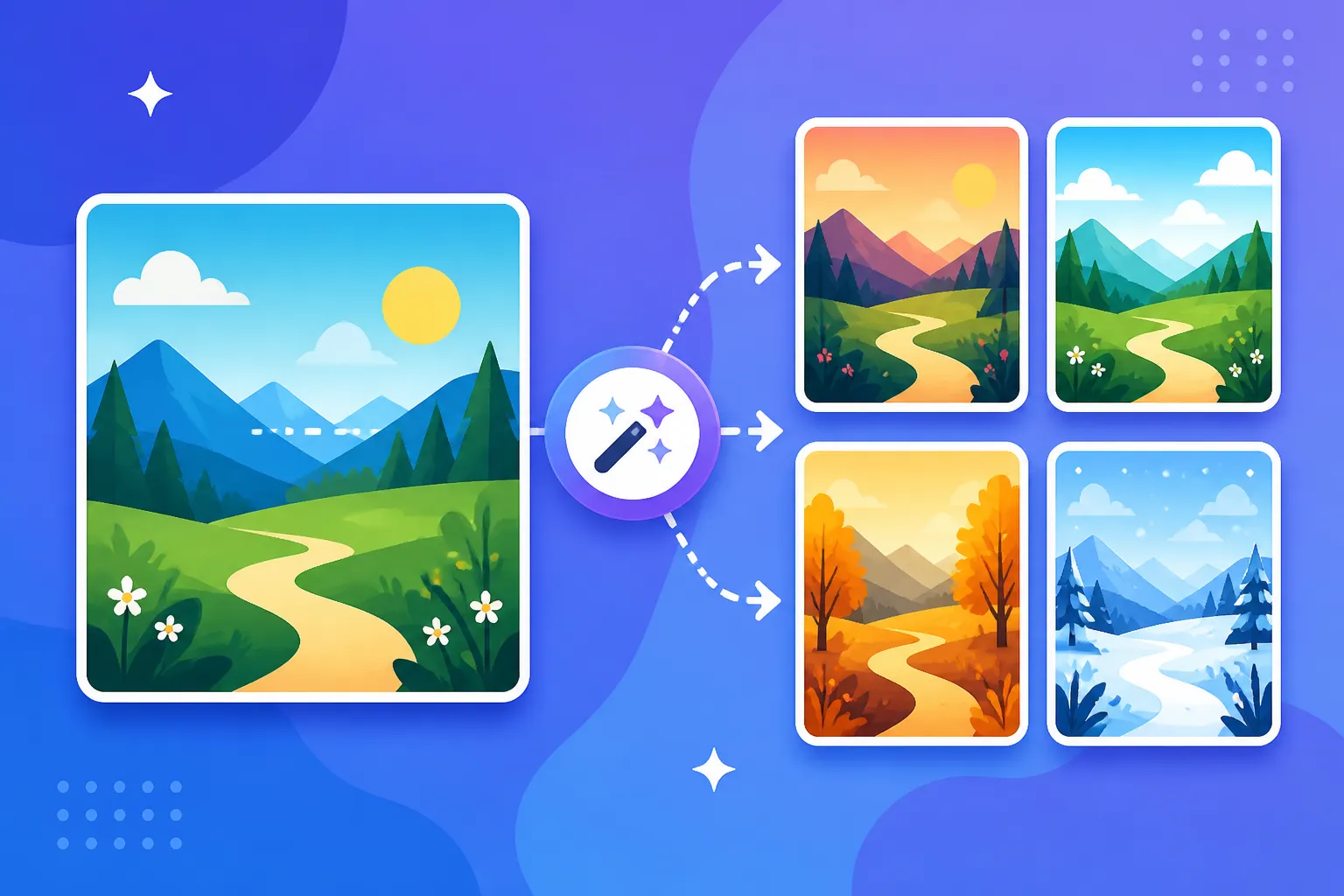
Image-to-Image, often abbreviated as Img2Img, is a more advanced and incredibly versatile method for creating variations. Instead of starting from scratch with just a text prompt, you provide an existing image as an input alongside your text prompt. The AI then uses the visual information from your input image as a guide, blending it with the concepts described in your text prompt to generate new images.
The power of Img2Img comes from its "denoising strength" or "creativity strength" parameter. This setting dictates how much the AI adheres to your original image versus how much creative license it takes based on your new prompt.
- Low strength (e.g., 0.1-0.3): The AI will make very subtle changes, essentially fixing minor flaws or adding minimal details while preserving the original image's composition, colors, and overall feel. This is perfect for slight variations, like changing a character's clothing color or adding a small object to a table.
- Medium strength (e.g., 0.4-0.6): The AI will interpret the image more freely, allowing for more noticeable alterations while still respecting the core structure. You might get different poses for a character, varied architectural styles, or altered landscapes, all stemming from the original visual.
- High strength (e.g., 0.7-0.9): The AI will use the input image more as an inspiration, generating images that are conceptually similar but visually quite distinct. It might re-imagine the scene entirely, offering dramatic variations in style, composition, or subject matter, even if the underlying "idea" remains.
Img2Img is particularly useful when you have a good base image but want to explore different artistic styles, add new elements, or even change the time of day while keeping the subject consistent. It’s also foundational for more specific editing tasks like How to Edit AI Images with Inpainting, where you selectively change parts of an image.
| Variation Technique | Primary Use Case | Control Level | Best For | Considerations |
|---|---|---|---|---|
| Seed Numbers | Minor tweaks, consistent style | High (precise) | Subtle changes, maintaining character/scene consistency | Requires original seed; subtle prompt changes are key |
| Prompt Modification | Moderate changes, concept exploration | Medium (direct) | Exploring different moods, elements, styles | Change one element at a time to track impact |
| Image-to-Image | Major aesthetic shifts, fixing issues, style transfer | Variable (denoising strength) | Re-imagining images, applying new styles, targeted edits | Requires an input image; denoising strength critical |
Tool-Specific Approaches for Variations
While the core techniques are universally applicable, individual AI image generators often have unique features designed to streamline the variation process. Understanding these specific functionalities can significantly enhance your workflow and results.
Midjourney's Variation Modes
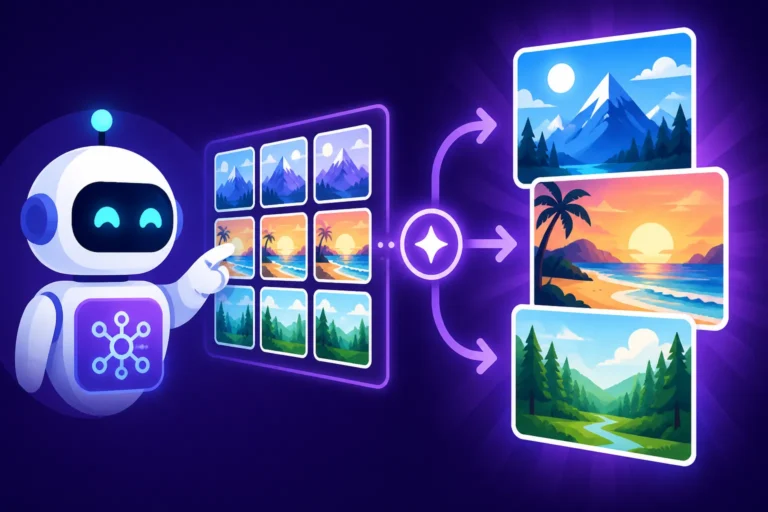
Midjourney, known for its stunning artistic output, offers an intuitive suite of tools specifically for generating variations, making it a favorite for many creators. When you generate an image, Midjourney typically presents you with four initial options. Below these, you'll see buttons for variations (V1, V2, V3, V4) corresponding to each of the generated images, as well as a U (Upscale) button.
VButtons (Variations): Clicking aVbutton under any of the four initial grid images tells Midjourney to create four new variations based on that specific image. These variations will typically be quite close to the selected image, exploring minor compositional changes, slight shifts in color, or subtle alterations in elements. It’s perfect for when you’re 90% happy and just need a little refinement or a slightly different angle.Vary (Strong)andVary (Subtle): Once you've upscaled an image, Midjourney often presents more advanced variation options.Vary (Subtle)is excellent for extremely minor changes, perhaps shifting a facial expression slightly or adjusting the light intensity without altering the core structure.Vary (Strong), on the other hand, takes more creative liberty, offering more distinct variations that still carry the essence of the original upscaled image. This is particularly useful for artists who want to explore a broader range of interpretations from a strong starting point.RemixMode: This is a game-changer for control. With Remix mode enabled, when you click aVbutton, Midjourney will prompt you to modify the original text prompt. This means you can keep the visual composition and style of the selected image while introducing new elements or dramatically altering existing ones via text. For example, if you have a great image of "a wizard in a forest" and you activate Remix, you can clickVand change the prompt to "a wizard on a mountain" to keep the wizard's style but alter the setting. This allows for powerful iteration, blending the visual reference with new textual instructions. You can learn more about specific parameters in the Midjourney Prompt Guide.PanandZoom: These features aren't strictly "variations" in the traditional sense, but they allow you to expand and recompose your image. Panning extends the canvas in a specific direction, generating new content to fill the space, while zooming effectively "pulls back" to show more of the surrounding scene, generating new details. These are invaluable for adjusting composition without re-rolling the entire image.DescribeCommand: While not for direct variations, the/describecommand can be incredibly useful. You can upload an image (either AI-generated or real-world), and Midjourney will generate four possible text prompts that could have created it. This is fantastic for reverse engineering an image you like and then using those generated prompts as a starting point to create your own variations, potentially even with other tools.
DALL-E's Edit & Variation Features
DALL-E, especially its integration within ChatGPT, has made creating variations more accessible than ever. It excels in natural language understanding and has some distinct features for iterative refinement.
- "Generate Variations" Button: Often, after DALL-E generates an image or a set of images, you'll see a direct "Generate Variations" button associated with specific outputs. Clicking this will instruct DALL-E to create new images that are conceptually and visually similar to the selected one, offering slightly different compositions, lighting, or minor element changes. It's a quick and easy way to get more options when you're broadly satisfied with a result but want more choices.
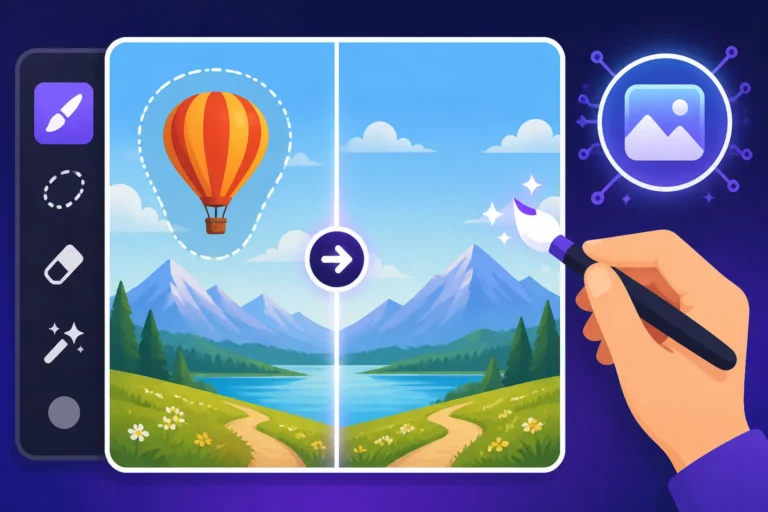
- Inpainting and Outpainting: DALL-E offers robust inpainting and outpainting capabilities, which are powerful forms of variation at a more granular level.
- Inpainting: This allows you to select a specific area within an image and describe what you want to replace it with. For example, if your character has the wrong hat, you can select the hat and prompt "a wide-brimmed fedora." DALL-E will then generate variations of that specific area, preserving the rest of the image. This is a targeted way to create variations of elements within a larger scene. This feature is detailed in guides like DALL-E Review: Pros, Cons, and Pricing.
- Outpainting: Conversely, outpainting allows you to extend the canvas beyond the original image boundaries. You provide a prompt describing what you want to appear in the newly generated space. This creates variations of the surrounding environment, expanding the scene while maintaining the central subject. Imagine having a portrait and outpainting to reveal a bustling city street behind them.
- Using Previous Images as Prompts: While not a dedicated button, you can describe an image you previously generated in DALL-E and ask it to create "variations of that last image, but…" This leverages its conversational understanding to iterate on prior outputs. For instance, "Generate variations of the last image, but make the dog a golden retriever instead of a lab, and sitting in a park." This intelligent prompting makes DALL-E very flexible for iterative changes.
Stable Diffusion's ControlNet and Iteration
Stable Diffusion, especially when run locally or through platforms like InvokeAI or Automatic1111, offers unparalleled control over variations through its highly customizable features, particularly ControlNet and its robust Img2Img capabilities. For those who want to really deep dive into the mechanics, Stable Diffusion offers fantastic flexibility.
- ControlNet: This is a suite of neural network models that allow you to dictate the composition, pose, depth, or even edges of your generated image with extreme precision. You provide a reference image (e.g., a photo of a person in a specific pose) and then choose a ControlNet model (e.g., OpenPose for pose detection, Canny for edge detection). The AI will then generate images following that precise structure, while still incorporating your text prompt. This is revolutionary for creating consistent variations. For example, you can take an image of a character, extract its pose with OpenPose, and then generate variations of that character in the exact same pose but with different outfits, settings, or art styles. This is a powerful technique discussed in depth in guides like How to Use ControlNet in Stable Diffusion.
- Img2Img with Denoising: Stable Diffusion's Img2Img feature is incredibly versatile for variations. You upload a base image, provide a text prompt, and crucially, adjust the "denoising strength" (also known as "strength" or "cfg scale"). As discussed earlier, a lower denoising strength will yield subtle variations, maintaining much of the original image's structure and color palette, while a higher strength will produce more experimental and distinct variations. This is fundamental for refining initial generations. You can use this to take a preliminary image and then gradually increase the denoising strength while making minor prompt changes to see how far you can push the variations while still retaining the original essence.
- Prompt Weighting and Alternating Prompts: Stable Diffusion allows for prompt weighting (e.g.,
(word:1.2)to emphasize "word") and alternating prompts (e.g.,[word1|word2]). While not direct variation buttons, these are powerful prompt engineering techniques. By slightly adjusting weights or introducing alternatives for specific words, you can generate variations that subtly shift the focus or introduce different elements within the same generation batch, giving you more options right away. This offers a level of control that helps you get How to Get Better AI Image Results.
Ideogram and Others with Variation Prompts
Many other AI image generators, including Ideogram, Canva AI, and Playground AI, also offer ways to create variations, often by combining some of the core techniques with their own user-friendly interfaces.
- Ideogram's Prompt Fidelity: Ideogram is known for its strong text rendering capabilities and intuitive interface. While it may not have explicit "Vary" buttons like Midjourney, its prompt adherence is very high. You can achieve variations by making subtle changes to your prompt, especially focusing on adjectives, lighting, or minor object additions/removals, knowing that Ideogram will generally maintain the core composition if the changes are small. Its Remix feature, when available, allows for similar behavior to Midjourney's Remix, enabling prompt modification on existing images.
- Canva AI's Style Variations: Canva's AI image generator, often used for quick graphic design, might offer pre-set style variations or allow you to re-run a prompt with a different artistic style selected (e.g., "watercolor," "photorealistic," "cinematic"). This generates entirely new aesthetic variations of your initial concept.
- Playground AI's Seed + Prompt Iteration: Many platforms, including Playground AI, provide access to the seed number. This allows you to perform the "seed + prompt modification" technique effectively. You generate an image, get its seed, and then iterate by making small changes to your prompt while keeping the seed fixed. This is often the most accessible way to create controlled variations across many different free and paid platforms.
- In-App Editing Tools: Some platforms integrate basic editing tools directly, allowing for manual adjustments like cropping, color correction, or adding text. While not AI variations, these post-processing steps can make a "nearly perfect" AI image into a finished piece without needing to re-generate from scratch.
Advanced Strategies for Creative Iteration
Beyond the fundamental techniques and tool-specific features, there are more strategic approaches to generating variations that can unlock deeper creative possibilities and efficiency in your workflow. These advanced methods often involve a blend of clever prompting and intelligent use of existing outputs.
Blending and Combining Images
Some advanced AI image tools offer capabilities to "blend" or "combine" multiple input images, either visually or conceptually. This isn't just about stitching images together; it's about asking the AI to interpret the themes, styles, or elements from several images and synthesize them into new variations.
For example, a tool might allow you to upload two images – one of a futuristic city and another of a serene natural landscape – and then generate an output that attempts to blend these two distinct visual ideas. The variations generated from this blend could explore different ratios of "futuristic" to "natural," or different ways these elements interact (e.g., nature reclaiming city ruins, or floating gardens in a metropolis). Similarly, you could upload two images of characters and ask the AI to generate a variation that subtly combines their features, creating a new, unique character. This is particularly powerful for generating concept art, exploring hybrid styles, or creating unique visual metaphors. The trick is to start with source images that have strong, distinct characteristics you want to see merged, and then generate many variations to find the perfect synthesis. This strategy is also useful when you're thinking about How to Create Image Variations across different themes.
Prompt Engineering for Diverse Outputs
Effective prompt engineering isn't just about getting one good image; it's also about setting yourself up to generate a range of useful variations from the outset. By thinking ahead, you can craft initial prompts that allow for easier iteration later.
- Anticipate Variations in Your Initial Prompt: Instead of a hyper-specific prompt, sometimes it's better to start slightly broader to generate diverse initial options. For instance, instead of "a red sports car parked on a sunny beach," try "a sports car, beach setting, sunny weather." You can then use prompt modification on the resulting images to specify "red," "blue," "yellow," or different car models without losing the core setting.
- Use Parentheses or Weights for Flexibility: In tools like Stable Diffusion, you can use parentheses to subtly emphasize or de-emphasize elements, allowing for easy adjustment. For example,
(red sports car)vs.((red sports car))will yield variations where the car's redness is more or less pronounced. Similarly, alternating prompts like[beach|mountains]might give you variations that explore both settings from a similar conceptual starting point. - Include Style Tags with Intent: When you use style tags, consider including a few diverse ones in your initial generations to see what the AI prefers. If you want a fantasy character, try "fantasy character, (
concept art|oil painting|digital illustration)" to see a range of stylistic variations. Once you find a preferred style, you can double down on it. Mastering such techniques can significantly improve your overall AI Image Prompt Guide for Beginners.
Using Reference Images Effectively
Reference images are a cornerstone of traditional art, and they are equally powerful for guiding AI in creating variations. This goes beyond simple Img2Img; it involves using existing visuals to inform the AI about specific styles, compositions, or moods you want to replicate or adapt.
- Style Transfer with Reference Images: If you love the artistic style of a particular painter, or the aesthetic of a specific film, you can use an image representing that style as a reference. You might provide a picture of a classical painting alongside your prompt for "a spaceship" and ask the AI to generate variations of the spaceship in the style of that painting. The variations will then be different renditions of the spaceship, all imbued with the reference style.
- Compositional Guidance: Have a perfect photo composition but want to swap out the subjects? Upload the photo, then use a tool's ControlNet (for Stable Diffusion) or Img2Img with low denoising strength (for other tools) with a new prompt. For instance, upload a photo of a family sitting around a campfire and prompt "alien creatures around a futuristic campfire." The variations will likely maintain the family's poses and the campfire's central composition but replace the elements.
- Color Palette Extraction: Some advanced tools can analyze an uploaded image and extract its color palette. You can then instruct the AI to generate variations of a new image using that specific palette, ensuring aesthetic consistency across your creations. This is incredibly useful for brand consistency or thematic projects where color is paramount. Exploring these methods helps you understand How to Write Prompts for Photorealistic Images, as realism often relies on consistent visual cues derived from references.
By combining these advanced strategies with the core techniques, you transform from a casual AI user into a true image architect, capable of directing the AI with precision and creativity to achieve an endless array of visual variations. It’s about building a robust workflow that allows for constant evolution and refinement of your images, turning every generation into a stepping stone towards your perfect visual.
Disclaimer
The information provided in this article is for general guidance and informational purposes only. The capabilities and features of AI image generation tools are constantly evolving. While we strive to provide accurate and up-to-date information, the specifics of features, pricing, and performance may change over time. Always refer to the official documentation and terms of service for any AI tool you use.