How to Batch-Generate AI Images
Manually generating a stream of AI images for a project can feel like an endless loop, taking up precious time and often leading to inconsistencies in style and mood across your visual assets. It's a frustrating dance of copy-pasting prompts and hitting 'generate' over and over again. But what if you could set up a system to create dozens, even hundreds, of variations with just a few clicks? This guide is designed to cut through that tedium, showing you exactly how to efficiently batch-generate AI images, ensuring your creative vision remains cohesive while dramatically speeding up your workflow.
The Power of Batch Generation: Why It's a Game-Changer for Creators
In the fast-paced world of digital content, speed and consistency are king. Whether you're a marketer needing a suite of ad creatives, a blogger requiring engaging visuals for multiple posts, or an artist exploring variations of a core concept, the traditional method of generating AI images one by one quickly becomes a bottleneck. This is where batch generation steps in, transforming a laborious task into an efficient, streamlined process.
What Exactly is Batch AI Image Generation?
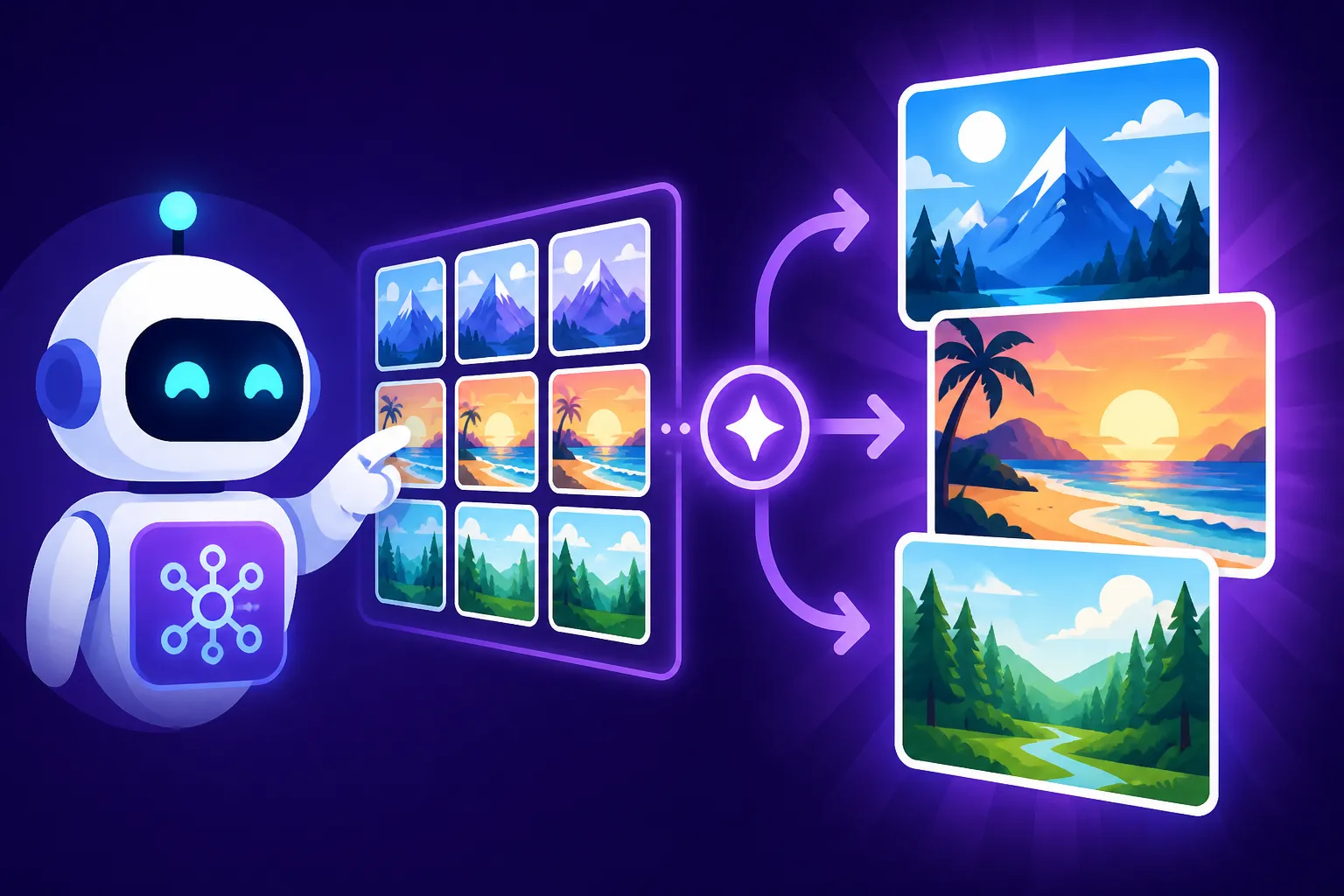
At its heart, batch AI image generation is the process of instructing an AI model to produce multiple images based on a set of common parameters, often with controlled variations, all in a single command or automated sequence. Think of it as hitting 'print' for an entire folder of documents rather than printing each one individually. Instead of typing "/imagine a vibrant cyberpunk city, neon lights, rainy street, cinematic" for one image, then tweaking it slightly for the next, you provide the AI with a framework that allows it to iterate through specified changes automatically.
This capability truly shines in scenarios where you need a large volume of visually similar, yet distinct, images. Imagine creating product shots for an e-commerce store: you need consistent lighting and background but with different product angles or packaging variations. Or perhaps you're building a social media campaign that requires a series of posts featuring the same character in different emotional states or interacting with various objects. Manually prompting for each of these would be incredibly time-consuming and prone to human error in maintaining visual coherence. Batch generation tackles this head-on, allowing you to define a core aesthetic and then programmatically introduce the desired variations, ensuring a consistent brand identity or artistic style across your entire output.
Boosting Efficiency and Consistency in Your Workflow
The most immediate and obvious benefit of batch generation is the incredible boost in efficiency. No longer are you tied to your keyboard, constantly re-entering prompts and waiting for individual image renders. By automating the process, you free up your time for more strategic tasks, like refining your core concepts or reviewing the generated output for the best selections. For content creators, this means you can populate your blog, social media feeds, or website galleries with fresh, high-quality visuals at an unprecedented pace. You can explore a much wider range of creative possibilities in the same amount of time, testing different angles, styles, and moods without the manual grind.
Beyond just saving time, batch generation is a powerful ally in maintaining consistency, which is absolutely crucial for brand recognition and visual storytelling. When you're working on a series of images, subtle shifts in your prompt can lead to noticeable stylistic deviations, making your collection feel disjointed. With batch generation, you define the foundational elements of your prompt once and apply variations in a controlled manner. This ensures that all images within a batch share a unified aesthetic, whether it's the artistic style, color palette, lighting, or even the camera angle. For a marketer, this translates to a cohesive brand message across all campaign assets, reinforcing your brand's visual identity. For an artist, it means exploring a theme without losing the essence of your original concept. This controlled consistency significantly reduces creative burnout, as you're no longer fighting the AI to reproduce a look you achieved hours ago; you're directing it with precision.
Essential Tools and Platforms for Batch AI Image Creation
The landscape of AI image generation is vast and ever-evolving, with various tools offering different approaches to batch processing. Choosing the right platform often comes down to your technical comfort, budget, and the level of control you desire over the generation process. We can broadly categorize these tools into cloud-based services and local solutions, each with its own set of advantages and considerations.
Cloud-Based Services with Batch Capabilities
Many popular cloud-based AI image generators, while not always featuring a prominent "batch generate" button, offer functionalities that effectively allow for batch processing or rapid iteration. Platforms like Midjourney, for instance, excel at creating variations of an initial image. While you might start with one prompt, its 'Vary (Strong)' or 'Vary (Subtle)' options, or the /remix command, allow you to generate multiple distinct but related images from a single seed, which is a powerful form of iterative batching. This is particularly useful for exploring different interpretations of a core idea without completely rewriting your prompt each time. For more general advice, consider exploring a detailed guide on the topic of Midjourney Pros and Cons for Creators.
DALL-E, especially when accessed via its API or through interfaces like ChatGPT, allows for a more programmatic approach to batch generation. Developers can integrate the OpenAI API into their applications to send multiple prompts, or a single prompt with varying parameters, and receive a batch of images. This method offers a high degree of automation and can be incredibly efficient for generating large quantities of images based on structured data. Adobe Firefly, with its integrated suite of creative tools, also offers features like Generative Fill and Text to Image that, while not always explicitly "batch" in the same way Stable Diffusion is, allows for quick variations and modifications that mimic a rapid, iterative batch process for creative professionals. For commercial endeavors, understanding Adobe Firefly for Commercial Use can be key.
The primary advantage of cloud-based services is accessibility. You don't need powerful local hardware; all the heavy lifting is done on remote servers. This means you can generate images from virtually any device with an internet connection. However, these services often come with a cost, typically through subscription models or pay-per-image credit systems, which can add up quickly for large-scale batch generation. While convenient, the level of control over the underlying model and advanced parameters might be less extensive compared to local setups.
Local Solutions for Advanced Batch Control
For those who crave ultimate control, privacy, and don't mind a slightly steeper learning curve, local AI image generation solutions are the way to go. The undisputed champion in this arena is Stable Diffusion. Being an open-source model, it can be run on your own computer, typically through various user interfaces (UIs). The most popular UI is Automatic1111's Stable Diffusion Web UI, which boasts a wealth of features specifically designed for batch processing. Another powerful contender is ComfyUI, known for its node-based workflow, allowing for incredibly intricate and custom batch generation pipelines.
With these local UIs, you can configure numerous batch operations. You can generate image grids, which produce multiple variations from a single prompt laid out in a grid. More advanced features include "Prompt S/R" (Search/Replace), where you define a base prompt and then specify a list of words or phrases to swap in and out automatically, generating a unique image for each combination. For example, "A [cat, dog, bird] sitting on a [red, blue, green] couch." You can also feed a text file containing hundreds of individual prompts, and the system will process them one by one, outputting a batch of images. The "X/Y/Z plot" script is another fantastic batching tool, allowing you to systematically vary multiple parameters (like different models, prompts, or sampling methods) across a grid of images, providing a comprehensive visual comparison of their effects. Diving deeper into Stable Diffusion Review: Free and Customizable can help you understand its full potential.
The benefits of local solutions are profound: complete control over every parameter, the ability to use custom models (LoRAs, checkpoints), and absolute privacy as images are generated entirely on your machine. Once your hardware is set up, the ongoing costs are minimal (just electricity), making it highly cost-effective for heavy users. The trade-off is the initial hardware investment (a powerful GPU is often recommended) and the time required to learn and configure the software. However, for serious creators and businesses, the investment often pays dividends in flexibility and creative freedom.
Crafting Effective Prompts for Batch-Generated Images
Generating single, stunning AI images is one thing; generating an entire batch that maintains consistency while offering useful variations is an art form itself. It all boils down to how you construct your prompts. A well-structured prompt is the foundation of successful batch generation, allowing you to precisely control what changes and what stays the same across your output. For those new to the world of AI art, a general guide on How to Write AI Image Prompts can provide an excellent starting point.
Structuring Prompts for Consistency and Variation
The key to effective batch prompting is to identify the core elements you want to remain consistent and isolate the variables you wish to change. Start by crafting a robust base prompt that defines the immutable aspects of your image: the main subject, the overarching style, specific lighting conditions, and desired composition. For instance, if you're creating images for a fantasy-themed game, your base prompt might be: "A stoic knight in shining armor, detailed, epic fantasy art, cinematic lighting, wide shot, forest background, digital painting." This sets the scene and establishes the consistent visual language.
Once your core prompt is solid, you can introduce variables using techniques specific to your chosen tool. In many local Stable Diffusion UIs, you can use a syntax like variable2|variable3 or simply list variations separated by a pipe | within parentheses for prompt cycling. For example, extending our knight prompt: "A stoic knight in shining armor, detailed, epic fantasy art, cinematic lighting, wide shot, forest background, digital painting, holding a ancient shield|magical staff." This will generate three images, each with the knight holding a different item, while everything else remains consistent.
For more complex variations, or when dealing with concepts like "a character in various poses" or "a product in different environments," you might maintain your core visual description and then systematically swap out entire descriptive phrases. This systematic approach ensures that the fundamental aesthetic you've established remains intact, even as the specifics of the image change. This method is crucial for maintaining visual brand identity across a range of marketing materials or creating a consistent look for a series of illustrations. For inspiration, consider studying various AI Prompt Examples for Fantasy Art to see how others structure their creative requests.
Leveraging Parameters and Negative Prompts for Refinement
Beyond the textual description in your prompt, parameters play a critical role in refining the output of your batch generations. These are usually numerical or specific keyword commands that control aspects like aspect ratio (--ar in Midjourney, or width/height in Stable Diffusion), the level of stylization (--s or --style in some tools), the amount of "chaos" or randomness (--chaos), and crucially, the seed value. The seed is a numerical value that initializes the noise from which an image is generated. Using a consistent seed across a batch, especially when introducing minor prompt variations, can help maintain character likeness or overall scene composition, leading to highly cohesive results. Understanding Midjourney Parameters Explained can be particularly helpful for users of that platform.
Negative prompts are another powerful tool in your batch generation arsenal. These are phrases or keywords you explicitly tell the AI to avoid generating. If your batch of knight images keeps producing knights with strange helmets, you might add ", ugly helmet, disproportionate armor" to your negative prompt. This acts as a filter, guiding the AI away from undesirable elements and improving the overall quality and adherence to your vision across the entire batch. For certain platforms, knowing How to Use Negative Prompts can dramatically improve your results.
When planning for consistency, especially with characters, understanding How to Prompt for Consistent Characters is paramount. This often involves creating a strong initial character image, noting its seed, and then using that seed (or a style reference if available) in conjunction with new prompt elements to generate variations that retain the character's core features. By combining well-structured prompts with intelligent use of parameters and negative prompts, you gain a powerful command over your batch output, ensuring both variety and visual integrity.
Step-by-Step Guide to Batch Generating Images
Now that we've covered the "why" and "what" of batch generation, let's get into the practical "how." The steps will vary slightly depending on whether you're using a cloud-based service or a local solution, but the underlying principles of systematic variation remain the same.
Batching with a Cloud Platform Example (e.g., Midjourney/Ideogram via Iterative Prompts)
Cloud platforms often abstract away some of the direct batching controls found in local software, but they offer powerful iterative features that achieve similar results efficiently. Let's consider creating multiple social media graphics for a new product launch, perhaps different styles for A/B testing or variations for different platforms.
Scenario: Social Media Graphics for a Coffee Shop Campaign
You want to generate a series of images for "Morning Coffee Bliss" campaign. Each image needs to feature a cup of artisanal coffee but in different settings or moods to appeal to various segments of your audience.
-
Establish Your Base Prompt: Start with a strong, descriptive prompt for one ideal image.
A steaming cup of artisanal coffee, perfectly frothed latte art, warm soft morning light, rustic wooden table, cozy cafe aesthetic, photorealistic, 4k.
-
Generate Initial Images: Use this prompt to generate your first set of images. In Midjourney, this would be
/imagine A steaming cup of artisanal coffee, perfectly frothed latte art, warm soft morning light, rustic wooden table, cozy cafe aesthetic, photorealistic, 4k --ar 1:1. -
Utilize Variation Features:
- Midjourney: Once you get an image you like (let's say U1), use the "Vary (Strong)" or "Vary (Subtle)" buttons underneath the generated image grid. This will generate four new variations based on U1, maintaining its core elements but introducing creative differences. You can repeat this process multiple times, building out a diverse set of images from a single strong starting point. For more targeted changes, use the
/remixcommand. After upscaling U1, click the 'Vary (Region)' button, which will activate a remix prompt. This allows you to add or change elements in a specific area of the image. For example, you might change the background from "rustic wooden table" to "marble countertop" in the remix prompt. This is a powerful way to create variations with precise edits while preserving the overall composition. Remember to check out the Midjourney Prompt Guide for more in-depth strategies. - Ideogram: If you need consistent text on your images (e.g., "Monday Vibes" or "Coffee Time"), Ideogram is excellent for this. You'd include your desired text directly in the prompt. To batch variations, you'd slightly alter your descriptive elements while keeping the text and general aesthetic consistent. For example:
A steaming cup of artisanal coffee with "Morning Bliss" text, latte art, warm morning light, city apartment balcony, clean minimalist aesthetic, photorealistic, 4k.Then, for another,A steaming cup of artisanal coffee with "Morning Bliss" text, latte art, warm morning light, sun-drenched garden patio, lush greenery, bohemian aesthetic, photorealistic, 4k.You iterate by changing the setting descriptions, effectively batching stylistic variations while keeping the text and core coffee cup consistent.
- Midjourney: Once you get an image you like (let's say U1), use the "Vary (Strong)" or "Vary (Subtle)" buttons underneath the generated image grid. This will generate four new variations based on U1, maintaining its core elements but introducing creative differences. You can repeat this process multiple times, building out a diverse set of images from a single strong starting point. For more targeted changes, use the
-
Organize and Select: As you generate, save your favorite images into a dedicated folder. This iterative process allows you to explore many possibilities quickly without a complex setup.
Batching with a Local Solution Example (e.g., Stable Diffusion Automatic1111)
For power users who need granular control and want to generate dozens, if not hundreds, of images in a fully automated fashion, a local Stable Diffusion setup with Automatic1111 Web UI is ideal.
Scenario: Generating Character Turnarounds for Game Development
You're a game developer and need multiple views of a new character model to serve as concept art or reference for 3D artists.
-
Launch Automatic1111: Start your Stable Diffusion Web UI. Navigate to the "txt2img" tab.
-
Define Your Base Prompt and Negative Prompt:
- Prompt:
Full body shot of a female elven warrior, intricate leather armor, glowing sword, forest background, dynamic pose, high detail, fantasy art, cinematic lighting, dramatic, symmetrical, 8k. - Negative Prompt:
ugly, deformed, disfigured, poor anatomy, bad hands, extra limbs, blurry, low quality, watermark.(Learning to use Stable Diffusion Prompt Guide will help you refine these.)
- Prompt:
-
Set Core Parameters:
- Sampling Method: Choose a reliable sampler (e.g., DPM++ 2M Karras).
- Sampling Steps: 20-30 usually works well.
- CFG Scale: 7-9 for good adherence to prompt.
- Resolution: Start with a standard resolution (e.g., 512×768 for portraits, or 768×512 for landscapes) and upscale later if needed.
- Seed: Generate one image. If you like it, copy its seed value to lock in the character's appearance for variations.
-
Utilize Batching Features:
- Prompt S/R (Search/Replace): This is fantastic for systematic variations.
- In your main prompt, identify a variable, e.g.,
full body shot of a female elven warrior, side profile|full body shot of a female elven warrior, back view - Alternatively, you can use the "Prompt S/R" section (often found under scripts).
- Search string:
forest background - Replace string:
mountain background|ruined castle background - This will generate three versions of your character, each in a different environment, automatically.
- In your main prompt, identify a variable, e.g.,
- X/Y/Z Plot: This powerful script allows you to vary up to three parameters (X, Y, and Z) simultaneously and display the results in a grid.
- Go to the "Scripts" dropdown at the bottom of the txt2img tab and select "X/Y/Z plot."
- X-Type: "Prompt S/R"
- X-values:
front view, side profile, back view(These will replace a placeholder like "VIEW_ANGLE" in your prompt) - Y-Type: "Sampler"
- Y-values:
DPM++ 2M Karras, Euler a(To compare how different samplers render the same character.) - In your main prompt, you would then have:
Full body shot of a female elven warrior, VIEW_ANGLE, intricate leather armor, glowing sword, forest background, dynamic pose, high detail, fantasy art, cinematic lighting, dramatic, symmetrical, 8k. - This will generate a grid showing different views of the character with different samplers, providing a comprehensive batch output.
- Batch Count/Batch Size: Directly under your generation button, you'll see "Batch count" and "Batch size."
- Batch count: How many times the entire batch process (as defined by your prompts/scripts) will run.
- Batch size: How many images are generated per step of the batch. If you set prompt S/R to 3 variations, and Batch size to 4, it will generate 4 images for each of your 3 variations. Be careful with this, as it can quickly generate a huge number of images!
- Prompt S/R (Search/Replace): This is fantastic for systematic variations.
-
Generate and Review: Click "Generate." The UI will process your batch, and the images will appear. All generated images, along with their parameters (including the exact prompt used for each, the seed, sampler, etc.), are automatically saved in your output folder. This makes it easy to reproduce or refine any specific image later. This attention to detail is crucial for professional work, aligning with tips from Best AI Image Generator for Commercial Use.
By using these methods, you can transform tedious manual work into a hands-off process, generating a library of consistent, high-quality images that meet your project's diverse needs.
Common Pitfalls and Troubleshooting in Batch AI Generation
While batch generation is a powerful ally, it's not without its quirks. You'll inevitably run into challenges, from images drifting away from your desired aesthetic to managing the sheer volume of output. Knowing how to anticipate and address these issues will save you considerable time and frustration.
Maintaining Cohesion Across Large Batches
One of the most common frustrations with batch generation is when your images, despite using a similar base prompt, start to "drift." This means they slowly deviate from the core style, character, or scene you established, losing the desired cohesion across your series. This can happen for several reasons: the AI interpreting slight prompt variations differently, random noise influencing the output, or simply the inherent variability of generative models.
To combat this, your strongest defense is a meticulously crafted core prompt. Spend extra time refining the initial prompt that defines your consistent elements – specific art style, color palette, camera angle, time of day, and environmental details. For example, instead of just "fantasy character," specify "female elven archer, high fantasy illustration, volumetric lighting, golden hour, wide shot, ancient forest backdrop." The more detail you lock into the consistent part of your prompt, the less room the AI has to wander.
Another powerful technique is to use reference images if your chosen tool supports them. Many platforms allow you to input an image and ask the AI to generate new images "in the style of" or "with the composition of" that reference. This acts as a strong anchor for cohesion. When generating character variations, especially in local Stable Diffusion setups, consistently using the same seed for slight prompt modifications can dramatically improve character consistency. This tells the AI to start from the same "random" noise pattern each time, making it easier to maintain facial features or specific clothing details.
Finally, review your variations carefully. If you're using prompt cycling, try generating smaller batches first to see how the AI interprets each variation. If you notice a particular variable consistently leading to undesirable deviations, adjust that specific part of your prompt or add a more targeted negative prompt to guide the AI back on track. Remember, the AI is a powerful but literal interpreter; precision in your instructions is key. For more on this, check out How to Prompt for Consistent Characters.
Managing Resources and Output Quality
Generating images in bulk can be resource-intensive, particularly with local setups, and can quickly fill up your storage. Moreover, not every image in a batch will be a masterpiece. Efficient resource management and smart filtering are crucial.
For local Stable Diffusion users, the primary resource concern is your GPU (Graphics Processing Unit) memory and processing power. Large batch sizes or high resolutions can quickly lead to "out of memory" errors or slow generation times.
- Solution 1: Smaller Batch Sizes: Instead of trying to generate 100 images at once, break it down into batches of 10 or 20.
- Solution 2: Lower Resolutions Initially: Generate images at a base resolution (e.g., 512×768) and only upscale the best ones later. This saves significant GPU resources during the initial generation phase.
- Solution 3: Optimize Your Settings: Experiment with different samplers and steps. Some samplers are faster but may require more steps for quality, while others are slower but achieve good results in fewer steps. Understanding these nuances can significantly impact your workflow.
Once you have a large batch, the next challenge is selecting the best images. You don't want to manually sift through hundreds of nearly identical images.
- Solution 1: Rapid Review: Develop a quick workflow for reviewing your output. Use a fast image viewer that allows you to quickly scroll through images and mark favorites.
- Solution 2: Automated Filtering (Advanced): Some advanced users or tools might employ AI-powered filtering or image similarity detection to pre-sort or highlight images that meet certain aesthetic criteria, though this is usually beyond the scope of basic batch generation.
- Solution 3: Upscaling and Editing: Only invest time in upscaling the truly promising images. Tools like Magnific Upscaler: Worth the Price can dramatically enhance the detail and resolution of your selected images, making them ready for publication. For images that are almost perfect, consider minor edits in an image editor, or use inpainting/outpainting features within your AI tool to fix small imperfections. Don't be afraid to discard the majority; the power of batching is the ability to generate many to find the few gems. This process aligns with the overall strategy of How to Upscale AI Images for final quality.
Integrating Batch AI into Your Creative Workflow
Batch AI image generation isn't just about making pretty pictures faster; it's about seamlessly weaving this efficiency into your broader creative and business processes. Done right, it can supercharge everything from content creation to marketing campaigns.
Streamlining Content Creation and Marketing Assets
For content creators, marketers, and agencies, batch AI generation offers a transformative way to produce visual assets at scale. Imagine a social media manager tasked with creating posts for an entire month across multiple platforms. Instead of spending days designing each graphic individually, they can use batch generation to create a core set of image variations. For example, if a new product is being launched, a base prompt describing the product can be paired with variations for different contexts: "product on a minimalist background," "product in a lifestyle setting," "product with dynamic lighting." This allows for rapid A/B testing of various visuals to see what resonates best with different audiences. For more on this, read How to A/B Test AI Ad Images.
Similarly, bloggers can use this technique to generate consistent featured images and in-article visuals for a series of posts. If you're writing about various aspects of digital marketing, you could batch-generate images that share a common visual style (e.g., "minimalist digital art, data visualization, clean lines") but with varying subjects (e.g., "SEO graphs," "social media icons," "email marketing funnel"). This not only saves time but ensures a cohesive visual identity for your blog, making it feel more professional and branded. This is especially useful for creating visual themes for blog posts or newsletters, a topic covered in AI for Blog and Article Images. Businesses can also use batch generation to create diverse ad creatives, website hero images, or even elements for animated videos, maintaining brand consistency across all touchpoints without the need for extensive manual design work.
Organizing and Archiving Your Generated Assets
Generating hundreds or thousands of images can quickly lead to digital clutter if not managed properly. A thoughtful organization and archiving strategy are just as important as the generation process itself. Without it, you might find yourself wasting time searching for a specific image or prompt, negating much of the efficiency gains.
Start by establishing clear naming conventions for your output files. This could include the date, a short description of the prompt, and a sequential number (e.g., 2024-07-26_cyberpunk-city_v01.png). Many AI tools will automatically name files based on your prompt, but adding a date or version number is a good practice.
Next, create a logical folder structure. Group images by project, theme, or even by the specific prompt variation used. For instance, a "Product Launch Campaign" folder might contain subfolders for "Social Media Ads," "Website Banners," and "Email Graphics," each populated with their respective batch-generated images. Within these, you might have further subfolders for "Vary 1," "Vary 2," etc.
Crucially, always save your prompts alongside your images. This is perhaps the most important tip. Whether it's in a README.txt file within each folder, a dedicated spreadsheet, or a prompt management tool, having the exact prompt that generated a specific image is invaluable for future iterations or replication. Many Stable Diffusion UIs automatically save the generation parameters as metadata within the image file itself, which is fantastic, but also having a separate text file or database where you can easily search and copy prompts is highly recommended. This builds a reusable prompt library, which is essential for creative professionals. For advanced strategies on this, consult How to Save and Organize AI Prompts.
Finally, consider using cloud storage or external hard drives for archiving large batches, especially those you might need to revisit in the future. Regular backups are a must. By investing a little time in organization upfront, you ensure that your batch-generated assets remain a valuable, accessible resource for all your future creative endeavors.
| Feature | Cloud-Based (e.g., DALL-E API, Midjourney iterations) | Local (e.g., Stable Diffusion UI) |
|---|---|---|
| Setup Difficulty | Easy (account signup, simple commands) | Moderate to High (software install, hardware config) |
| Hardware Needs | None (runs on service's servers) | Significant (GPU recommended) |
| Cost Model | Subscription/Pay-per-image | Upfront hardware + electricity |
| Control Level | Moderate (depends on platform features) | High (fine-tune every parameter) |
| Speed | Varies by platform/subscription tier | Dependent on local hardware |
| Privacy | Data processed on external servers | Fully private (local processing) |
| Scalability | Limited by plan/API rate limits | Limited by local hardware upgrades |
Disclaimer
The information provided in this guide is for general informational purposes only. While we strive to offer accurate and up-to-date advice, the field of AI image generation is rapidly evolving. Tools and features may change, and individual results may vary. Always refer to the official documentation of any AI tool you use for the most current and specific instructions.