How to Prompt for Different Aspect Ratios
It's incredibly frustrating, isn't it? You have this fantastic idea for an AI-generated image, you type out a perfectly crafted prompt, hit 'generate,' and what do you get? A beautiful, but stubbornly square, image when you desperately needed something wide for a banner or tall for a social media story. Getting your AI image tool to understand the dimensions you envision can feel like trying to teach a cat to fetch. This guide is here to untangle that knot, showing you exactly how to prompt for different aspect ratios, so your creations always fit their intended purpose.
Understanding Aspect Ratios in AI Image Generation
Before we dive into the nitty-gritty of prompting, let's make sure we're all on the same page about what an aspect ratio actually is and why it's such a critical component of successful image generation. It's more than just a number; it dictates the entire feel and utility of your visual output.
What Exactly Is an Aspect Ratio?
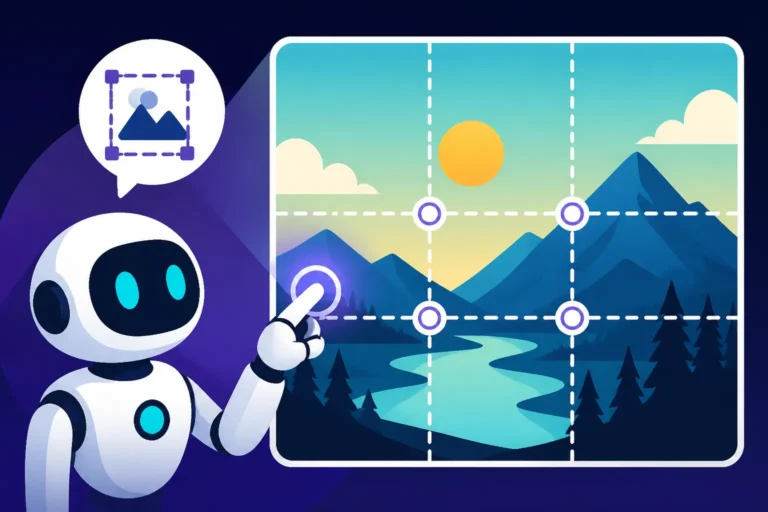
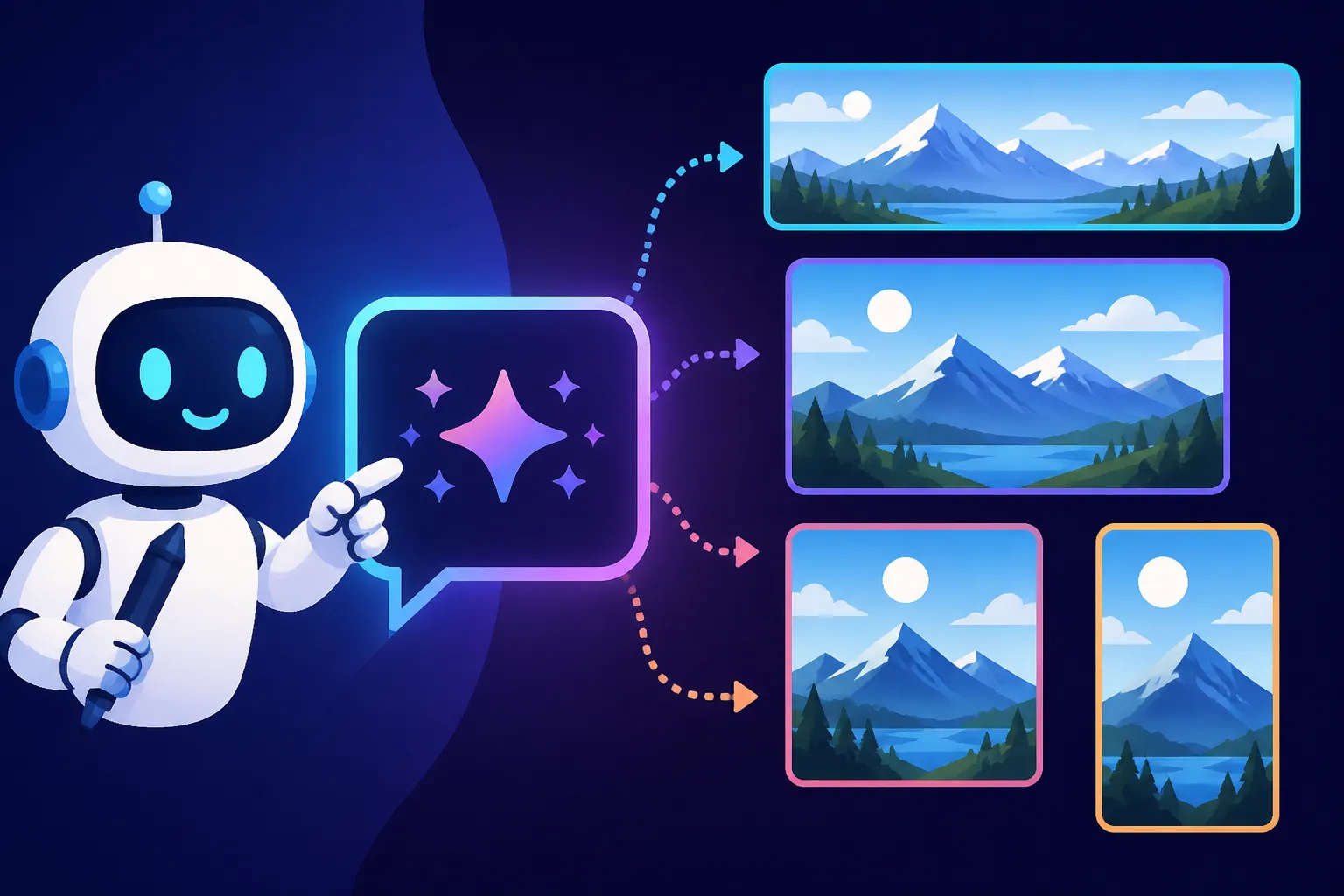
In the simplest terms, an aspect ratio describes the proportional relationship between an image's width and its height. It's typically expressed as two numbers separated by a colon, like 1:1, 16:9, or 4:5. The first number always represents the width, and the second represents the height. So, a 16:9 ratio means that for every 16 units of width, there are 9 units of height, resulting in a distinctly widescreen format. Conversely, a 9:16 ratio flips that, giving you a tall, narrow image.
Why does this matter so much for AI art? Well, imagine trying to create a stunning cinematic landscape but your AI tool insists on giving you square images. The composition will feel cramped, the sweeping vistas you imagined will be lost, and the entire impact will be diminished. The aspect ratio fundamentally shapes how elements are framed, how depth is perceived, and ultimately, how effective your image is for its intended use. Without control over this, you're constantly fighting against the canvas.
Why AI Tools Default to Square (and Why That's Limiting)
Many popular AI image generators, especially when you're just starting out or using their basic free tiers, often default to a 1:1 (square) aspect ratio. There's a practical reason for this: square images are versatile. They fit neatly into social media feeds, profile pictures, and many gallery layouts without awkward cropping. They're also often simpler for the AI model to generate consistently without running into complex composition issues that arise with extremely wide or tall formats.
However, this default can be incredibly limiting for creators with specific visions. If you're designing a YouTube thumbnail, a vertical Pinterest pin, an Instagram Story, or a blog header, a square image simply won't cut it. You'll end up with forced cropping, awkward white spaces, or a complete loss of your intended framing. It forces you into a box, quite literally, and stifles the creative freedom that AI tools are supposed to provide. Understanding how to break free from the 1:1 default is one of the first steps to truly mastering your AI image generation workflow.
Common Aspect Ratios and Their Creative Applications
Different aspect ratios evoke different feelings and are ideal for various platforms. Knowing which ratio to aim for is half the battle; the other half is knowing how to tell your AI tool to generate it. Let's explore some of the most common ratios and where they shine.
Landscape Ratios: Wider Than Tall
Landscape ratios are all about expansiveness, offering a broader view that's perfect for scenes, environments, and general photography that aims to capture a wider perspective.
- 16:9 (Widescreen): This is the king of digital media. Think YouTube videos, TV screens, computer monitors, and most presentations. It's fantastic for cinematic scenes, sweeping landscapes, or any image where you want a horizontal, immersive feel. When you're trying to create AI Images for Youtube Thumbnails, 16:9 is your go-to.
- Prompt Example: "A majestic ancient dragon soaring over a vast, snow-capped mountain range at sunset, epic fantasy art, 16:9 aspect ratio."
- Creative Application: Perfect for website banners, video thumbnails, digital wallpapers, and anything that needs to fill a modern screen.
- 3:2 (Classic Photography): A beloved ratio in traditional photography, 3:2 offers a slightly less aggressive widescreen feel than 16:9. It's often associated with professional prints and offers a balanced horizontal composition.
- Prompt Example: "A street market scene in Marrakech, bustling with activity, warm lighting, photographic style, 3:2 aspect ratio."
- Creative Application: Excellent for print photography, fine art, and images where a more classic, less digital-looking horizontal frame is desired.
- 21:9 (Ultrawide/Cinemascope): This ratio is truly cinematic, even wider than 16:9. It creates an ultra-immersive, panoramic feel, often seen in blockbuster movies.
- Prompt Example: "Two astronauts exploring a vibrant alien jungle, distant futuristic city on the horizon, highly detailed, cinematic lighting, 21:9 aspect ratio."
- Creative Application: Ideal for very dramatic, expansive scenes, movie posters, or digital art meant to evoke a strong sense of scale and depth.
Portrait Ratios: Taller Than Wide
Portrait ratios orient the viewer's eye vertically, emphasizing height, subjects, and often leading to more intimate or focused compositions. They're indispensable for mobile-first content.
- 9:16 (Vertical Widescreen): The opposite of 16:9, this is the standard for vertical video and phone displays. Think Instagram Stories, TikToks, and phone wallpapers. It's perfect for full-body shots, towering architecture, or anything that benefits from a strong vertical emphasis.
- Prompt Example: "A young woman standing on a balcony overlooking a neon-lit futuristic cityscape at night, dramatic rain, cyberpunk aesthetic, 9:16 aspect ratio."
- Creative Application: Crucial for social media stories (Instagram, Facebook, Snapchat), mobile wallpapers, and vertical advertisements.
- 2:3 (Classic Portrait Photography): Similar to 3:2, but flipped. This is a common aspect ratio for classic portrait photography and many magazine covers. It feels balanced and natural for depicting people or vertical objects.
- Prompt Example: "A serene portrait of an elderly wizard with a long white beard, intricate magical staff, soft lighting, detailed texture, 2:3 aspect ratio."
- Creative Application: Best for portraits, book covers, and any image that benefits from a traditional, elegant vertical composition. If you're looking into AI images for book covers, this is a strong contender.
- 4:5 (Instagram Friendly): A slightly less tall portrait ratio than 2:3, 4:5 is widely used on Instagram and other platforms that favor a more "stretched" square. It offers more vertical room than a square but isn't as narrow as 9:16, making it versatile.
- Prompt Example: "A cozy cafe interior with warm lighting, steam rising from coffee cups, focus on hygge aesthetic, highly detailed, 4:5 aspect ratio."
- Creative Application: Excellent for Instagram feed posts, Pinterest pins, and general web graphics that need a bit more vertical presence than a square.
Square Ratios: The Classic
Ah, the reliable square. While often the default, it still holds its own for specific uses.
- 1:1 (Perfect Square): This ratio has equal width and height. It's symmetrical, balanced, and perfect for images where the focus is central and doesn't require horizontal or vertical emphasis.
- Prompt Example: "A close-up of a vibrant sunflower against a clear blue sky, highly detailed petals, bright sunlight, 1:1 aspect ratio."
- Creative Application: Ideal for profile pictures, many social media posts (especially on older Instagram feeds), icons, and images where symmetry and direct focus are key. It's still king for many AI Images for Logos.
Here's a quick summary table of common aspect ratios and their primary uses:
| Aspect Ratio | Description | Common Use Cases | Creative Impact |
|---|---|---|---|
| 16:9 | Widescreen (Landscape) | YouTube videos, TV, desktop wallpapers, cinematic scenes | Expansive, immersive, cinematic |
| 3:2 | Classic Photo (Landscape) | Print photography, art prints, balanced horizontal images | Professional, traditional, natural horizontal feel |
| 21:9 | Ultrawide (Landscape) | Ultra-cinematic, panoramic views, very wide digital displays | Dramatic, epic, highly immersive |
| 1:1 | Square | Instagram posts, profile pictures, icons, product showcases | Balanced, symmetrical, direct focus |
| 4:5 | Instagram Portrait | Instagram posts, Pinterest pins, slightly taller social graphics | More vertical room than square, mobile-friendly |
| 2:3 | Classic Portrait | Portrait photography, book covers, posters, vertical art prints | Elegant, traditional, natural vertical feel |
| 9:16 | Vertical Widescreen | Instagram Stories, TikTok, mobile phone wallpapers, vertical ads | Dynamic, mobile-first, strong vertical emphasis |
Prompting Techniques for Specific Aspect Ratios in Popular Tools
Now for the actionable stuff! How do you actually get these ratios out of your favorite AI tools? Each platform has its own syntax or preferred method, and understanding these nuances is critical.
Midjourney's --ar Parameter
Midjourney is renowned for its powerful image generation and its relatively straightforward aspect ratio control. It uses a specific parameter called --ar followed by the desired ratio.
Let's say you want a widescreen image for a digital banner:
/imagine prompt: a futuristic cityscape with flying cars, neon lights, rainy atmosphere, cinematic, detailed --ar 16:9
Or a vertical image for an Instagram Story:
/imagine prompt: a whimsical forest spirit dancing in a sunlit glade, fantasy art, glowing mushrooms, intricate details --ar 9:16
Key things to remember about --ar in Midjourney:
- Placement: The
--arparameter (and any other parameters like--style rawor--v 6.0) always goes at the very end of your prompt. - Valid Ratios: Midjourney is quite flexible, but extremely unusual ratios might not yield perfect results or might get slightly adjusted. Stick to common ratios like 16:9, 3:2, 1:1, 2:3, 9:16 for best consistency. You can even use decimal formats, like
--ar 1.77for 16:9, but the colon format is more commonly understood. - Impact on Composition: Changing the aspect ratio doesn't just crop an image; it guides Midjourney's composition engine. A prompt for a 16:9 image will likely place elements horizontally to fill the frame, while a 9:16 image will arrange them vertically. This is where the magic happens and where a tool like Midjourney really shines. For more in-depth control over your images, you might want to check out our Midjourney Prompt Guide.
DALL-E and Integrated Tools
DALL-E, especially when accessed through interfaces like ChatGPT or directly through Microsoft Designer, often operates a bit differently. It's more about natural language understanding than explicit parameters for aspect ratios.
While DALL-E 3, as integrated into ChatGPT Plus or Microsoft Designer, might not have a direct --ar command like Midjourney, it's remarkably good at understanding natural language requests.
How to prompt for DALL-E:
- Descriptive Language: You typically state your desired aspect ratio within the prompt itself.
- Prompt Example (Landscape): "Generate an image of a serene beach at sunrise, with soft pastel colors and gentle waves, in a 16:9 aspect ratio."
- Prompt Example (Portrait): "Create a dramatic portrait of a knight in shining armor, standing in a medieval castle courtyard, with a stormy sky, tall and narrow like a 9:16 phone background."
- Prompt Example (Square): "Design a minimalist logo of a soaring eagle for an outdoor brand, perfectly square."
- Image Dimensions: Sometimes, you can even request specific pixel dimensions, and DALL-E will often try to infer the aspect ratio from that. For instance, "Generate an image of a cozy living room, 1920×1080 pixels." This implies a 16:9 ratio.
- Default Behavior: If you don't specify, DALL-E often defaults to a square (1:1) or a close variation. Always be explicit if you need something different. For additional tips on getting the most out of this tool, take a look at our DALL-E Prompt Guide.
Stable Diffusion and Custom Aspect Ratios
Stable Diffusion is a beast of a different color, offering incredible flexibility, especially if you're running it locally or through a web UI like Automatic1111 or ComfyUI. Here, you have very granular control over your image dimensions, which directly dictates the aspect ratio.
- Direct Pixel Input: In most Stable Diffusion interfaces, you'll find sliders or input fields for "Width" and "Height" in pixels. This is where you set your aspect ratio.
- For a 16:9 image, you might set Width: 1024, Height: 576 (or multiples like 768×432, 1280×720).
- For a 9:16 image, you'd flip those: Width: 576, Height: 1024.
- For a 1:1 image, equal width and height: Width: 768, Height: 768.
- Aspect Ratio Presets: Some interfaces, like those on platforms offering Stable Diffusion as a service, might have dropdown menus with common aspect ratio presets (e.g., "Landscape 16:9", "Portrait 9:16").
- Impact of Dimensions: While highly flexible, be aware that pushing Stable Diffusion to extreme aspect ratios (e.g., super thin and long) can sometimes lead to distorted or less coherent images, especially with lower-resolution base models. You might need to adjust other parameters or use techniques like ControlNet to maintain coherence. Learning How to Write AI Prompts for Photorealistic Images in Stable Diffusion often involves understanding these dimension trade-offs.
Ideogram for Specific Layouts
Ideogram has quickly gained a reputation for its excellent text rendering and graphic design capabilities, making it a strong contender for tasks like creating AI Images for Logos. Its interface often provides clear aspect ratio options directly on the generation screen.
- Dedicated Ratio Buttons: When you're typing your prompt in Ideogram, you'll typically see buttons or selectors for popular aspect ratios like 1:1, 16:9, 9:16, 3:2, 2:3, or even 4:5. You simply click the one that matches your need.
- How it Works: By providing these direct UI options, Ideogram is telling its underlying model to prioritize that composition from the outset. This often leads to more reliably structured images in the desired format, especially helpful when precise framing is crucial for graphic elements or text.
- Combining with Text: This direct control is particularly powerful when you're using Ideogram to generate images with specific text. You can ensure your text fits neatly within a wider banner or a taller social media graphic without being awkwardly cropped. Consider exploring our guide on Ideogram Prompts for Text and Logos for more specific applications.
Best Practices for Mastering Aspect Ratios
Getting your AI to understand aspect ratios isn't just about syntax; it's about strategy. There are a few overarching principles that can significantly improve your success rate and the quality of your output.
Experimentation is Key
It might sound obvious, but you'd be surprised how many creators stick to the same two or three ratios. The truth is, AI image generation is an art form, and experimentation is at its core. Don't just settle for 16:9 because it's "widescreen." Try a 3:2 or even a 21:9 to see how it changes the feeling of your scene.
Think about it like this: a subtle shift from 16:9 to 3:2 can make a dramatic landscape feel less like a movie still and more like a fine art print. A 4:5 ratio might provide just enough extra vertical breathing room for an Instagram carousel post compared to a strict 1:1 square, without becoming too tall. Different AI models also interpret ratios slightly differently, so what works perfectly in Midjourney might need a slight adjustment in DALL-E or Stable Diffusion. Don't be afraid to generate multiple variations with different ratios to discover which one truly captures your vision. This iterative process is crucial to improving your How to Get Better AI Image Results.
Considering the End Use Case
This is perhaps the single most important factor when choosing an aspect ratio. Don't generate an image in a vacuum. Always ask yourself: Where will this image be displayed?
- Social Media: Instagram is highly flexible, but 1:1 and 4:5 are common for feeds, while 9:16 is essential for Stories. Facebook often handles a mix, but 16:9 for ads and 1:1 for profile pictures are standard. If you're creating AI Images for Social Media, tailor your aspect ratio to the specific platform and placement.
- Websites and Blogs: Header images often benefit from a wide 16:9 or even 21:9. Inline blog images might work well as 3:2 or 16:9 to give a professional look.
- Print Media: Posters, book covers, and flyers generally adhere to standard print sizes, which translate to ratios like 2:3, 3:4, or specific ISO paper sizes (which have their own distinct ratios).
- Video Content: Anything for YouTube or Vimeo will almost always need to be 16:9 for thumbnails and content.
Generating an image with the wrong aspect ratio means extra work in post-processing – cropping, stretching (which can look terrible), or adding borders. By planning ahead and prompting for the correct ratio, you save time and ensure your final output is pristine. It's about optimizing your workflow from the very first prompt.
Troubleshooting Common Aspect Ratio Issues
Even with the right commands, AI image generators can sometimes surprise you. Here are a few common issues and how to troubleshoot them:
- Distorted or Stretched Images: If your characters or objects look oddly elongated or squashed, the AI might be struggling to fill the requested aspect ratio while maintaining coherence.
- Solution: Try a less extreme ratio first. If you're pushing for 21:9, try 16:9 and see if the distortion lessens. You might also need to simplify your prompt slightly or add more descriptive details about the composition within that ratio (e.g., "a wide panoramic view," "a tall, narrow frame"). In some tools like Stable Diffusion, adjusting guidance scales (CFG scale) or using specific models optimized for wider canvases can help.
- Unwanted Cropping/Empty Space: Sometimes, the AI gives you the right ratio, but it crops off important elements or leaves large, awkward empty spaces.
- Solution: This often means your prompt wasn't descriptive enough about what should be within that frame. If you want a full-body character in a 9:16 image, explicitly say "full-body shot, character centered." If you want elements spread out in a 16:9, mention "wide composition" or "elements distributed horizontally." You might also need to use negative prompts to tell the AI what not to include, like
--no empty space(if your tool supports negative prompting).
- Solution: This often means your prompt wasn't descriptive enough about what should be within that frame. If you want a full-body character in a 9:16 image, explicitly say "full-body shot, character centered." If you want elements spread out in a 16:9, mention "wide composition" or "elements distributed horizontally." You might also need to use negative prompts to tell the AI what not to include, like
- Ignoring the Ratio Command: If your AI tool consistently ignores your
--aror natural language request, double-check your syntax.- Solution: For Midjourney, ensure
--aris at the very end. For DALL-E, try rephrasing your request more explicitly (e.g., "Generate a square image" instead of "square format"). Sometimes, the AI model's current version might have a bug or be less responsive to aspect ratio commands, requiring you to try a different tool or wait for an update. Also, remember that some tools like Playground AI Review or NightCafe Review might have their own specific methods, so consulting their documentation is always a good idea.
- Solution: For Midjourney, ensure
Mastering aspect ratios is a fundamental skill in AI image generation. It elevates your creations from generic squares to perfectly framed masterpieces, ready for any platform or purpose. Keep experimenting, keep learning, and your AI images will thank you for it!
Disclaimer
Please note that the information provided in this guide is for general informational purposes only and is based on current knowledge of AI image generation tools. The capabilities, features, and syntax of AI models are constantly evolving. Always refer to the most up-to-date documentation or user guides for specific AI tools like Midjourney, DALL-E, Stable Diffusion, or Ideogram for the most accurate and current information.