Krea Realtime vs Batch Review
Navigating the world of AI image generation can feel like a constant tug-of-war between speed and perfection. You want images quickly for your blog post or social media, but you also need them to look polished and professional, right? It's a common dilemma for content creators, designers, and hobbyists alike. This guide dives deep into Krea AI's two primary generation modes – Realtime and Batch – to help you understand which one best suits your immediate creative needs and long-term project goals.
Understanding Krea AI's Core Offering
Krea AI has quickly made a name for itself in the bustling AI art scene by offering a unique approach to image generation. Unlike many tools that present a static prompt box and then make you wait for results, Krea AI leans into a more dynamic and interactive creative process. This focus on iterative design and immediate feedback is what truly sets it apart. But even within its innovative framework, Krea recognizes that different creative tasks demand different workflows, leading to the development of its distinct Realtime and Batch processing modes. It's about giving you the flexibility to either sketch out ideas at lightning speed or meticulously craft high-quality outputs.
The Philosophy Behind Krea AI's Design
At its heart, Krea AI aims to be more than just another text-to-image generator; it strives to be a creative co-pilot. The developers understand that artists and creators often work in bursts of inspiration, needing tools that can keep up with their thought process rather than bottleneck it. This is why you'll find an emphasis on intuitive interfaces and rapid iteration capabilities. They want to minimize the friction between your idea and its visual manifestation, allowing for a more fluid and less frustrating creative journey. This philosophy is evident in how both Realtime and Batch modes are designed to empower users, whether they're just brainstorming or finalizing a project for a client.
Getting Started with Krea AI
If you're new to the platform, jumping into Krea AI can feel a little different than other tools you might have tried. The interface encourages experimentation from the get-go. You'll typically encounter a canvas where you can draw, input text prompts, and watch as the AI transforms your inputs almost instantaneously. This immediate feedback loop is critical to understanding Krea's appeal. Before you even delve into the specifics of Realtime versus Batch, you'll notice how responsive the tool feels. It’s built for creators who want to see their ideas take shape without significant delays, making it a powerful platform for rapid prototyping and visual ideation. If you're looking for a general overview, our in-depth Krea AI Review provides even more context.
Krea Realtime: Instant Gratification, Immediate Iteration
Krea Realtime is precisely what it sounds like: AI image generation happening in real-time, right before your eyes. Imagine typing a prompt, or even just sketching a rough shape on a canvas, and watching the AI model interpret and render it instantly. This isn't about waiting minutes for four variations; it's about seconds, or even milliseconds, of continuous feedback as you tweak your inputs.
How Realtime Generation Works
The magic of Krea Realtime lies in its incredibly low latency processing. As you type a word into the prompt box, or draw a line with your mouse, the AI continuously refines the image based on your evolving input. It's like having an impossibly fast illustrator who can immediately visualize your thoughts. This mode is often powered by optimized models designed for speed, prioritizing quick feedback over ultimate pixel perfection. The image quality might not be studio-grade at this stage, but the sheer speed allows for an unparalleled creative flow. You can cycle through ideas, experiment with different styles, and quickly discard concepts that aren't working, all without losing your train of thought. This interactive nature makes it a fantastic tool for brainstorming or when you need to explore a wide range of visual concepts rapidly. If you've ever struggled with the dreaded "blank canvas," Krea Realtime can be a fantastic way to break through that barrier.
Advantages of Realtime for Creative Exploration
The biggest draw of Krea Realtime is its ability to foster rapid creative exploration. Think about it: instead of committing to a prompt and waiting, you're constantly engaged in a dialogue with the AI. You can quickly test different keywords, adjust stylistic modifiers, or even use image-to-image controls to guide the composition. This makes it perfect for early-stage design work, mood boarding, or simply trying to visualize an abstract idea. For instance, a blogger might use Krea Realtime to mock up dozens of potential blog post header images in minutes, seeing which visual metaphors best convey their article's message. It's an excellent way to generate ideas without the pressure of needing a final product right away. If you're experimenting with different aesthetic directions, this is where Krea Realtime truly shines, allowing you to quickly determine the Best AI Image Generator for Speed for your rapid prototyping needs.
Limitations and When to Avoid Realtime
While incredibly powerful for ideation, Krea Realtime isn't without its limitations. The primary trade-off for its blistering speed is usually resolution and fine-grained detail. Images generated in realtime might appear slightly less polished, with occasional artifacts or less intricate textures compared to their batch-processed counterparts. For projects requiring high-fidelity graphics, crisp lines, or perfect photorealism, relying solely on Realtime mode might leave you wanting more. It's not designed for producing print-ready artwork or high-resolution assets for a major marketing campaign directly. For example, if you're designing a book cover where every detail counts, you wouldn't typically rely on Realtime as your final output method. It's a fantastic starting point, but rarely the finish line for professional-grade work.
Krea Batch: Precision, Quality, and Scalability
When your project demands a higher level of polish, detail, and control, Krea Batch mode steps in. This is where you move beyond quick sketches and into crafting images that are ready for prime time. Batch processing in Krea allows the AI more time and computational resources to render images with greater fidelity, complexity, and adherence to your prompt's nuances.
The Mechanics of Batch Processing
In Krea Batch mode, you'll typically input your detailed prompt, possibly fine-tune settings like resolution, model strength, and seed, and then queue the image for generation. Unlike Realtime's continuous feedback, Batch mode is a discrete process: you set the parameters, hit generate, and the system processes your request, often taking a bit longer but delivering a superior result. This mode can leverage more powerful models and apply more sophisticated rendering techniques, leading to images with finer details, better color accuracy, and fewer inconsistencies. It's the difference between a rough sketch and a finished painting; both have their place, but the latter requires more deliberate effort and processing power. For creators who need to ensure every pixel is perfect, Batch mode provides the necessary environment to achieve that level of quality.
Unleashing Detail and Control with Batch
The core strength of Krea Batch lies in its ability to produce high-quality, detailed images. This is where you can truly leverage complex prompts, ensuring that every element, from lighting to material textures, is rendered accurately. For instance, a graphic designer creating product photography for an e-commerce store would rely on Batch mode to generate crisp, commercially viable images that showcase their items in the best possible light. You can specify intricate details like "macro shot, dew drops glistening on a vibrant rose petal, golden hour lighting, cinematic depth of field," and expect the Batch mode to deliver on that specificity with far greater precision than Realtime. This mode often comes with more advanced controls too, allowing you to fine-tune aspects that are crucial for a polished final product. If you're aiming for outputs that could rival traditional photography or commissioned artwork, Batch is your go-to.
Ideal Scenarios for Using Batch Mode
Krea Batch mode is indispensable for any project where the final output quality is paramount. This includes creating images for commercial use, such as advertising campaigns, website hero images, book covers, or high-resolution prints. It's also ideal for artists who need intricate details for their digital art portfolios or for game developers generating detailed textures and character concepts. Essentially, any scenario where you need images that are consistently high-quality, with precise execution of your creative vision, calls for Batch processing. If you're an agency client needing visuals for a new brand launch, for example, you'd confidently submit your prompts to Krea's Batch mode, knowing it's built to deliver production-ready assets. When comparing different tools, you might find that Krea Batch stands out as a strong contender for the Best AI Image Generator for Quality.
Krea Realtime vs. Batch: A Direct Comparison
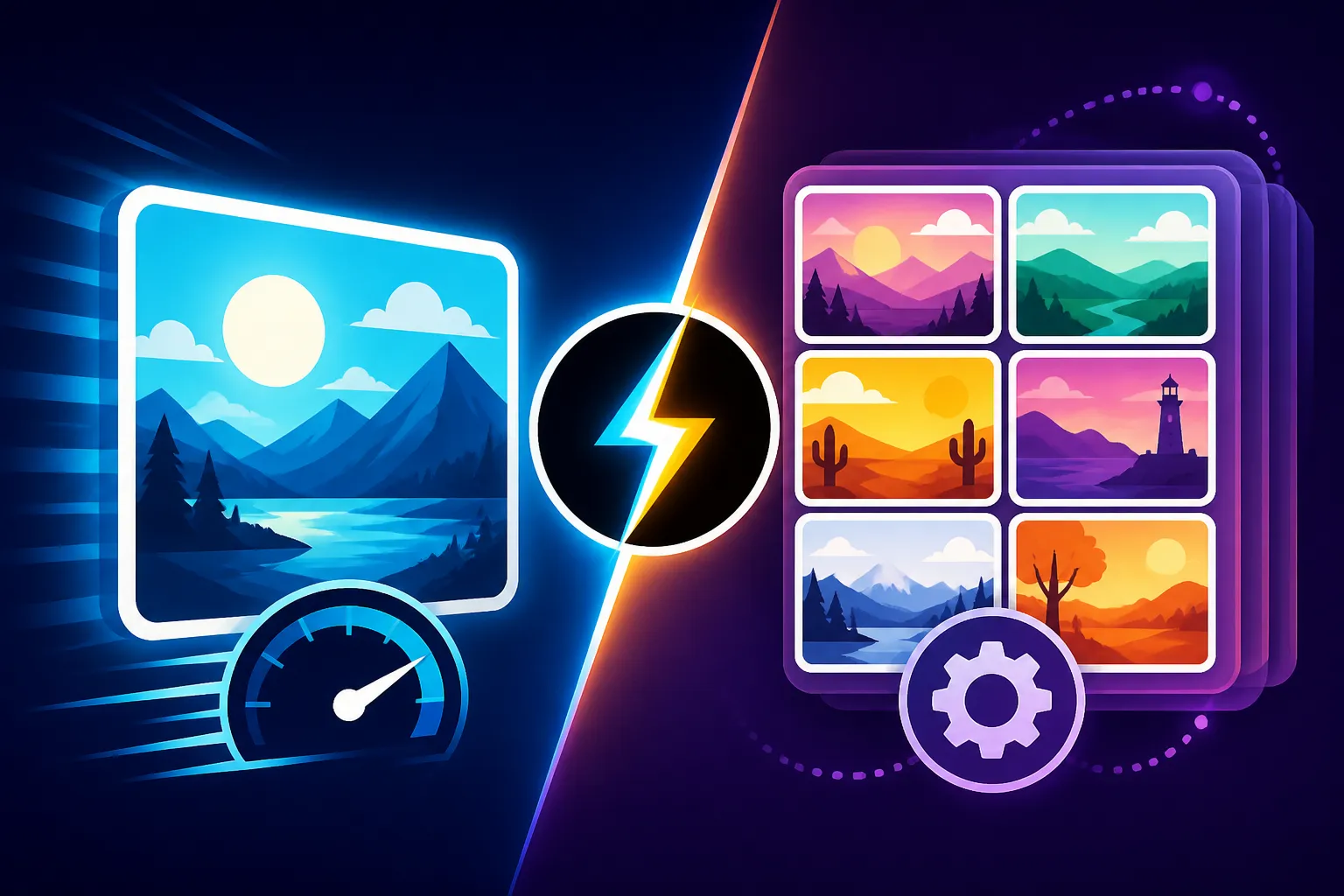
To help you decide which mode to use and when, let's lay out the key differences between Krea Realtime and Batch mode in a straightforward comparison. Understanding these distinctions is crucial for optimizing your workflow and achieving the best results for your projects.
| Feature | Krea Realtime | Krea Batch |
|---|---|---|
| Primary Goal | Rapid Ideation, Creative Exploration | High-Quality Output, Precision, Final Renders |
| Speed | Instant, continuous feedback | Slower, queued processing |
| Resolution | Generally lower, good for previews | Higher, suitable for professional use |
| Detail & Quality | Good for rough concepts, may have artifacts | Excellent, fine-grained details, polished |
| Control | More interactive, less granular | More granular controls (e.g., specific seeds, advanced parameters) |
| Use Cases | Brainstorming, mood boards, quick mockups | Commercial assets, print media, detailed art, final production |
| Computational Cost | Lower per iteration (though continuous) | Higher per image (due to more complex rendering) |
| Best For | Exploratory phases, quick visual checks | Production-ready assets, client work, high-fidelity needs |
This table clearly illustrates the divergent strengths of each mode. Neither is inherently "better"; they simply serve different purposes within the creative pipeline.
Choosing Your Mode: When to Use Realtime vs. Batch
The choice between Krea Realtime and Krea Batch isn't about one being superior, but about aligning the tool with your specific task at hand. Just like you wouldn't use a paintbrush to lay down a concrete foundation, you wouldn't necessarily use Realtime mode for a high-stakes client presentation.
Optimizing Your Workflow with Realtime First
For most creative endeavors, adopting a "Realtime first" approach can significantly streamline your workflow. Start with Krea Realtime when you're in the initial brainstorming phase. Let's say you're designing a new logo concept. Instead of meticulously crafting a complex prompt and waiting for a batch result, use Realtime to quickly test different icons, fonts, and color palettes. Type in "minimalist lion logo," then add "geometric," then "stylized," and watch the iterations flow. This immediate visual feedback helps you home in on a strong direction much faster. You can quickly iterate through many ideas, identify what resonates, and refine your core concept before investing more time. It's about sketching with the AI, letting it help you find the creative kernel. This iterative process is incredibly efficient for understanding How to Write AI Image Prompts effectively and seeing their immediate impact.
Transitioning to Batch for Final Polish
Once you've nailed down the core concept, composition, and general aesthetic using Krea Realtime, that's when you transition to Batch mode. Take your refined prompts, add any specific technical details (like exact aspect ratios, specific lighting conditions, or advanced stylistic modifiers), and generate your high-resolution final outputs. This methodical approach ensures that you're only spending valuable batch processing time on images that have already passed your initial creative vetting. For example, after quickly mocking up several thumbnail ideas for a YouTube video in Realtime, you'd pick the strongest one, refine its prompt to include details like "vibrant colors, dramatic shadows, crisp typography," and then generate the final version in Batch mode. This allows you to leverage the speed of Realtime for discovery and the precision of Batch for delivery. It's truly the best of both worlds, and a fantastic strategy for those looking to Get Better AI Image Results consistently.
Practical Workflow Integration and Best Practices
Integrating Krea Realtime and Batch modes into your daily creative workflow can revolutionize how you approach design and content creation. It's not just about using the tools, but using them intelligently to maximize efficiency and output quality.
Combining Both Modes for Maximum Efficiency
Consider a scenario where you're a marketing professional tasked with generating a series of diverse ad creatives for a new product launch. You could start in Krea Realtime, quickly exploring different visual themes: "product in a vibrant, futuristic city," then "product in a serene natural landscape," then "product with abstract, colorful elements." As you discover promising directions, you’d save those preliminary concepts. Then, for the chosen themes, you’d switch to Krea Batch. Here, you'd refine the prompts with specific details about lighting, camera angles, and textures to ensure the images are pixel-perfect and align with your brand guidelines. You might even use other tools to Upscale AI Images generated in Batch mode for even higher resolution needs. This seamless transition from rapid ideation to detailed execution is where Krea AI truly shines, allowing you to move quickly without sacrificing quality.
Tips for Effective Prompting in Each Mode
The way you prompt can vary slightly between Realtime and Batch. In Realtime, focus on broad strokes and keywords that evoke a general mood or style. Don't be afraid to experiment with single words or short phrases to see instant reactions. For example, start with "forest," then add "magical," then "glowing mushrooms." In Batch mode, however, precision is your ally. This is where you bring in descriptive adjectives, specific art styles (e.g., "hyperrealistic oil painting," "cinematic rendering"), lighting conditions, and camera angles. Think of it like this: Realtime is brainstorming with sticky notes, while Batch is writing a detailed blueprint. Learning How to Write AI Prompts for Photorealistic Images or for specific artistic styles becomes much more critical when you're aiming for that final, polished Batch output.
When to Consider Other AI Tools
While Krea AI offers powerful Realtime and Batch capabilities, it's also smart to know when another tool might be a better fit for a very specific need. For example, if your primary goal is generating images with complex, perfectly legible text embedded directly into them, you might want to explore alternatives like Ideogram AI, which is known for its strong text rendering capabilities. If you need highly customizable models or local control, Stable Diffusion might be on your radar. Similarly, for those deeply entrenched in the Adobe ecosystem, Adobe Firefly offers seamless integration with Photoshop and Illustrator. Krea AI is excellent for its interactive generation, but a diverse toolkit often serves creators best. Understanding these distinctions helps you determine the Best AI Image Generator Overall for your unique needs.
Disclaimer
The information provided in this article is for general informational purposes only and does not constitute professional advice. AI image generation technology is rapidly evolving, and features, pricing, and capabilities of tools like Krea AI may change. Always refer to the official Krea AI website or documentation for the most up-to-date and accurate information.