How to Get the Most from Playground AI Free Plan
It can be incredibly frustrating when you're bursting with creative ideas but hit a paywall trying to bring them to life with AI image generators. Many tools promise amazing visuals, but their free tiers often feel restrictive or confusing, leaving you wondering if it's even worth the effort. This comprehensive guide is here to walk you through exactly how to squeeze every last drop of value from the Playground AI free plan, helping you create stunning visuals without breaking the bank.
Understanding the Playground AI Free Plan's Core Offerings
Alright, let's get real about what Playground AI offers without costing you a dime. It’s one of the more generous free AI image generators out there, which is a huge relief for many of us who are just starting out or working on a tight budget. They don't hide their core functionalities behind a premium subscription, which is a big win. You get access to a substantial amount of daily generations, some powerful editing tools, and the freedom to use your creations for commercial purposes, all without a watermark.
Daily Generation Limits and Renewal
The cornerstone of any free plan is usually a daily credit or generation limit, and Playground AI is no different. Typically, free users get a generous allowance of images per day. This isn't just a handful; we're talking about hundreds of images, which for many casual users or even small projects, is more than enough to get going. The key here is understanding that this isn't an unlimited, free-for-all. Once you hit your limit, you'll need to wait until the next day for your credits to refresh. This daily reset usually happens at a specific time, often aligned with Coordinated Universal Time (UTC), so it's worth checking their official FAQ or dashboard to pinpoint when your account refreshes. Knowing this can help you plan your creative sessions, especially if you have a batch of ideas you want to tackle. It's a bit like having a daily allowance for your digital art supplies – use them wisely, and you'll always have something to work with.
For instance, if you're working on a series of blog post illustrations, you might decide to dedicate an hour each morning after your credits reset to generate your core images. Then, later in the day, you can use the remaining credits for variations or fine-tuning, knowing you have a fresh batch coming tomorrow. This disciplined approach prevents you from running out of steam mid-project.
Commercial Use and Licensing
One of the biggest anxieties for anyone using free AI tools for professional or even semi-professional work is the question of commercial rights. Many free tiers slap watermarks on images or restrict their use to personal projects only, making them useless for a budding entrepreneur or content creator. This is where Playground AI truly shines among its peers; they offer commercial use rights for images generated on their free plan. This means you can create images for your blog, social media posts, small business website, or even print-on-demand products without worrying about legal repercussions. It's a massive relief, allowing you to focus on your creativity rather than navigating complex licensing agreements.
However, it's always smart to stay informed. While Playground AI generally grants commercial rights, the legal landscape for AI-generated art is constantly evolving. Always check their most current terms of service, as these can be updated. This gives you peace of mind that your fantastic AI-generated product mockups or social media graphics are legally yours to use and monetize. This freedom is a game-changer for small businesses and independent creators who need high-quality visuals but can't afford expensive stock photo subscriptions or graphic designers. For more on navigating this, you might find our guide on How to Use AI Images Without Copyright Issues helpful.
Essential Features You Still Get
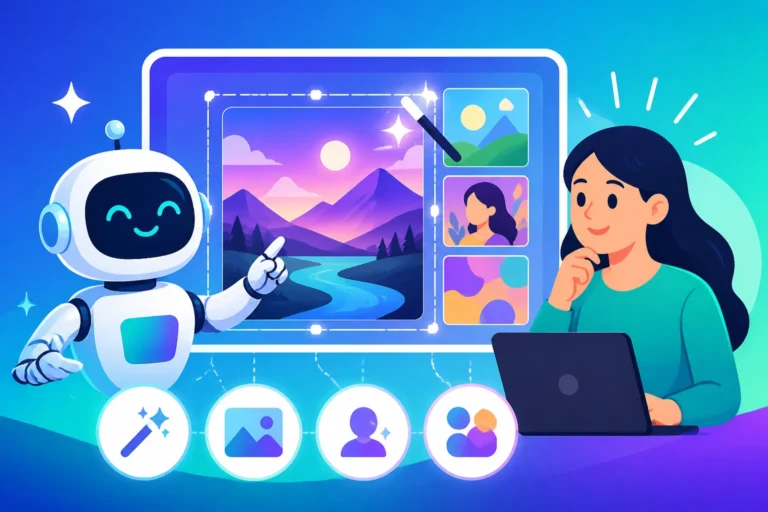
Beyond the generous image allowance and commercial rights, the Playground AI free plan doesn't skimp on features either. You'll find access to several powerful base models, including various versions of Stable Diffusion, which is fantastic for versatility. This means you aren't stuck with just one style or aesthetic. The platform also includes a robust canvas editor, which is far more than just a cropping tool. This editor allows you to extend images (outpainting), remove elements (inpainting), and composite multiple images or elements together directly within the interface. These aren't minor additions; these are features that can drastically improve the quality and utility of your generated images, letting you refine your creations far beyond the initial prompt.
Imagine you've generated a beautiful landscape, but the sky feels a little bland. With the free plan's canvas editor, you can easily select the sky area and prompt for a "dramatic sunset with swirling clouds" without needing to regenerate the entire image. Or perhaps you want to remove an unsightly object from an otherwise perfect image; the inpainting tool is your friend. This suite of editing capabilities is a huge differentiator for Playground AI and allows for a lot of creative freedom, even on the free tier.
Maximizing Your Daily Image Allotment
Hitting that daily generation limit can feel like running into a brick wall, especially when you're in a creative flow. But with a few smart strategies, you can make every single one of your free Playground AI credits count, ensuring you get the most visual bang for your buck. It’s all about working smarter, not harder.
Smart Prompting for Better Results
The single most impactful way to conserve your credits and elevate your results is through skillful prompting. Many beginners just type in a few words and hope for the best, but AI models, especially powerful ones like those used by Playground AI, thrive on detail and specificity. Think of your prompt as giving instructions to a very literal artist. The more information you provide about the subject, style, lighting, composition, and mood, the closer the AI will get to your vision on the first try. This reduces the need for countless re-generations to get it "just right."
For instance, instead of "dog running," try "a golden retriever joyfully running through a sun-drenched meadow, shallow depth of field, golden hour lighting, hyperrealistic, dynamic motion blur." See the difference? That level of detail guides the AI precisely. Don't forget to leverage negative prompts too – these tell the AI what not to include, like "blurry, ugly, distorted, extra limbs, watermark." Getting good at this is fundamental. If you're looking for an in-depth dive, our guide on How to Write AI Image Prompts is a fantastic resource. Iteration is also key: if your first image isn't perfect, analyze what's missing or wrong, tweak your prompt, and try again, rather than just hitting "generate" repeatedly with the same basic prompt.
| Prompt Strategy | Description | Example | Benefit |
|---|---|---|---|
| Specificity | Detail subject, action, setting, color. | "A majestic red fox with thick fur, sitting alertly on a snow-covered log in a dense winter forest, soft morning light filtering through the trees, highly detailed, realistic." | Reduces ambiguity, yields closer results faster. |
| Style Modifiers | Specify artistic style, artist, or render type. | "An old Victorian house, haunted, foggy night, painted in the style of Edward Hopper, oil painting, dramatic shadows." | Controls aesthetic, prevents generic outputs. |
| Negative Prompts | Tell the AI what to avoid. | "beautiful woman, intricate dress, vibrant colors, flowing hair, –neg (ugly, deformed, disfigured, poor quality, bad anatomy, extra limbs, watermark, blurry)" | Cleans up common AI imperfections, refines output. |
| Lighting/Atmosphere | Describe light source, time of day, mood. | "Mysterious ancient ruins shrouded in mist, moonlight casting long shadows, eerie atmosphere, cinematic, high contrast." | Sets the tone, adds depth and realism. |
Leveraging Iteration and Variations
Once you get a promising initial image, Playground AI often provides options to generate variations or to use that image as a "seed" for further creations. This is a credit-saving superpower! Instead of writing a completely new prompt and spending another credit from scratch, you can often click a button to get slight modifications of an image you already like. This allows you to explore different angles, compositions, or subtle changes in style without burning through credits on entirely new concepts.
For example, if you generate an image of a character you like, you can ask for variations to see them in different poses or with minor costume adjustments. Many tools also allow you to use an image as an "image prompt" or "image reference," meaning the AI takes the visual cues from your uploaded (or previously generated) image and combines them with your text prompt. This is fantastic for maintaining consistency across a series of images, like character art for a story or product shots that need a similar aesthetic. Always look for these "make variations" or "use as reference" options; they are gold for free users. Utilizing these features can significantly extend the mileage you get from your daily allocation, ensuring your creative momentum doesn't grind to a halt.
Strategic Upscaling and Editing
Many AI image generators, especially on free tiers, will give you decent-sized images, but sometimes you need higher resolution for print or professional use. Playground AI offers upscaling options. However, upscaling often counts as a new operation, potentially consuming another credit. So, the strategy here is to only upscale images that you are absolutely sure you want to use. Don't upscale every image you generate; be discerning. Generate a batch, pick your top contenders, and then upscale those few select images.
Additionally, leverage the built-in canvas editor for minor tweaks and refinements rather than regenerating an entirely new image. Let's say your generated image has a small, distracting element or you want to expand the canvas slightly to fit a specific aspect ratio. Using the inpainting or outpainting features within the editor is far more efficient than generating a brand new image, hoping it comes out perfect. This editing capability is robust, letting you move, remove, or add elements, or even change parts of the image based on a new text prompt, all on the same canvas. It's a fantastic way to refine your initial outputs without spending more credits on new generations. For more advanced editing techniques, you could explore our guide on Playground AI Editing Review.
Advanced Techniques for Free Users
Just because you're on a free plan doesn't mean you're stuck with basic functionality. Playground AI offers several advanced features that, with a little know-how, can dramatically enhance your creative output without costing a cent. These techniques really let you push the boundaries of what's possible on a budget.
Exploring Different Base Models
One of the often-overlooked advantages of Playground AI's free plan is access to a variety of base models. Many free tools limit you to just one or two models. Playground AI, however, typically allows you to switch between different versions of Stable Diffusion, and sometimes other models like Playgound v2.5 or custom models. Each model has its own strengths and weaknesses. Some are better for photorealism, others for artistic styles, and some excel at specific types of content like anime or abstract art. Experimenting with these different models can dramatically change the output of the same prompt.
For instance, if you're trying to achieve a hyperrealistic portrait, a Stable Diffusion XL model might be your best bet. But if you're aiming for a more illustrative, painterly style, an earlier Stable Diffusion version or a community-trained model might give you better results. Don't just stick with the default! Spend a few credits testing the same prompt across different models to see which one aligns best with your artistic vision. This exploration can save you many credits in the long run by helping you find the right tool for the job. Our guide on Stable Diffusion Review: Free and Customizable can give you even more insights into one of these powerful models.
Utilizing the Canvas Editor for Compositing
The canvas editor isn't just for minor touch-ups; it's a powerful tool for compositing and creating complex scenes. Think of it as your own digital art studio where you can build up an image layer by layer. You can start by generating a background scene, then generate a character or object separately, and finally import that character onto your background within the canvas. You can then resize, reposition, and even re-prompt elements of the character to better blend with the scene.
This technique is invaluable for free users because it allows you to break down complex image ideas into smaller, more manageable generations. Instead of trying to prompt for "a detailed medieval knight fighting a dragon in a fiery cave" all at once, which can be hit-or-miss, you can:
- Generate the fiery cave background.
- Generate the knight separately.
- Generate the dragon separately.
- Import all three onto the canvas and arrange them, using inpainting/outpainting to blend them seamlessly.
This modular approach gives you far more control and significantly increases your chances of getting a high-quality result without wasting credits on overly ambitious single prompts. It’s essentially a free way to achieve results that might typically require advanced photo editing software.
Integrating with External Free Tools
While Playground AI's free plan is robust, there might be times when you hit a specific limitation, like wanting an even higher resolution upscale without spending more credits, or needing a very specific type of background removal. This is where a smart free user knows how to leverage other free tools available online. For instance, if you've exhausted your Playground AI upscales but need a print-quality image, you can download your highest-resolution free image and then run it through a free online AI image upscaler like Upscayl or a free tier of a web-based upscaling service.
Similarly, if you need a specific background removed with more precision than Playground AI offers on its free tier, services like Remove.bg offer free credits for basic background removal. The trick is to identify your specific bottleneck and then find a supplementary free tool that addresses that particular need. This isn't about ditching Playground AI, but rather augmenting its capabilities to create a comprehensive free AI art workflow. Just remember to always be mindful of privacy and commercial use rights when using third-party tools. This combination approach ensures you're never truly stuck, even on a shoestring budget.
Overcoming Common Free Plan Limitations
Even the best free plans come with their own set of challenges. It's important to be realistic about these limitations and develop strategies to navigate them without getting discouraged. Recognizing these hurdles upfront helps you prepare and continue creating fantastic images.
Dealing with Rate Limits and Wait Times
The most obvious limitation of a free plan is the rate limit – the daily cap on how many images you can generate. This can be a real buzzkill when inspiration strikes late in the day, and you've already used up your credits. It forces you to be more deliberate with your prompts and to plan your creative sessions.
One way to deal with this is to treat your daily limit as a challenge, not a restriction. Prioritize your most important image needs first. If you need a hero image for a blog post, focus your early efforts on that. Save less critical, experimental generations for times when you have abundant credits. Another strategy is to embrace the "stop and think" approach. Instead of mindlessly generating, take a moment to evaluate each output. Ask yourself: "Is this good enough? How can I refine the prompt to get closer next time?" This mindful generation helps you use fewer credits more effectively. Additionally, if you have multiple quick ideas, consider writing them down in a notebook or digital document. That way, when your credits refresh, you have a backlog of prompts ready to go, maximizing your efficiency.
Managing Image Quality and Resolution
While Playground AI provides excellent quality images, the highest resolutions or the most pristine outputs might sometimes be reserved for paid tiers, or they might cost more credits. On the free plan, you'll still get very usable images, but you might notice occasional artifacts or less detail in certain complex scenes compared to what a premium user might achieve with more advanced models or higher sampling steps.
To combat this, focus on generating images that will be used in contexts where ultra-high resolution isn't absolutely critical, such as social media graphics, blog post images, or website visuals. For print or very large displays, you might need to rely more heavily on smart upscaling (as discussed earlier) or be very selective about the prompts you use, focusing on simpler scenes where details are less likely to get muddled. Remember, a good prompt often leads to a better initial image, which then scales better. Don't be afraid to add terms like "8K resolution," "highly detailed," or "photorealistic" to your prompts, even on the free plan, as these can still influence the output positively. Often, it's about making the most of the base quality you do have access to and then refining it.
The Commercial Use Caveats
While Playground AI generously offers commercial use rights for free plan images, it's crucial to understand the nuances and ongoing developments in the AI art space. "Commercial use" typically means you can sell, publish, or monetize your images. However, this doesn't always indemnify you against intellectual property claims if your AI model accidentally generates something that too closely resembles an existing copyrighted work, especially if that work was part of the training data. This is a complex and evolving legal area that affects all AI image generators, not just Playground AI.
For the free user, this means exercising a degree of caution. Avoid prompting for specific, copyrighted characters, brands, or artistic styles that are very distinctive. Stick to original concepts and generic themes when possible. While Playground AI makes it clear you own the commercial rights, they, like other AI companies, generally don't offer legal indemnification for free users. If commercial use is absolutely critical for your business and you need ironclad legal protection, you might eventually need to consider a paid plan from a provider that explicitly offers indemnification, like Adobe Firefly. But for most small creators and casual commercial use, Playground AI's free offering is more than sufficient.
Disclaimer
The information provided in this article is for general informational purposes only and does not constitute professional advice. While we strive to provide accurate and up-to-date information, the landscape of AI tools and their terms of service can change rapidly. Always consult the official terms and conditions of Playground AI or any other AI service provider for the most current and authoritative information. Use of AI image generators involves certain legal and ethical considerations, and users should exercise due diligence and discretion.